
To forecast production in Odoo, you use the Master Production Schedule in the Manufacturing app: you enter the forecasted demand for each product, period by period, and Odoo calculates the quantity to manufacture to maintain the safety stock you set. Manufacturing orders are then launched from the same table, with the “Order” button.
The tool is called the Master Production Schedule, which is why it is often referred to simply as the “MPS.” It answers the question every business owner who produces before selling asks: how much of each item to manufacture, and by when. Screens and labels are from Odoo 20; the 19.0 documentation describes the same behavior.
What is Odoo's Master Production Schedule?
It's a table. The columns are periods (months by default in our test database), and the rows are grouped by product. For each product, four rows follow one another:
- the header row, with the product name, which shows the starting inventory for each period;
- “Forecasted Demand”, the quantity you expect to sell, entered manually;
- “Suggested Replenishment”, the quantity Odoo proposes to manufacture (or buy), which you can edit;
- “Forecasted Stock”, the stock expected at the end of the period if the replenishment is carried out.
The calculation fits on one line: forecasted stock = starting inventory, minus forecasted demand (and, for a component, indirect demand), plus replenishment. One month's forecasted stock becomes the next month's starting inventory. Changing a single demand figure therefore recalculates the entire rest of the horizon.
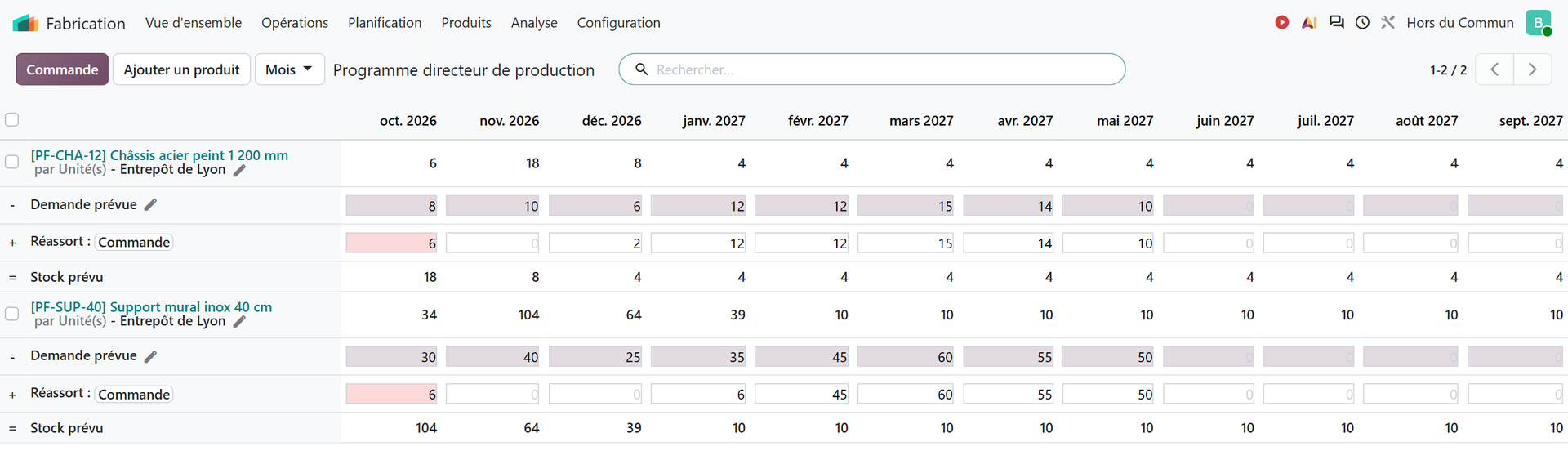
Look at the row for the stainless steel wall bracket in January 2027. Starting inventory is 39 units, forecasted demand is 35, and the safety stock is set to 10. Odoo suggests manufacturing 6: 39 minus 35 plus 6 gives 10, exactly the target. Same logic for the steel frame in December: 8 at the start, 6 forecasted, 2 to manufacture to get back to the safety stock of 4.
The October “Suggested Replenishment” cell is red for both products. This is not an error: Odoo's documentation reserves red for cases where an order has already been launched for a quantity greater than the suggestion. That is the case here: for the frame, two confirmed manufacturing orders total 20 units against 6 suggested, hence a forecasted stock of 18 at the end of October (6 minus 8 plus 20).
How do you enable the Master Production Schedule and add a product to it?
The feature is enabled in Manufacturing › Configuration › Settings, in the “Planning” section, by checking “Master Production Schedule.” Two settings then appear: “Default Time Range” (yearly, monthly, weekly or daily) and “Number of Periods,” to be entered for each range. With a monthly range over 12 periods, the table shows the next 12 months, starting with the current month.
In the Planning menu, the entry sits under the “MPS” heading. The same screen also appears under Inventory › Operations, in the “Procurement” section. The table only contains the products you add to it, one by one: include the items that warrant medium-term planning, not the whole catalog.
Before adding a product, check its product form. A manufactured product must have the “Manufacture” route in the Inventory tab and a bill of materials. A purchased product must have the “Buy” route and a vendor price. Without these settings, Odoo won't know what type of order to create.
Then click “Add a Product.”
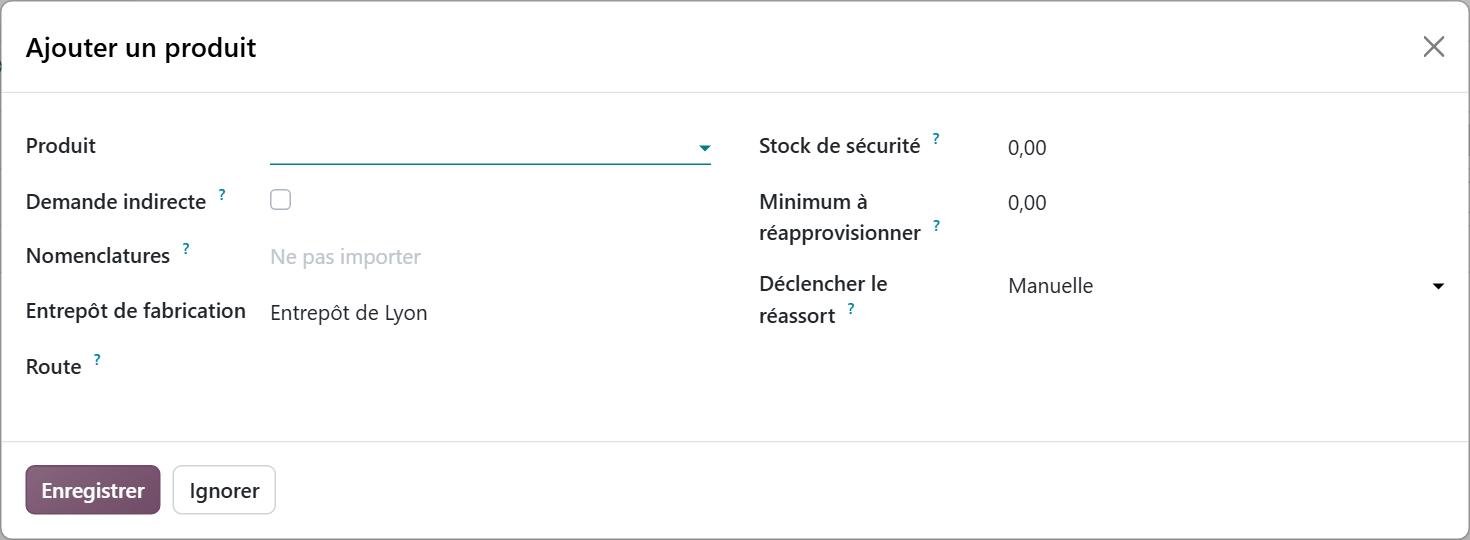
Three fields drive the calculation:
- “Safety Stock Target”: the minimum quantity to keep available across all periods. It is the target the suggested replenishment aims to reach.
- “Minimum to Replenish”: a minimum lot size per period. Odoo then proposes at least this quantity as soon as there is a need, which avoids two-piece runs that no shop floor would ever launch.
- “Replenishment Trigger”: “Manual” (you launch it from the table), “Automatic” (Odoo launches replenishment through a scheduled action) or “Never” (the product is tracked but not replenished from the table).
The “Bills of Materials” field deserves special attention. According to the documentation, selecting the bill of materials also adds all of its components to the table. Handy if you want to plan your material purchases in the same place, cluttering otherwise: in that case, leave the field empty (it then displays “Do not import”). For a component, an indirect demand row appears, fed by existing manufacturing orders.
How do you estimate the demand to enter in the forecast?
This is the hard part, and the software can't do much about it: the quality of the forecast depends on the quality of the demand you enter. Odoo offers two aids so you don't start from a blank page.
1. Start from history
The pencil icon next to “Forecasted Demand” opens the “Suggest Forecasted Demand” window. There you choose a period (or none, to fill the whole horizon), a calculation basis, then a percentage coefficient.
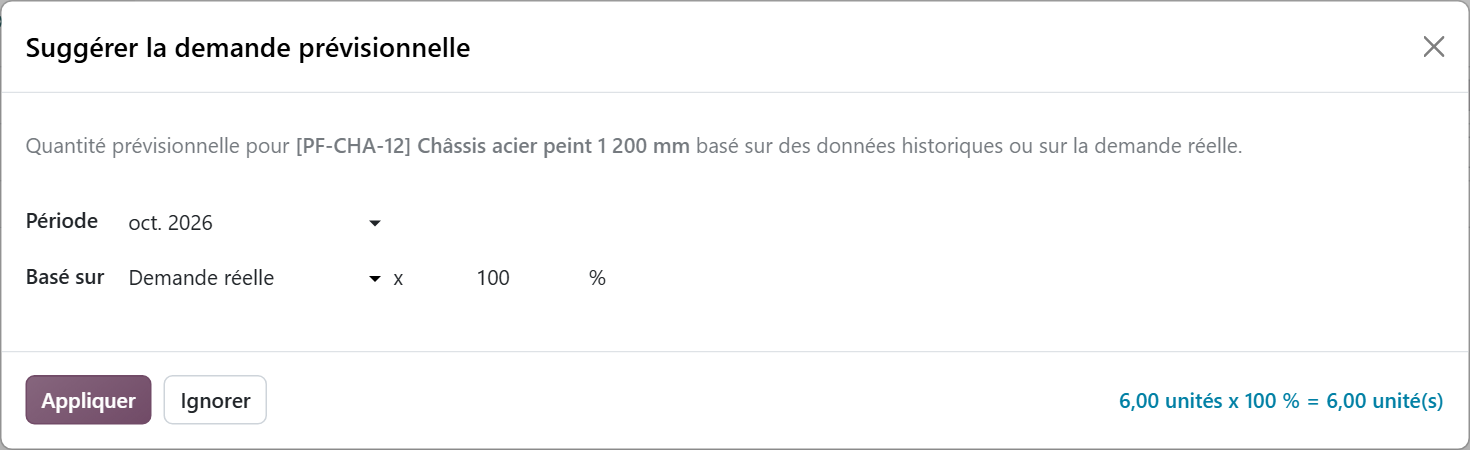
The “Based on” field offers “Actual Demand,” an option based only on deliveries made one year earlier, or an average over the “Last 30 days,” the “Last 3 months” or the “Last 12 months,” scaled to the length of one period. The 19.0 documentation ties “Actual Demand” to the same period one year earlier; in our test database, it picked up the demand already confirmed for the selected period, namely the 6 frames from two customer deliveries in October 2026. Test this option on your own database before relying on it. The coefficient adjusts the whole thing: 110% forecasts a 10% increase. For a seasonal business, comparing with last year makes the most sense; for a recently launched product, only a recent average is available.

You when the sales rep tells you March will be “like last year, only better” and you have to turn that into a number of frames.
2. Compare the forecast with actuals
The table's search menu has a “Rows” section. Checking “Actual Demand” changes the demand row to show confirmed demand, from confirmed sales orders, side by side with forecasted demand. “Actual Demand Y-1” and “Actual Demand Y-2” add the two previous years.
Filters complete the check. “Forecast too low” isolates the products whose actual demand already exceeds the forecast: that is the list to review first every month. A forecast is never right; above all, it must be corrected quickly.
How do you go from the forecast to manufacturing orders?
Once demand is entered, the table proposes a replenishment for each period. You still have to turn it into orders. There are three ways to do it:
- the “Order” button at the top of the screen launches replenishment for all products for the current period;
- the “Order” button on a product's “Suggested Replenishment” row launches only that product;
- after selecting several products, the Actions menu lets you launch the selection.
The order type depends on the route chosen when the product was added: “Manufacture” creates a manufacturing order, “Buy” a request for quotation. A key point, and one that is often misunderstood:
“Adding a product to the MPS does not automatically create a purchase order or manufacturing order. The MPS only suggests the quantity of product to replenish.” (Official Odoo 19.0 documentation, “Master production schedule” page)
In other words, with a manual trigger, nothing goes to the shop floor until someone clicks. That's by design: the table is a decision-making tool. The color of the “Suggested Replenishment” cells tells you where you stand. Green: the quantity is ready to be launched. Gray: an order exists and matches the suggestion. Yellow: the order launched is lower than the suggestion. Red: it exceeds it. The “Replenishment too low” and “Replenishment too high” filters find these gaps in one click.
You when you click “Order” and every manufacturing order for the month heads to the shop floor at once.
To track execution, two optional rows in the “Rows” menu are useful: “Actual Replenishment,” which compares the quantity actually launched with the suggestion, and “Available to Promise,” which calculates available stock from confirmed demand (starting inventory, minus actual demand, plus replenishment) and compares it with forecasted stock.
Master Production Schedule or reordering rules: which one should you choose?
Odoo offers two replenishment mechanisms, and they don't meet the same need. Reordering rules react to the stock level:
“Reordering rules are used to keep forecasted stock levels above a certain threshold without exceeding a specified upper limit.” (Official Odoo 19.0 documentation, Reordering rules)
The Master Production Schedule, on the other hand, anticipates future demand that the stock level can't see coming yet.
| Criterion | Reordering rule | Master Production Schedule |
|---|---|---|
| Trigger | Forecasted stock falls below a minimum | Forecasted demand, period by period |
| Horizon | Short term | Several months |
| Typical use case | Consumables, steady demand | Long lead times, seasonality, production before sale |
| Launching orders | Automatic or manual, depending on the rule | From the table, depending on the chosen trigger |
Don't use both on the same product. The Master Production Schedule documentation is clear: a reordering rule on a product tracked in the table distorts forecasts and creates unnecessary orders. Choose product by product.
An industrial SME can actually combine three approaches: stock rules for fasteners, make-to-order for custom work, and the Master Production Schedule for catalog items with a long manufacturing lead time. The first two are covered on our page about purchasing and replenishment management with Odoo : replenishment through stock rules, and the Make To Order flow, where a confirmed sales order generates a draft purchase order.
Where does Odoo's standard production forecasting stop?
The Master Production Schedule works by product and by period. The actual demand it displays comes from confirmed sales orders. But in Odoo, the delivery date promised to the customer (the “Delivery Date” field, i.e. the commitment date) is entered on the whole order, not line by line: each line only has a lead time in days.
As long as each order is delivered in one go, this is not a problem. As soon as a customer orders volumes in October to be delivered in January, March and May, a single date is no longer enough: a forecast by delivery month becomes wrong as soon as an order is spread out over time.
This is exactly the situation of a manufacturer we work with, whose customers order volumes spread over several months. Production there is launched in advance; every month, they need to know how much of each item to produce, and for which delivery month. The prerequisite was not a dashboard, but a date: Hors du Commun moved the commitment date down to the order line level, then aggregated the expected volumes by item and by delivery month.
The lesson goes beyond this case: before looking for a better forecasting screen, check that the data the forecast needs exists at the right level. The details of this custom development, what Odoo does out of the box and where it stops, are on our page dedicated to production forecasting by product and by month in Odoo.
Where should an SME start with production forecasting?
The configuration comes down to a few settings; what takes time is the data that feeds it. A few guidelines:
- Start small: a few items with long lead times or strong seasonality, not the whole catalog. The others stay on stock rules.
- Choose the period that matches your decision cycle: the month for a monthly review with sales, the week if the shop floor is scheduled week by week.
- Set a safety stock per product, based on the observed gap between forecast and actuals rather than on a round number.
- Set up a monthly review: sales and production go over the products filtered under “Forecast too low” together, correct the demand, then launch replenishment.
- Check the prerequisites: accurate bills of materials, routes filled in, realistic manufacturing lead times. Replenishment calculated from a wrong bill of materials produces wrong purchases.
This last point determines all the others. Odoo expects structured bills of materials, routings with times, and manufacturing orders that actually consume components. As long as the shop floor has not been translated into this logic, the material requirements calculation stays wrong, however good the forecast. Our page Odoo for manufacturing describes this production logic specific to Odoo and the structuring it requires, from multi-level bills of materials to lot traceability.
So production forecasting in Odoo means a simple table, demand entered methodically, and a monthly discipline. The software does the math; it replaces neither the conversation between sales and production, nor clean data.
- Odoo, official 19.0 documentation, “Master production schedule”: https://www.odoo.com/documentation/19.0/fr/applications/inventory_and_mrp/manufacturing/workflows/use_mps.html
- Odoo, official 19.0 documentation, Reordering rules: https://www.odoo.com/documentation/19.0/fr/applications/inventory_and_mrp/inventory/warehouses_storage/replenishment/reordering_rules.html

Article written by Billy Felicie
Odoo integration expert at Hors du Commun (Lyon). I have been helping SMEs implement their digital tools and optimize their business processes for more than 5 years.