
In Odoo, a purchase request takes the form of a request for quotation in the Purchase app: entered by a buyer or generated automatically by a replenishment rule, it only becomes a purchase order once confirmed. For approval, you check “Purchase Order Approval” in the Purchase settings and set a minimum amount: from that amount on, an order confirmed by a buyer stops at the “To Approve” status until a Purchase administrator approves it.
This standard workflow is enough for many SMEs. When several signatures are needed, you add approval rules with Studio. The screens in this guide are from Odoo 20; it works the same way in Odoo 19, apart from a few labels that we point out.
What is a purchase request in Odoo, and where does it come from?
Odoo does not create a separate “purchase request” document. The purchasing need is carried by the request for quotation, which the documentation also calls an RFQ. It follows a simple cycle, visible in the Status column of the list: “RFQ” while it is being prepared, “RFQ Sent” once emailed to the vendor, “To Approve” if it exceeds the approval threshold, then “Purchase Order” once confirmed. An abandoned request moves to “Cancelled.”
These requests arise in three ways.
- Manually: the buyer clicks “New” in Purchase › Orders › Requests for Quotation, chooses the vendor and adds the products. If the vendor price is filled in on the product form, the price and lead time fill in automatically.
- Through a replenishment rule: when a product's forecasted stock falls below its minimum, Odoo creates a request for quotation to bring it back up to the maximum. These rules are triggered by the scheduler, which runs once a day by default.
- From a sale or a manufacturing order: when the product combines the “Buy” and “Replenish on Order (MTO)” routes, confirming a sales order generates the corresponding draft purchase order. In the same way, the components of a manufacturing order can trigger a request for quotation, through a replenishment rule or through this route.
The last two cases change the nature of the subject. A request generated by stock was not “requested” by anyone: it was calculated. Approval then has less to do with whether the purchase is appropriate than with whether the parameters are right (minimum, maximum, default vendor). Setting these rules is a project in itself, which we cover in detail on our page dedicated to inventory management with Odoo.
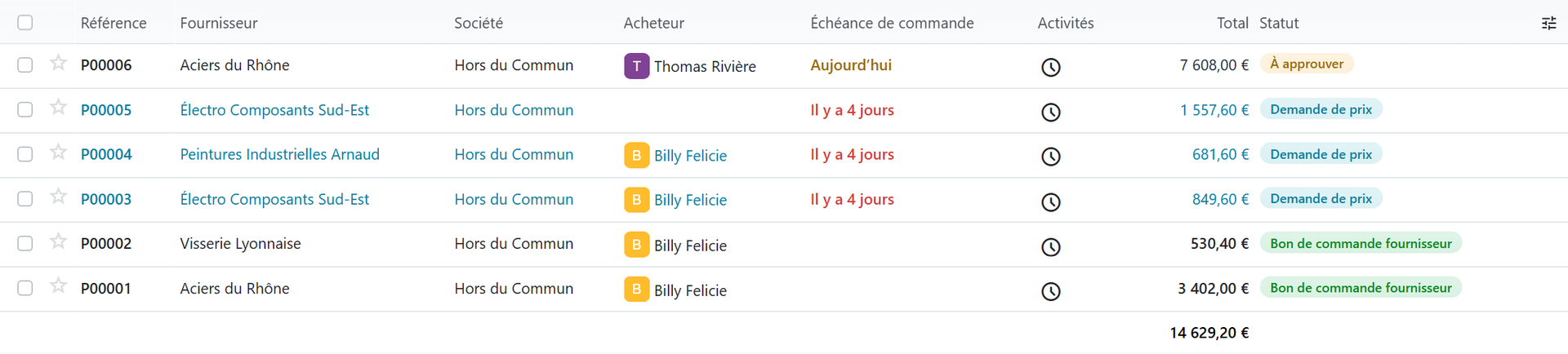
In this example, P00005 was generated automatically by a replenishment rule for a manufacturing order (so it has no buyer), three requests are waiting to be sent, and P00006, whose buyer is Thomas Rivière, is held at the “To Approve” status. Odoo can also group automatic needs: on a vendor's form, the “Group RFQs” setting combines into a single request the needs whose expected arrival falls on the same day (Daily), in the same week (Weekly), or all of them regardless (Always). Fewer small requests also means fewer approvals to give.
Who enters, who approves: how do you split roles in Odoo?
Before thresholds, there is an organizational question: who can commit the company to a vendor? In Odoo, the answer lies in the two access levels of the Purchase app.
- Purchase / User: the person creates and sends requests for quotation, and confirms orders below the threshold. As soon as the threshold is reached, their order waits.
- Purchase / Administrator: the person approves pending orders and confirms their own with no amount limit.
The point people often discover too late: a Purchase administrator is never stopped by the threshold. When they confirm an order, even far above the minimum amount, it goes straight to purchase order. If all your buyers are administrators, approval is enabled but controls nothing. This is the first thing to check on an existing database.
Why so much emphasis on splitting roles? Because a lack of controls is the leading weakness cited in occupational fraud:
“A third of cases occurred because the victim organization lacked internal controls, and a further 19% resulted from overriding existing controls.” (ACFE, Occupational Fraud 2026: A Report to the Nations, paraphrased)
The same report ranks lack of management review just behind, at 18%, and places billing schemes (fake invoices, fake vendors, personal purchases paid for by the company) among the most frequent, with 21% of the cases studied, and as many as 28% in organizations with fewer than 100 employees. An SME does not need an audit department to protect itself. It needs a clear workflow: the person who expresses the need is not the one who commits the spending, and the person who commits it is not the one who pays.
How do you enable approval for orders above an amount?
The setting is in Purchase › Configuration › Settings, Orders section. Check “Purchase Order Approval,” whose description says exactly what it does: request managers to approve orders above a minimum amount. Enter that amount, then save.
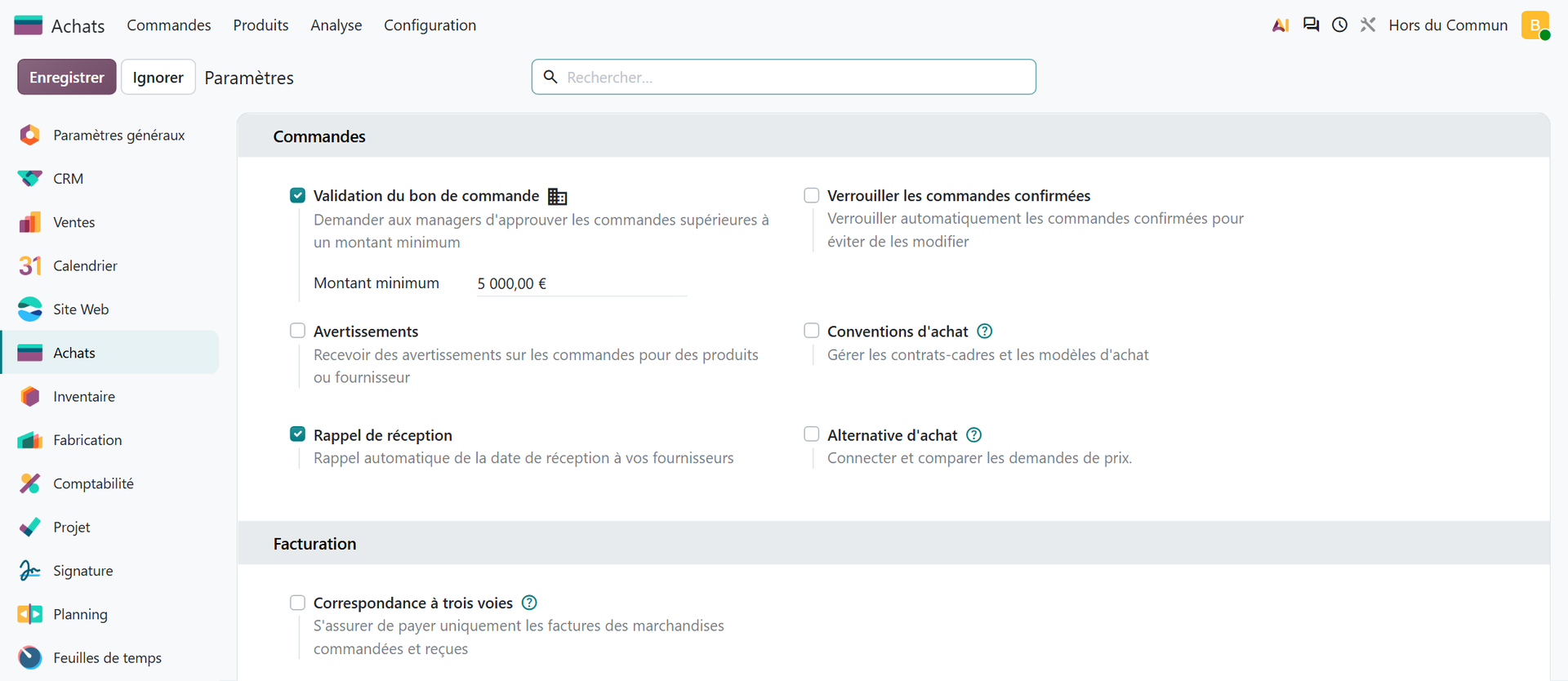
Three details change how you choose this amount.
- The setting is specific to each company. In a database that manages several companies, each one has its own threshold, or no approval at all.
- According to the Odoo 19 and 20 source code, the threshold is compared with the order total, including tax, and an order equal to the threshold already requires approval. A €5,000 threshold therefore blocks a €4,200 order excluding tax as soon as 20% VAT pushes it above. Think in amounts including tax, or adjust the figure.
- The threshold applies order by order. Two €4,000 orders from the same vendor on the same day go through without approval. Only the purchase analysis report reveals this kind of splitting.
For the buyer, nothing changes in practice: they click “Confirm Order” as usual. If the order reaches the threshold and they are not an administrator, it moves to the “To Approve” status instead of becoming a purchase order. The status change is logged in the order's chatter.
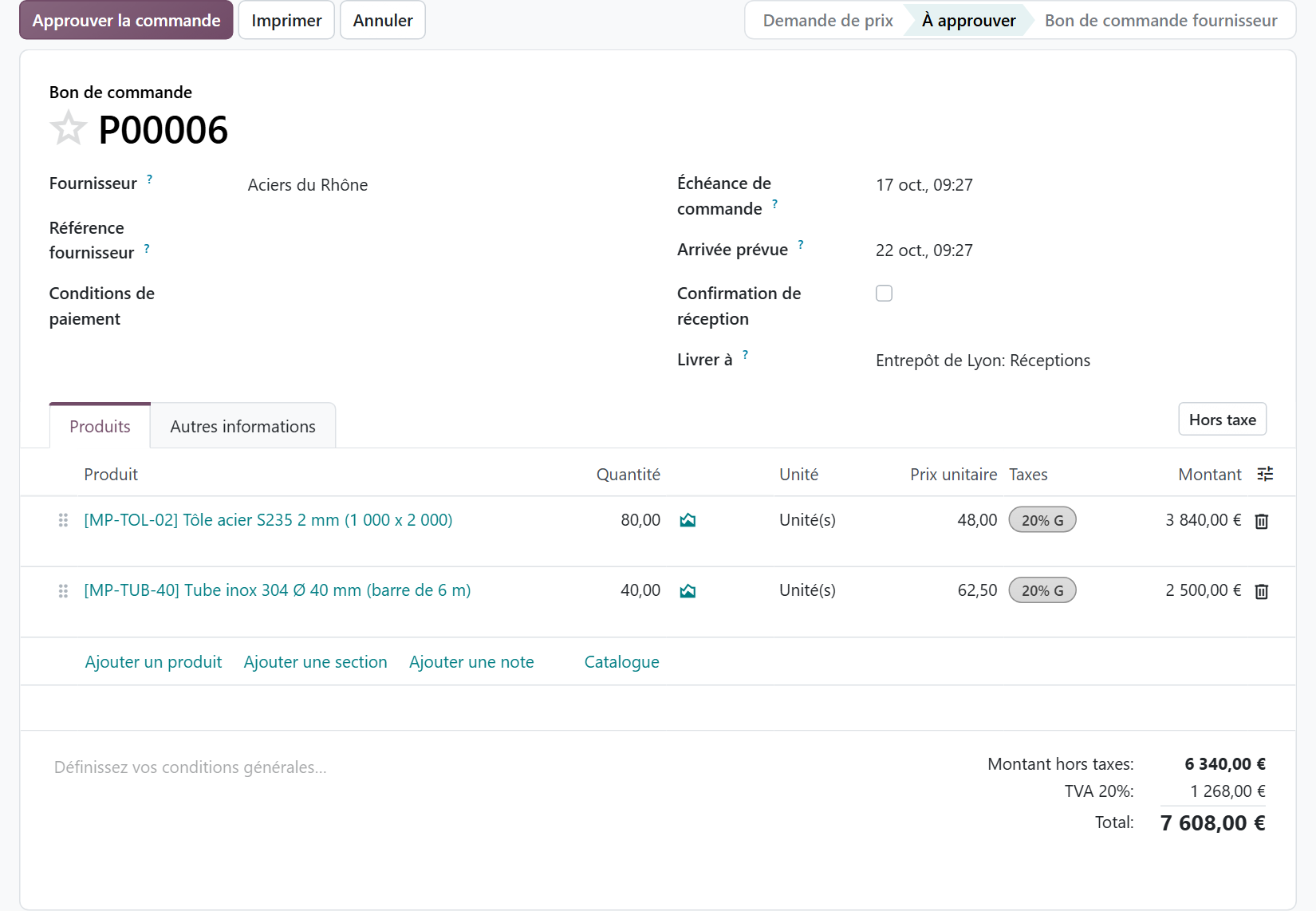
The administrator opens the order, checks the vendor, quantities and prices, then clicks “Approve Order.” If they refuse, they cancel it and explain why in the chatter, where the buyer finds the answer. So that nothing is left hanging, the approver groups the list by status every morning: the “To Approve” line is their queue.
How do you create a multi-level approval workflow?
Purchase order approval only knows one threshold and one group of approvers. That is often enough for a company of twenty people. As soon as you need the production manager's opinion on raw material purchases, then the CFO's above a second amount, you have to move to Studio approval rules, which the Odoo documentation defines as follows:
“Approval rules are used to automate approval processes for actions. They allow you to define the criteria for when an approval is required before an action can be performed using a button.” (Official Odoo 20 documentation, Studio, Approval rules)
In practice, you open Studio on the purchase order form, select the “Confirm Order” button and click “Add approval step” in the Properties tab. For each step, you designate named approvers, or a group of approvers. A filter icon lets you limit the step to certain orders, for example above an amount or for a product category.
With several steps, two settings matter:
- the approval order, which numbers the steps (1, 2, 3);
- exclusive approval, which prevents the same person from approving two steps of the same record. Without it, a higher-level approver can approve the previous steps in place of the others.
In use, an avatar icon appears next to the button label for each step. An unauthorized user who clicks gets an error message, and an activity is created for the designated approvers. Each one approves or rejects from this icon, can revert their decision, and all approvals are tracked in the order's chatter. An absent approver can delegate their rights to a colleague, up to a chosen date.
Two caveats before you start. Installing Studio automatically moves your subscription to Odoo's Custom plan, at €35.90, then €44.90 per user per month with an annual commitment, instead of €19.90, then €24.90 for the Standard plan. And an approval rule is a configuration that must be documented: placed on the wrong button or with too broad a filter, it blocks orders that nobody understands anymore.

You, when you are the level 2 approver and someone asks you to approve an “urgent” sheet metal order entered at 11 p.m., without a single competing quote to compare.
How do you compare several vendors before approving a purchase?
Approving an order also means approving a price. For a significant purchase, the approver is right to require at least one competing offer. Odoo allows this with alternative requests for quotation, commonly known as a call for tenders. In Odoo 20, you enable the “Purchase Alternatives” option in the Purchase settings; in Odoo 19, it is included in the “Purchase Agreements” option.
- From a request for quotation, open the Alternatives tab and click “Create Alternative.”
- Choose one or more other vendors. The “Copy Products” box, checked by default, carries over the same products and quantities.
- Send each request by email, then enter the prices received. The Alternatives tab shows, for each vendor, the expected arrival date, the total and the status.
- From the Alternatives tab, click “Compare Product Lines”: each product appears with each vendor's offers, side by side.
- Click “Choose” on the best line, product by product, then confirm the selected order.
On confirmation, Odoo offers to cancel or keep the other requests. For the approver, the competitive bidding remains visible on the order itself.
For recurring purchases, the “Purchase Agreements” option handles blanket orders and purchase templates. A blanket order sets negotiated prices with a vendor over a period; requests for quotation created from this agreement take over its terms, and quantities already ordered are updated on the agreement. Since the price was approved once, when the agreement was signed, approving each order becomes a formality. This is one of the levers we present on our page dedicated to purchase management with Odoo.
How do you make sure the vendor bill matches what was approved?
An approval loses its value if the bill is paid without being matched against the approved order. Odoo handles this with two settings.
First, the control policy, set on each product in the Purchase tab. “On ordered quantities” allows billing as soon as the order is confirmed, which suits services. “On received quantities” only allows billing what has been received: it is the default setting for any product that is not a service, and the one that protects you best.
Next, 3-way matching is enabled in the Invoicing section of the Purchase settings. It matches order, receipt and bill, and adds a “Should Be Paid” field to the vendor bill, in the Other Info tab. If someone modifies the bill (higher billed quantity, different price), this field switches to “Exception”: Odoo does not block, because the difference may be justified, but it flags it to accounting.
Approved order, checked receipt, matched bill: this chain is what gives the business owner reliable margins and cash flow. How purchases then feed into accounting is detailed on our page about SME accounting in Odoo.
Which mistakes should you avoid when setting up purchase approval?
Approval takes a few minutes to configure. The hardest part is keeping it from becoming a bottleneck or an illusion.
- Giving the Purchase administrator role to all buyers. They are never stopped by the threshold, and approval serves no purpose.
- Setting the threshold too low. If half of the orders are waiting for approval, the approver signs off without looking, and vendors wait.
- Forgetting that the threshold includes tax. The amount announced in the meeting was excluding tax; Odoo's includes tax.
- Keeping a single approver with no backup. With standard approval, plan for a second Purchase administrator; with Studio, use delegation during vacations.
- Approving by email outside Odoo. An “OK with me” in an inbox leaves no trace on the order.

You, when your €7,608 order has been “To Approve” for ten days because the company's only Purchase administrator is on vacation in Portugal.
The right workflow fits in a few lines: who expresses the need, who commits the spending, from what amount, who stands in for whom. Write them down with the people involved before opening the settings: that is the role of the specification, and we offer a tool to write yours, which we invite you to discover here: the Quick specification builder for Odoo.
In short, managing purchase requests and their approval in Odoo rests on three levels: the request for quotation to express the need, purchase order approval for large amounts, and Studio approval rules when several signatures are required. At Hors du Commun, an Odoo integrator in Lyon, purchasing is one of our specialties: we set up these workflows with the SMEs we support, then adjust them after go-live.
- ACFE (Association of Certified Fraud Examiners), “Occupational Fraud 2026: A Report to the Nations,” 2026: https://www.acfe.com/-/media/files/acfe/pdfs/rttn/2026/2026-report-to-the-nations.pdf
- Odoo, official Odoo 20 documentation, Studio, “Approval rules”: https://www.odoo.com/documentation/20.0/fr/applications/studio/approval_rules.html

Article written by Billy Felicie
Odoo integration expert at Hors du Commun (Lyon). I have been helping SMEs implement their digital tools and optimize their business processes for more than 5 years.