
Adding WhatsApp to Odoo costs no extra subscription: the WhatsApp app is included in Odoo Enterprise, and connecting Meta's WhatsApp Business Platform is free. You only pay for the messages you send first, starting at 2.5 euro cents in France, and replies to customers who message you stay free up to 1,000 per month per number.
The connection itself takes method. You go through a Meta developer account, an app, a business verification, an access token and a webhook. We just did it end to end for our own number, and we captured everything. This tutorial follows the real order, screen by screen, including the two traps that cost us time. Allow half a day, Meta's waiting times included.
🧰Before you start: what you need on hand
Gather these items before you open a single screen. Half of all blockers come from one missing item at the wrong moment.
| What you need | Why |
|---|---|
| Odoo 20 Enterprise edition | The WhatsApp app does not exist in Community. It is included in the Enterprise subscription at no extra cost. |
| A number never used on WhatsApp | A number already active on the WhatsApp or WhatsApp Business app must first be deleted from it. A landline works. |
| A phone that rings on that number | Meta sends a code by text message or voice call. On a landline, it will be the call. |
| A personal Facebook account | It holds the developer account and the access to the company's business portfolio. |
| A Meta business portfolio | Formerly Business Manager. It brings together the Facebook page, the ad accounts and the future WhatsApp account. |
| SIRET (French company ID), head office address, website, email on your domain | For business verification, without which the number will not connect (step 5). |
| A credit card | To verify the developer account if needed, then to pay for the messages you send first. |
📞Step 1: choose the number that will become your business WhatsApp
15 minutesThe right number belongs to the company, not to an employee. Once connected to Odoo, it no longer works in the WhatsApp app on a phone: everything goes through Odoo, on desktop and in the mobile app. That is exactly what lets several people reply from the same number.
We took a free landline from our business phone system. Before going to Meta, we forwarded it to a mobile phone, with no IVR or voicemail in front: Meta's robot reads out a 6-digit code and cannot press “1” in a menu.
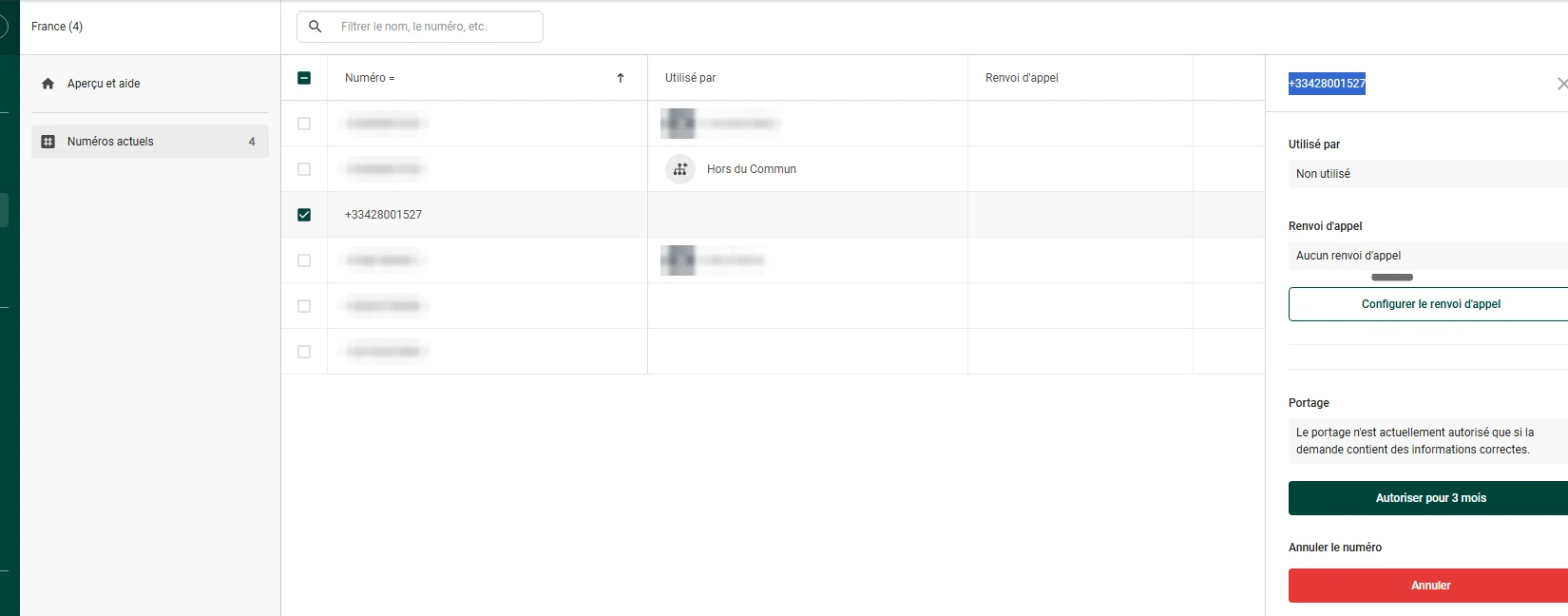
Screenshot from our phone system console: the free line chosen for WhatsApp, with no forwarding for now. The other numbers are hidden.
After verification, the forwarding can point to your usual switchboard. Voice calls and WhatsApp messages live on two separate channels: changing one does not affect the other. If your phone system is already connected to Odoo, calls from this number also show up on customer records. We explain this setup on our page about Telavox phone system connected to Odoo.
🧩Step 2: install the WhatsApp app in Odoo
2 minutesThe app is called “WhatsApp Messaging”. Odoo also installs the small modules that link it to Accounting, Sales, Calendar or Events, depending on what you use.
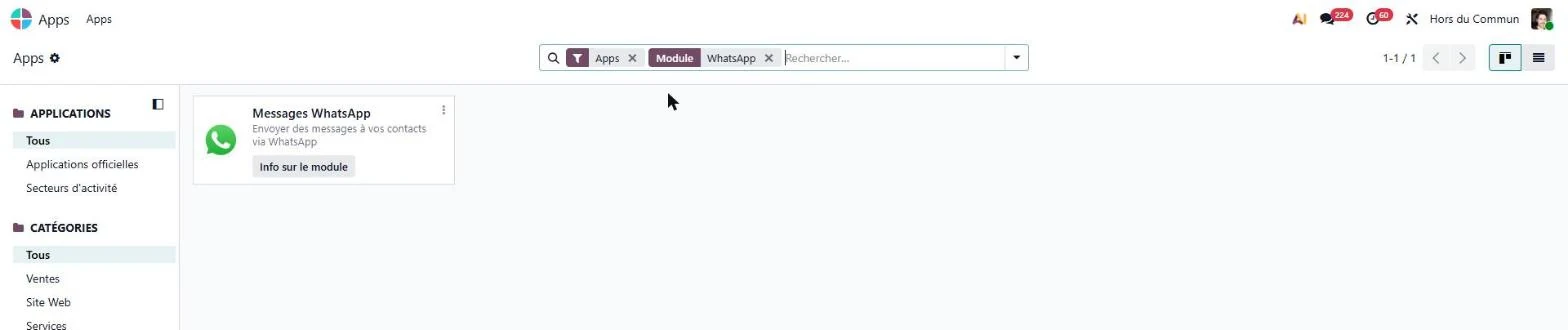
“WhatsApp is an Odoo Enterprise-only application that does not work in the Odoo Community edition.” Official Odoo 20 documentation, WhatsApp app.
A tip from our own test: do not install the “WhatsApp OAuth” module, which promises a one-click connection. On our database, it broke the WhatsApp accounts screen, and we had to uninstall it. The manual method in this tutorial works everywhere.
👤Step 3: create your Meta developer account
10 minutesThe developer account is attached to your personal Facebook account. Meta first asks you to verify it by text message.
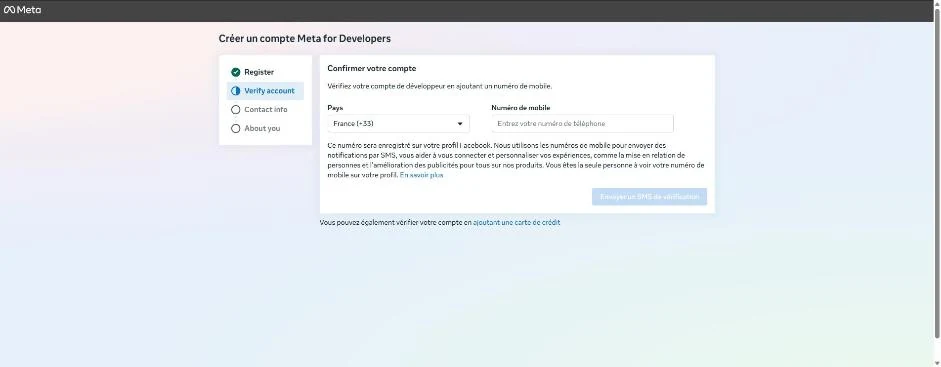
Screenshot from Meta for Developers: account verification by text message, with the fallback link to add a credit card below the form.
First trap: if your mobile number is only used on Facebook for two-factor authentication (Meta shows it as “Limited use”), text message verification rejects it. Use the link at the bottom instead: you add a card in Meta Pay, with no charge, then return to sign-up. That is what unblocked our account.
🛠️Step 4: create the Meta app that will talk to Odoo
10 minutesGive it a name without the word “WhatsApp”: Meta rejects trademarks in this field. We called ours “Odoo Hors du Commun”. The contact email can be the company's.
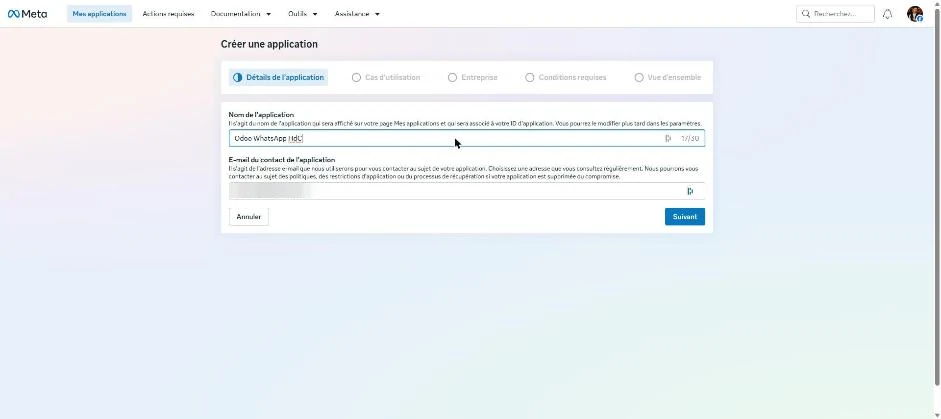
Screenshot from Meta for Developers: the app name and its contact email (hidden). The temporary name visible here still contained “WhatsApp”; we changed it.
On the second screen, filter on “Business messaging” and check “Connect with customers through WhatsApp”. On the third, choose your company's business portfolio. If you also manage client portfolios, take the time to pick the right one: it will hold the number.
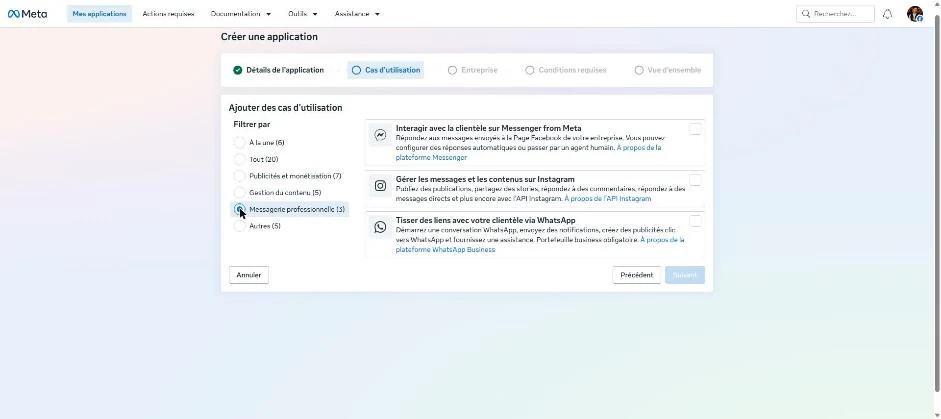
Screenshot from Meta for Developers: the “Connect with customers through WhatsApp” use case.
🛡️Step 5: get your business verified, and avoid error #2494070
20 minutes, then Meta's waitHere is the trap that stopped us. We tried to add the number directly from the app. Meta created the WhatsApp Business account, then rejected the number with this message: “your business doesn't meet WhatsApp's policy criteria”, error #2494070. No details, no useful link.
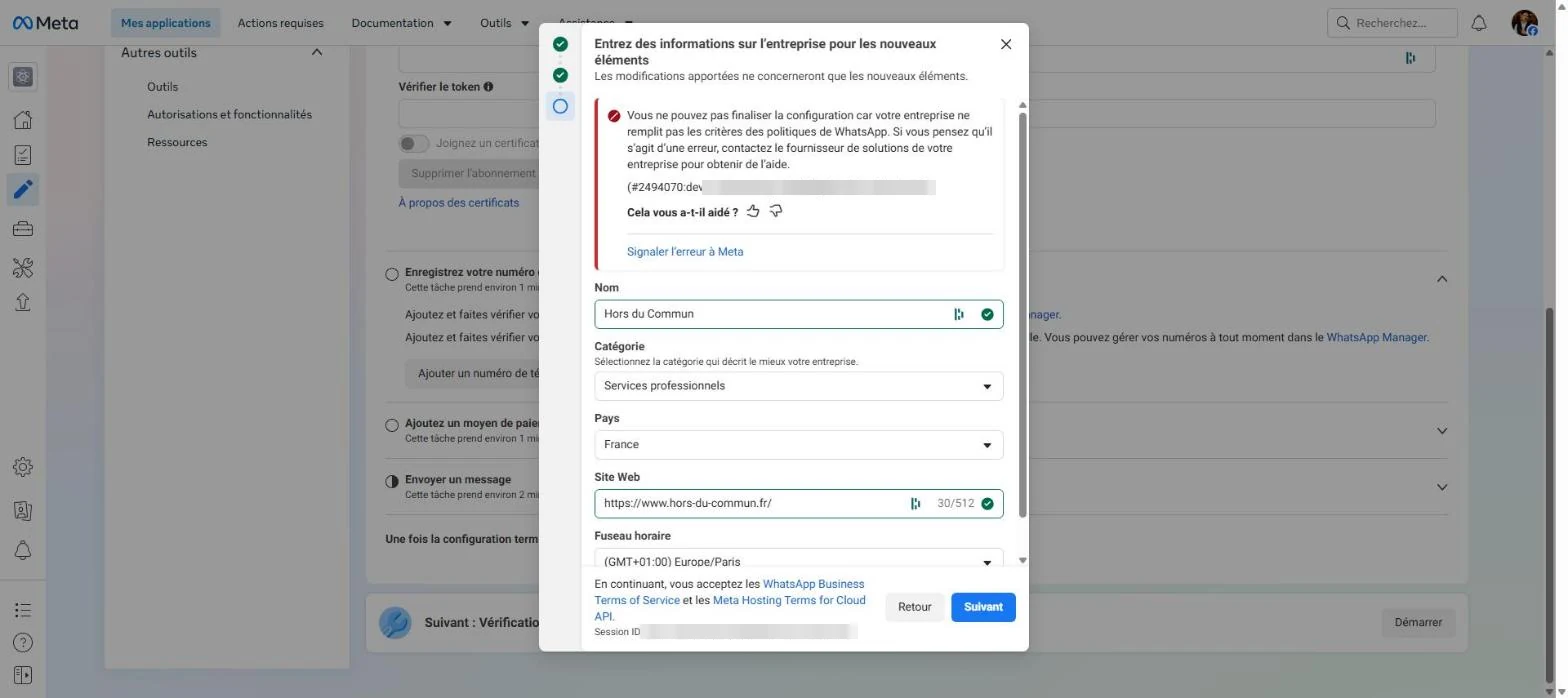
Screenshot from Meta for Developers: error #2494070, at the moment of adding the number.

When Meta tells you your business “doesn't meet the criteria”, without telling you which ones.
This code is not documented anywhere at Meta. In practice, it means the portfolio is not verified, or looks too new to be trusted. The fix is business verification, done before adding the number. In our case, it was approved in fifteen minutes, because Meta found the company in public registries.
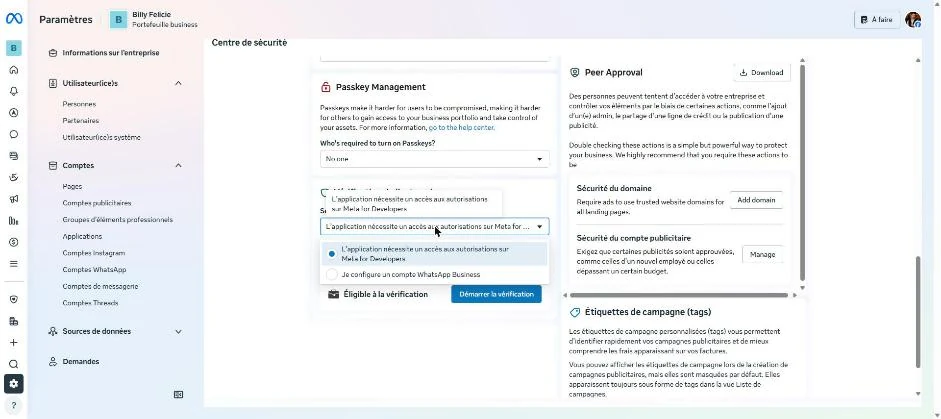
Screenshot from Meta Business Suite: the “I'm setting up a WhatsApp Business account” verification case.
The form runs through about ten short screens: country, business type (a French SAS or SARL is a “Private company”), legal name as it appears on the Kbis (French company registration extract), head office address, phone, website. Meta then searches the registries for the company and suggests the records it found. Choose the one whose address, website and end of SIRET match.
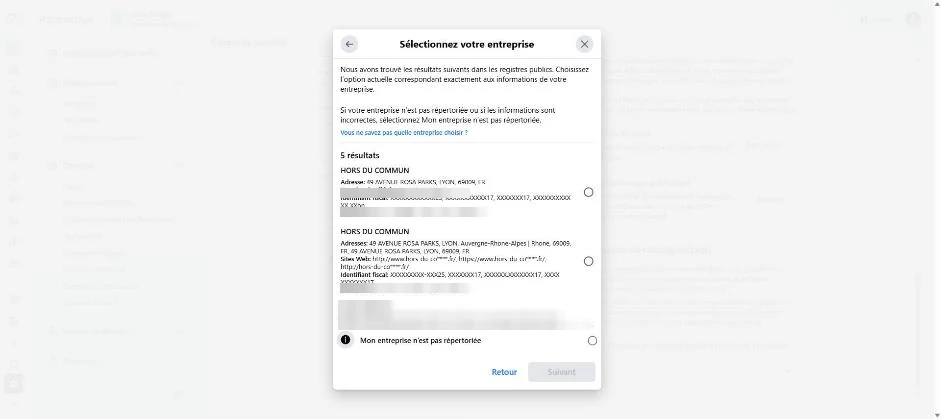
Screenshot from Meta Business Suite: the records found in the registries. Companies with similar names have been hidden.
The last screen asks for proof of your connection to the business. Choose the “Email” option: Meta sends a code to an address on the website's domain (yours at @your-domain.com). The request then goes to review.
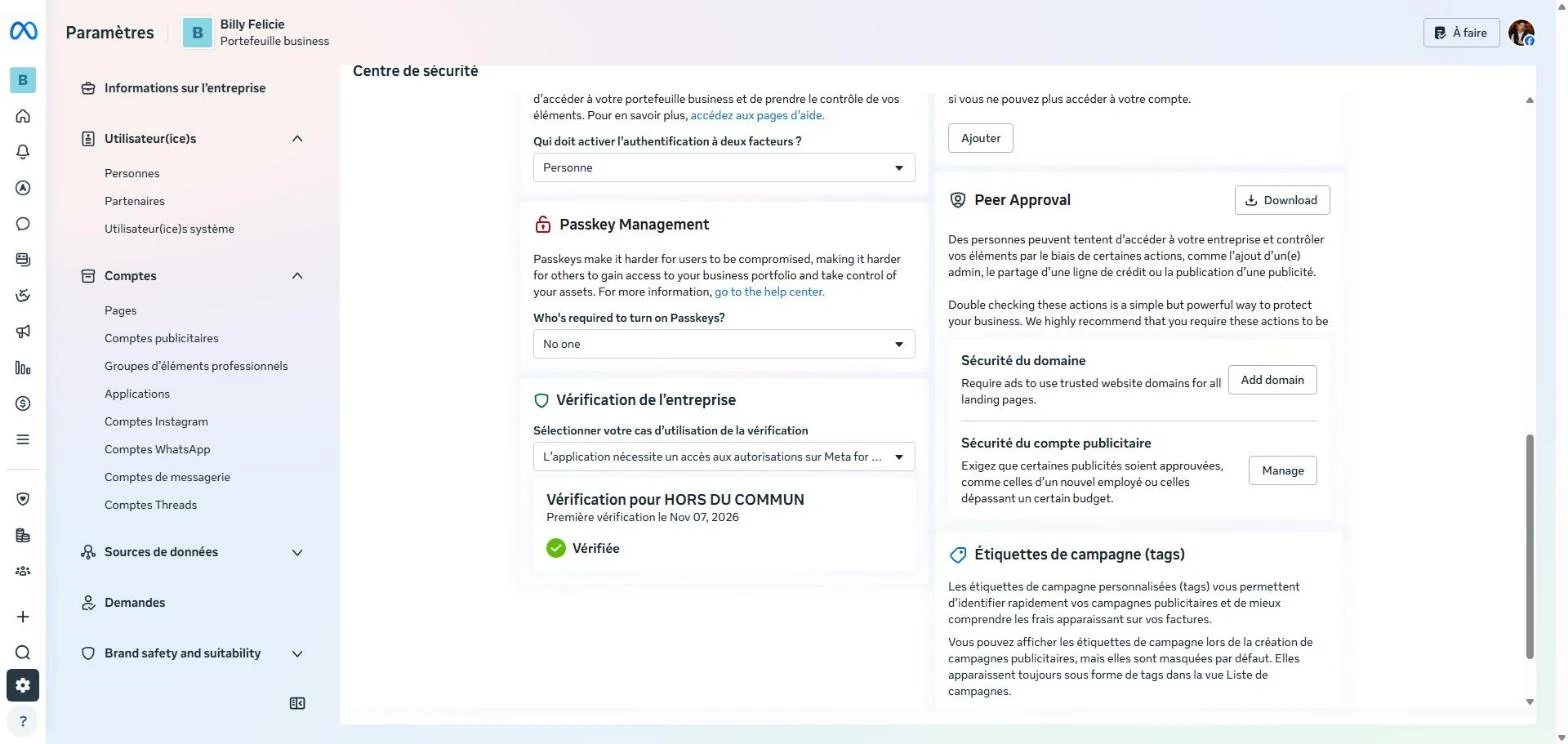
Screenshot from Meta Business Suite: the verification approved, status “Verified”.
📲Step 6: add the number and get it verified
10 minutesOnce the business is verified, adding the number goes through without errors. Meta first asks for the public profile: display name, category, description. The display name is what your customers will see: it must match the company name, and Meta reviews it.
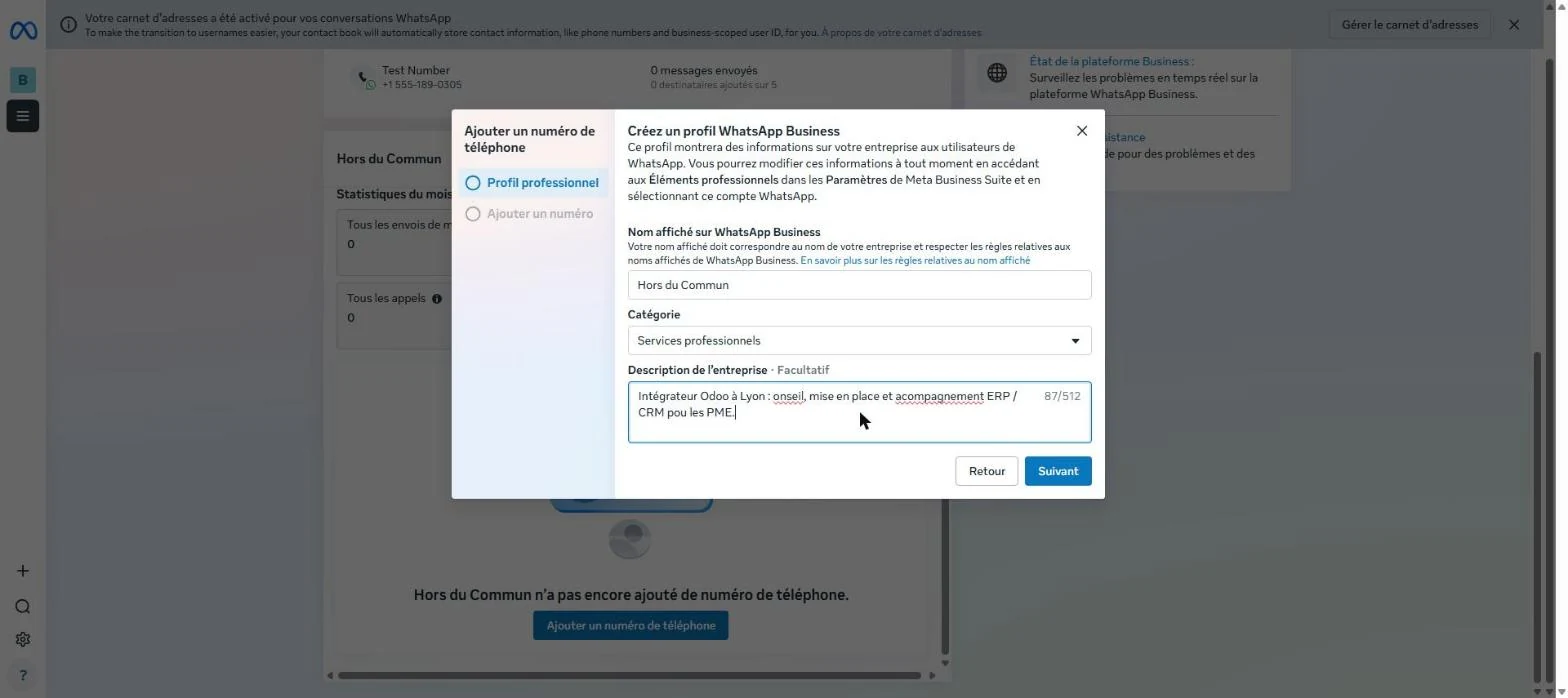
Screenshot from WhatsApp Manager: the business profile, before the number.
Then enter the number with the “FR +33” country code, without the leading zero. The number then shows as “Unverified”. Verification starts from the app, in the “Register your WhatsApp phone number” section, with the “Verify” button. Choose “Phone call” for a landline.
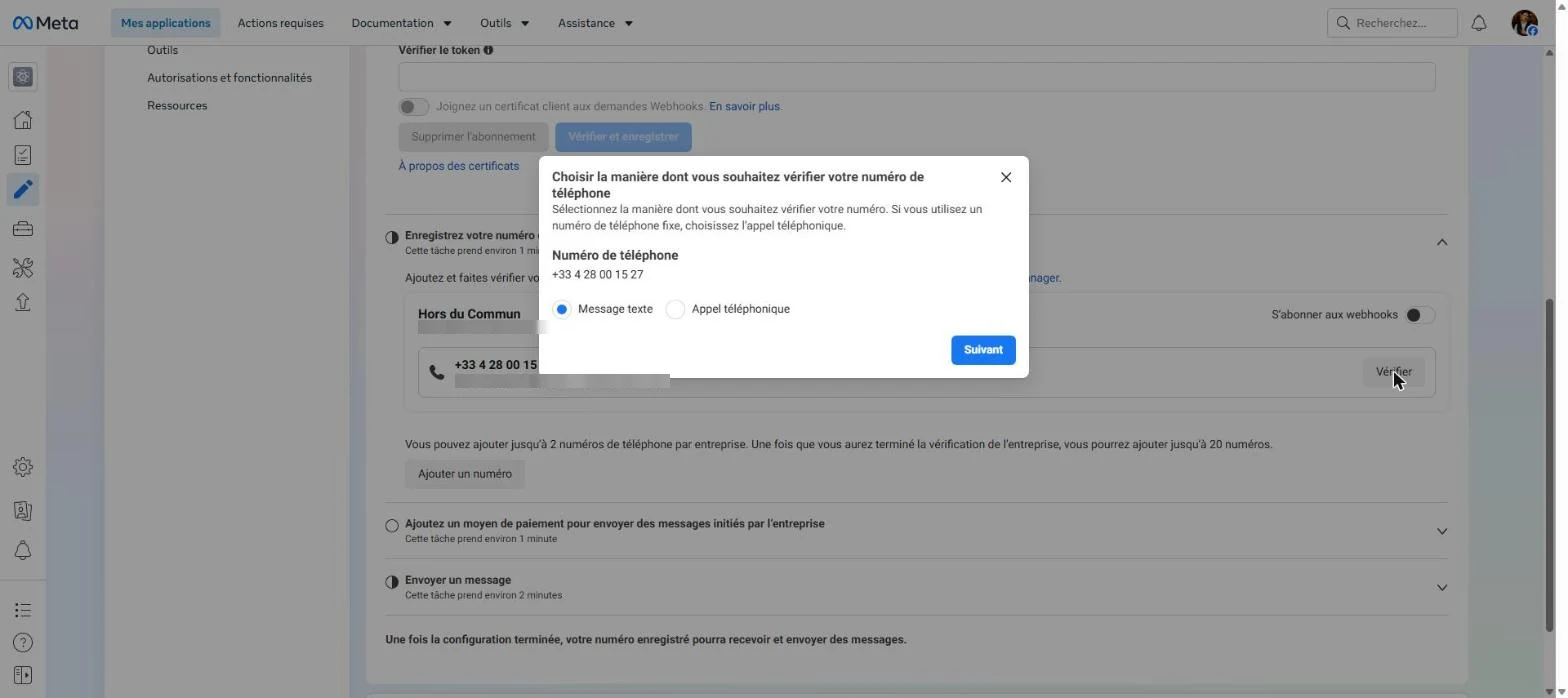
Screenshot from Meta for Developers: the choice between text message and phone call. For a landline, it will be the call.
Keep the tab open during the call. The code only works in the window that requested it: if it closes, you have to request a new one, and after two requests Meta enforces a one-hour wait. Enter the 6 digits and the number switches to “Registered”.
🔑Step 7: create a permanent access token
10 minutesOdoo needs a token to talk to Meta. The default token offered in the app expires after 24 hours. For a token that lasts, you need a system user.
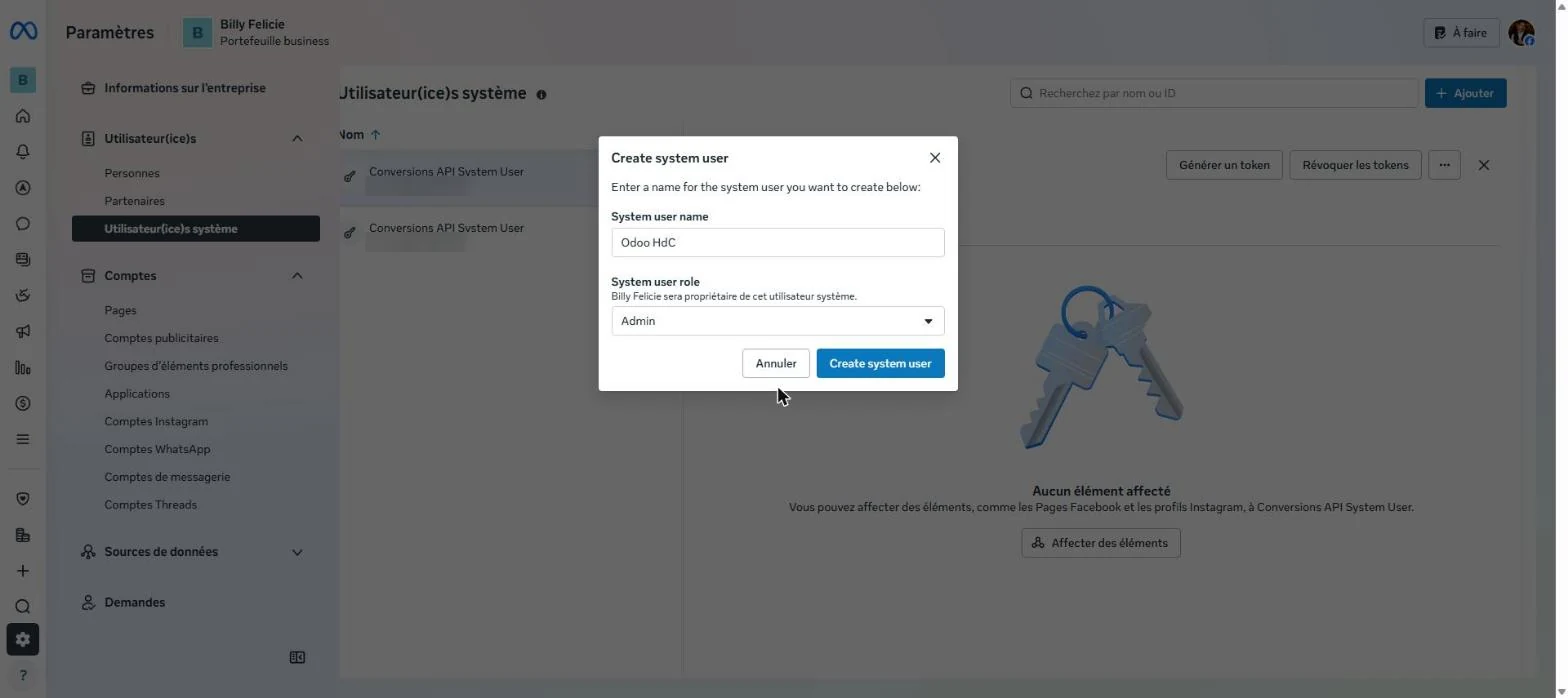
Screenshot from Meta Business Suite: a system user with the Admin role. Meta rejects names with too many capital letters (“Odoo HdC” was rejected).
Then assign two assets to it with the “Assign assets” button: the app, with “Manage app”, and the company's WhatsApp account, with full control. Without this assignment, the token has access to nothing.
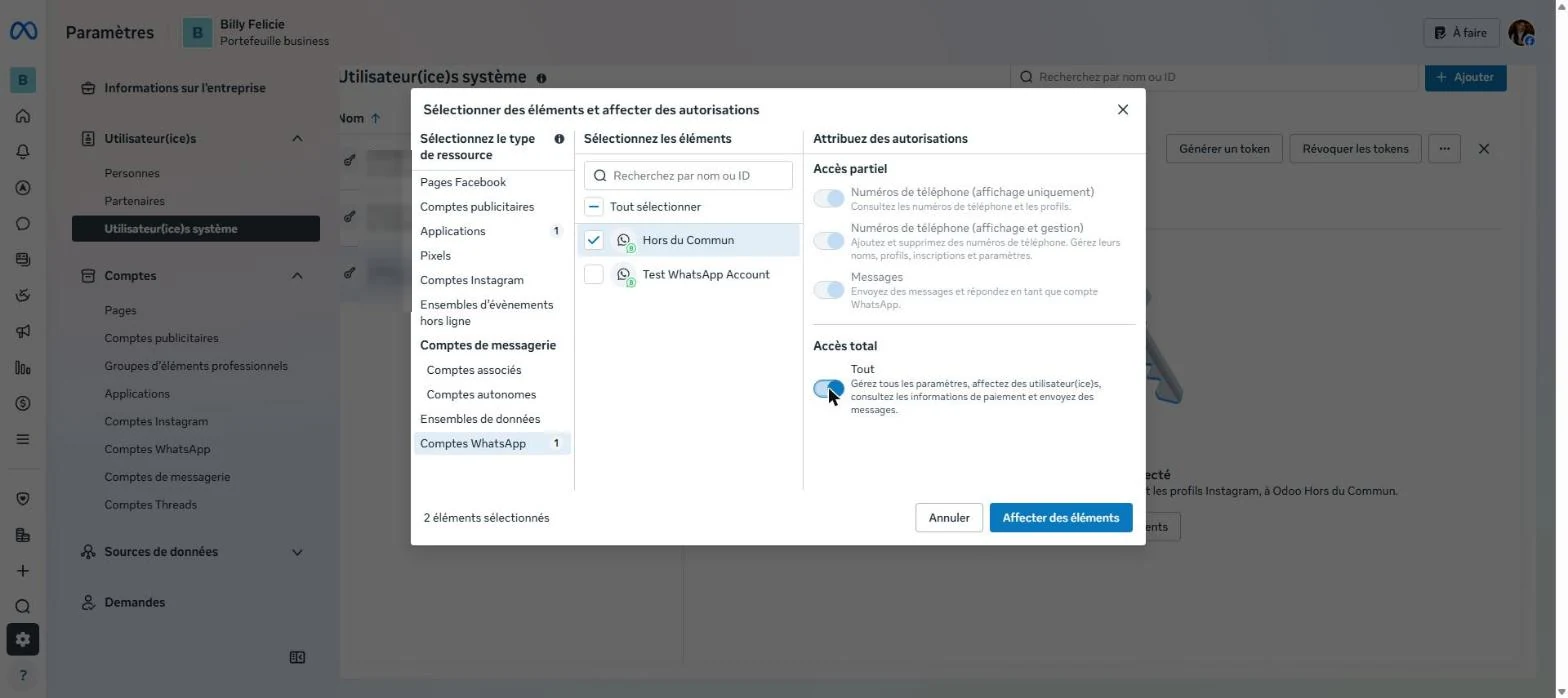
Screenshot from Meta Business Suite: the “Hors du Commun” WhatsApp account assigned with full control.
Finally, click “Generate token”: choose the app, the “Never” expiration, then the “whatsapp_business_management” and “whatsapp_business_messaging” permissions. Copy the token right away: Meta only shows it once.
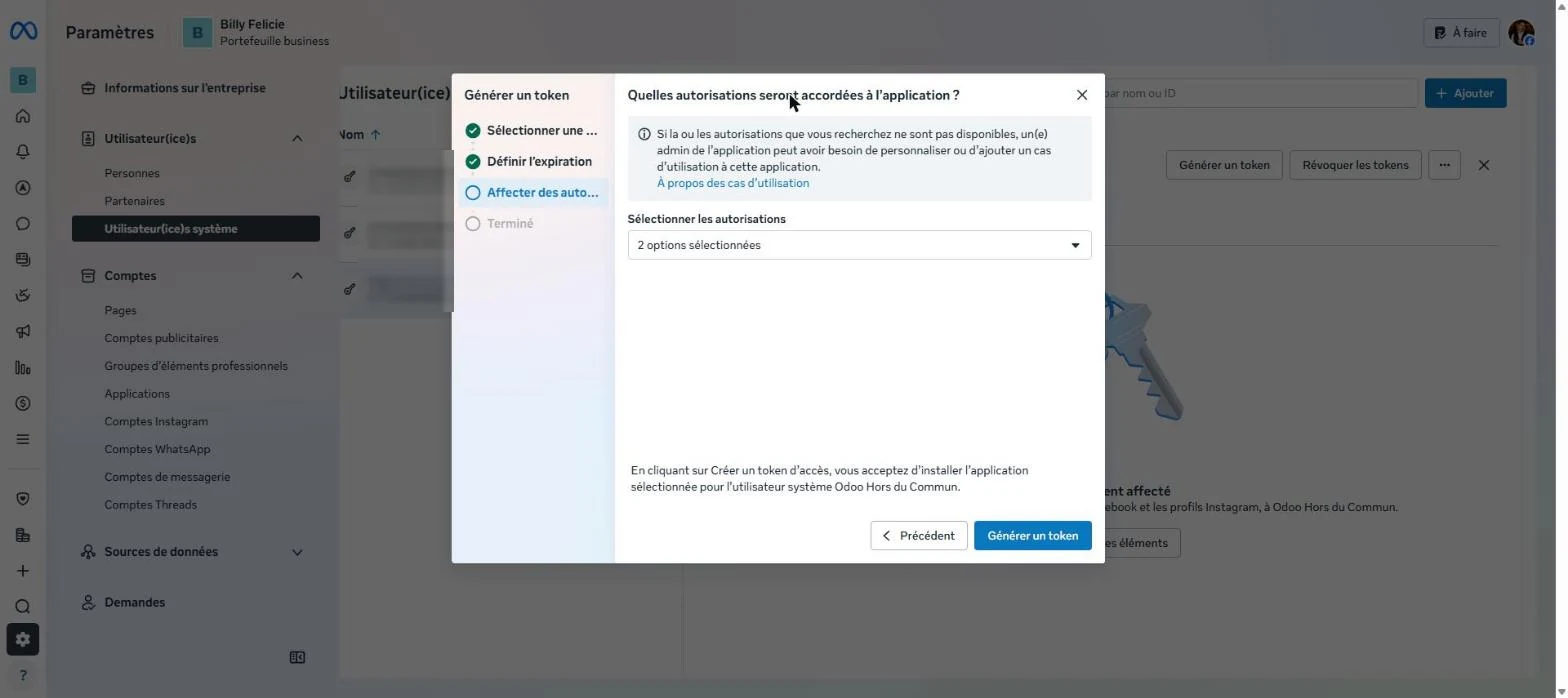
Screenshot from Meta Business Suite: the two WhatsApp permissions, just before “Generate token”.
🔗Step 8: connect Odoo to your WhatsApp account
5 minutesThe Odoo form expects five values, all found at Meta. The App ID and App Secret are in the app's basic settings (App settings > Basic). The phone number ID and the WhatsApp Business account ID are shown in the phone number section. The token is the one from step 7.
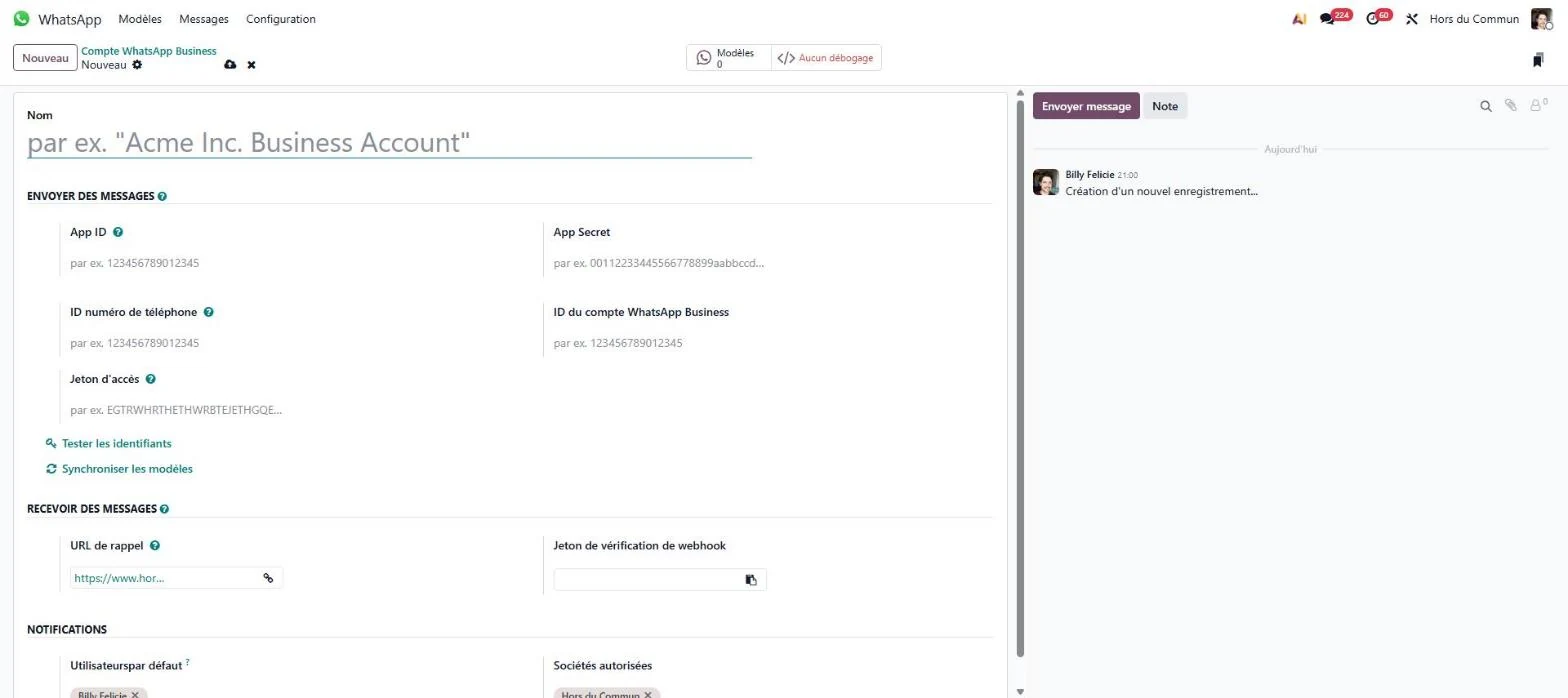
Also fill in the “Default Users”: these are the people notified when a customer writes. In our case, two people reply from the same number. Save, then click “Test Credentials”. If everything is correct, Odoo shows a green message and fills in the phone number on its own.
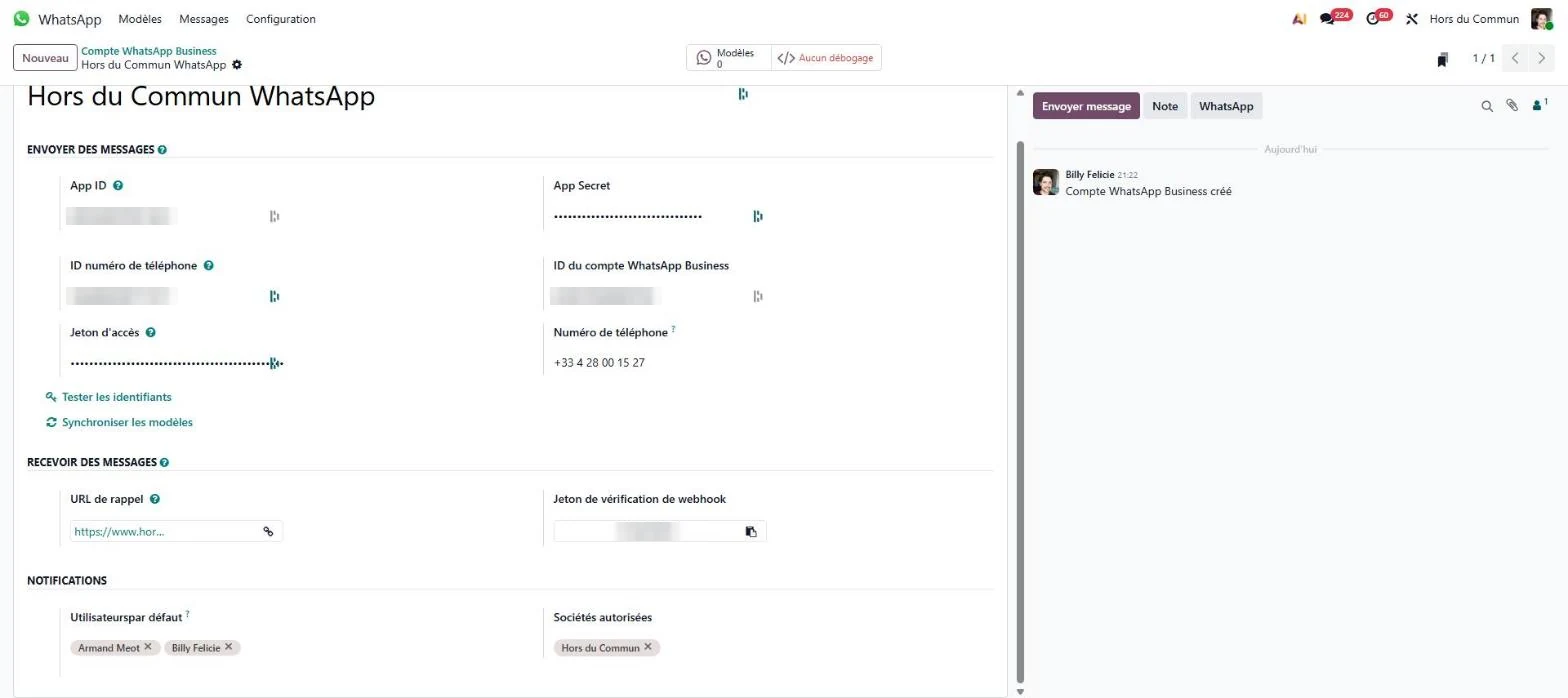
What you just did is a standard API connection: an app, a token, credentials. If other tools need to talk to your Odoo, the principle is the same, and we explain it on our page how to connect Odoo with an API.
📥Step 9: connect the webhook to receive messages
5 minutesWithout a webhook, Odoo sends but receives nothing. In the Odoo form, “Receive Messages” section, copy the callback URL and the verify token. Paste them at Meta, in the app, at the “Configure webhooks” step, then click “Verify and save”.
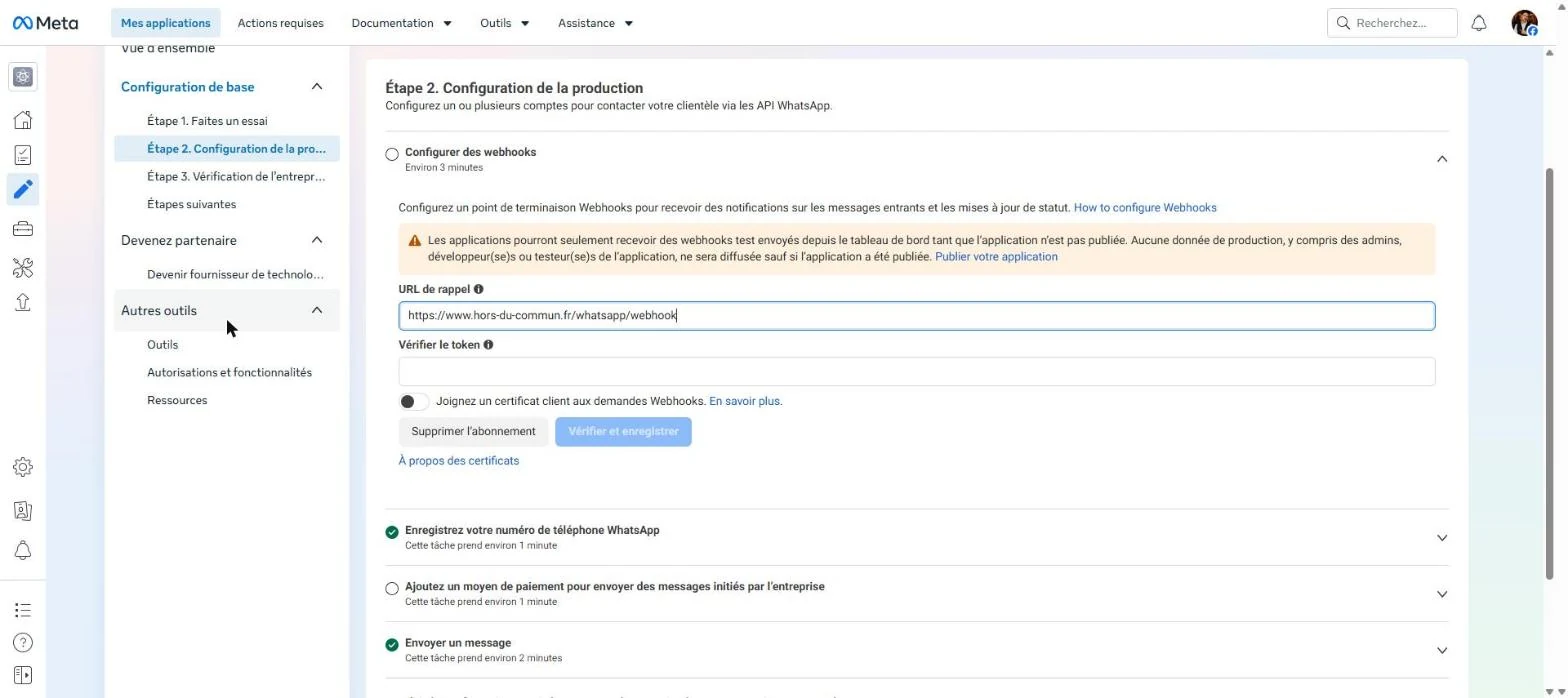
Screenshot from Meta for Developers: the Odoo callback URL (it ends with /whatsapp/webhook), before the verify token.
Two settings remain, and they are often forgotten. In the phone number section, turn on “Subscribe to webhooks” for the WhatsApp account. Then, in the Webhooks menu, product “Whatsapp Business Account”, subscribe to the fields “messages”, “message_template_status_update”, “message_template_quality_update”, “template_category_update” and “account_update”.
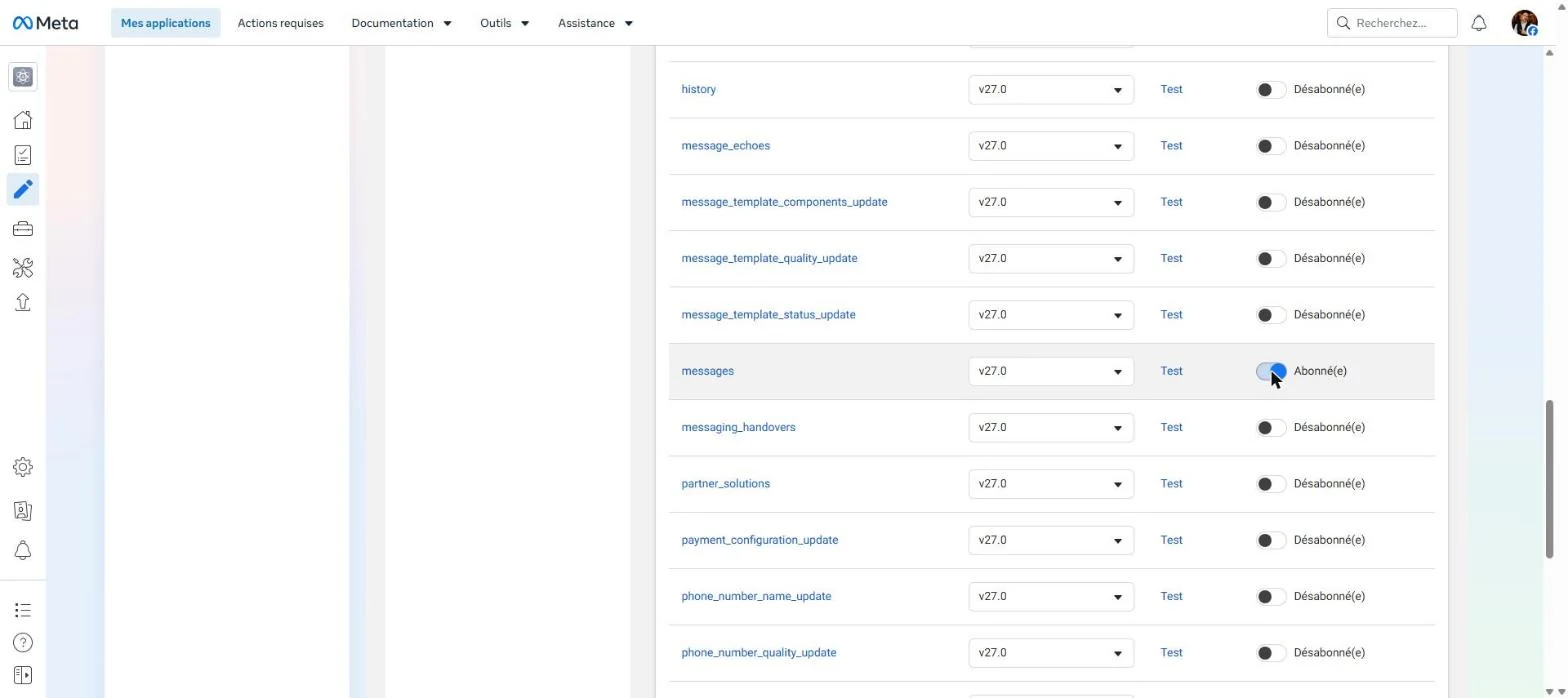
Screenshot from Meta for Developers: the “messages” field subscribed. This is what brings customer messages into Odoo.
🚀Step 10: publish the Meta app
2 minutesAs long as the app is “Unpublished”, Meta only forwards test messages. Your first tests may work, then nothing arrives from real customers. Before publishing, fill in your privacy policy URL and a category in App settings > Basic.
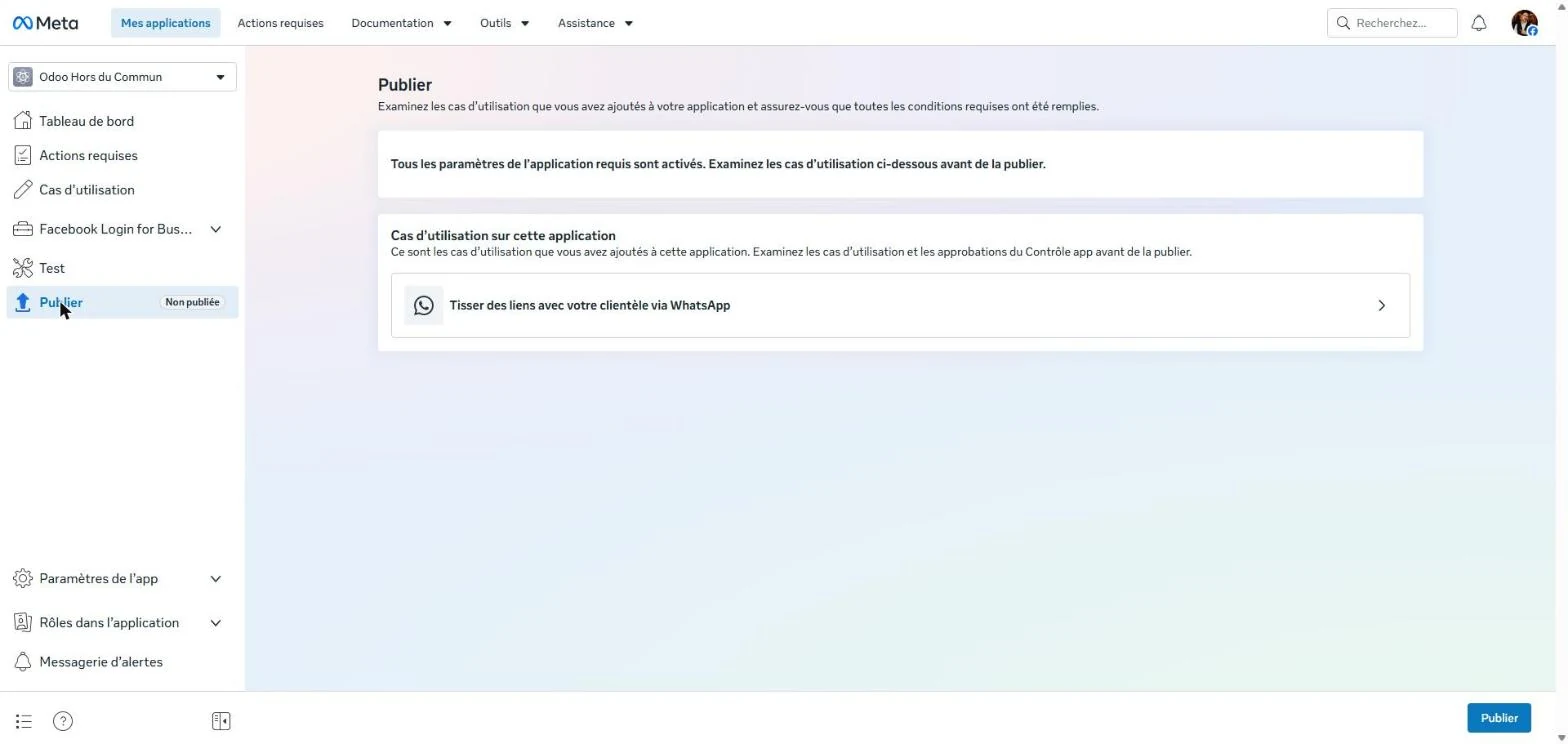
Screenshot from Meta for Developers: the “Publish” page, with the button at the bottom right. The required settings are filled in.
🎨Step 11: polish the profile your customers will see
5 minutesAdd the logo, description, address, email and website. One detail matters: WhatsApp shows the photo in a circle, and an image with a transparent background comes out on black for some customers. Use a square version on a solid background, centered with a margin. We used our logo on a yellow background.
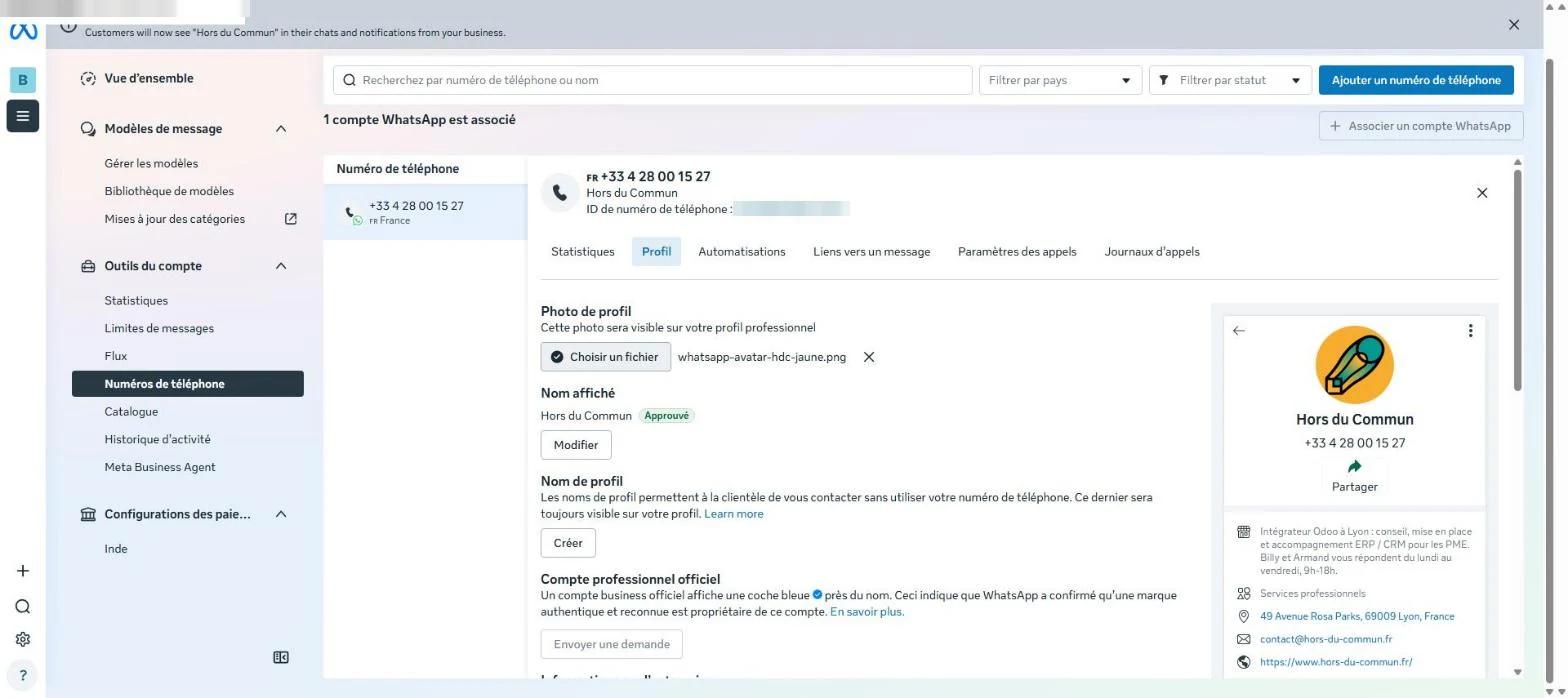
Screenshot from WhatsApp Manager: the completed profile and, on the right, the preview as a customer sees it.
✍️Step 12: create your message templates
10 minutes per templateA customer who writes to you opens a 24-hour window during which you can reply freely. Outside that window, you can only write with a template approved by Meta: a first contact, a quote follow-up, an appointment confirmation.
The variables {{1}}, {{2}} fill in automatically when sending. On a template linked to contacts, {{1}} can take the contact's name and {{2}} the first name of the person sending. On a template linked to quotes, {{2}} can take the quote reference.
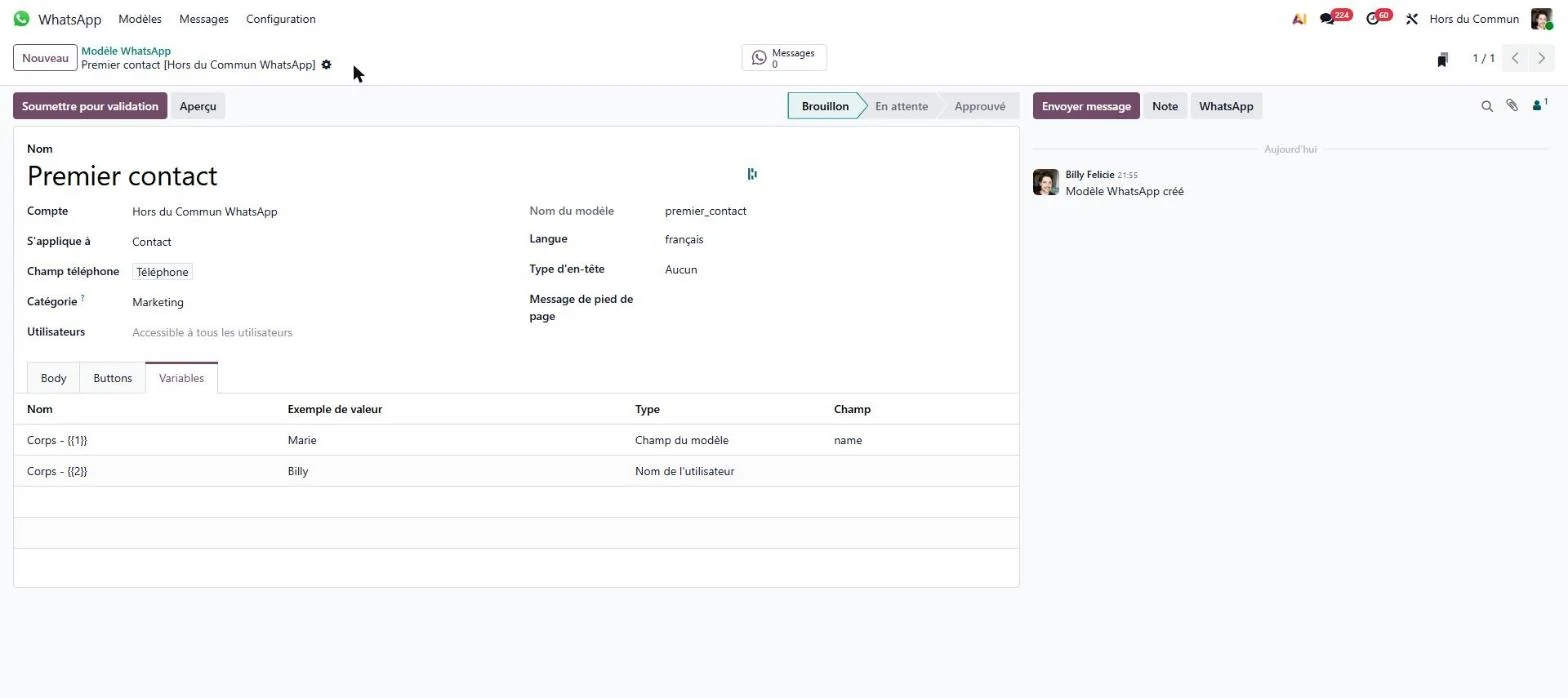
Choose the category carefully: “Utility” for a message tied to a specific order or request, “Marketing” for everything else. A sales follow-up declared as utility gets reclassified, or even rejected. Another tip: write in neutral phrasing, avoiding French informal or formal address, so the same template suits all your contacts.
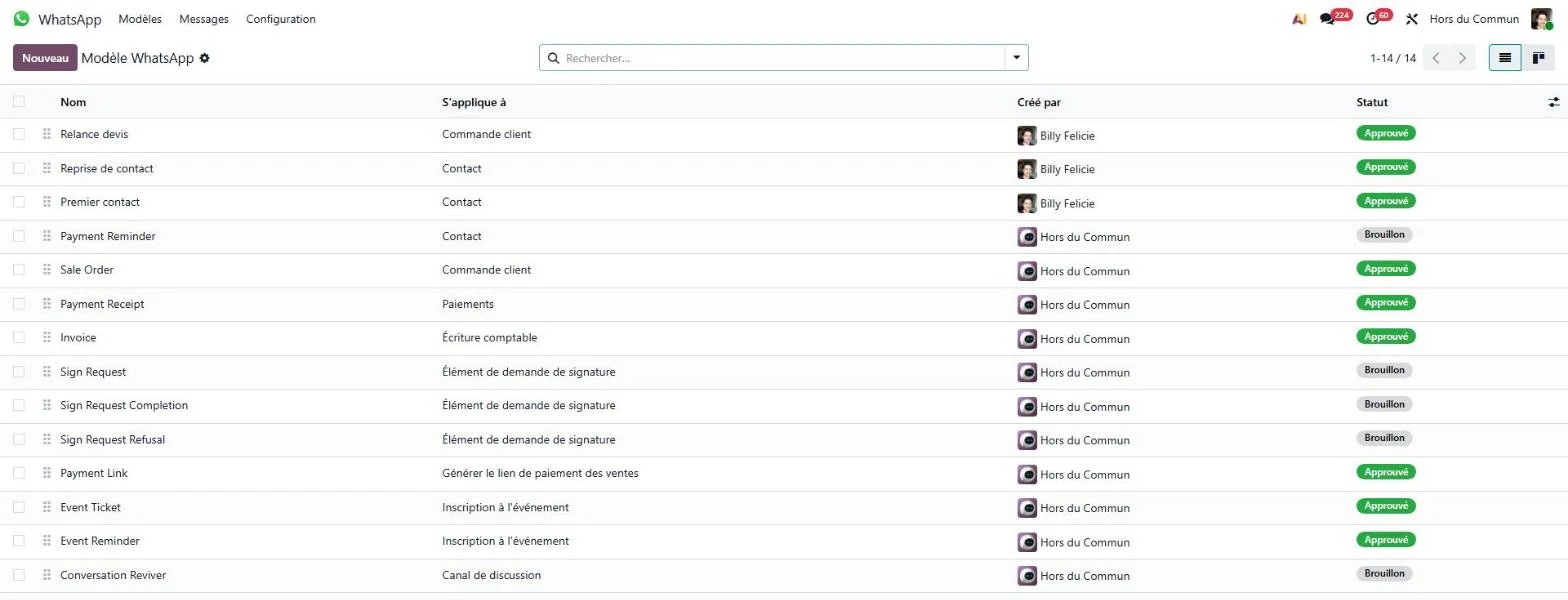
The screens for each step are gathered in a more complete slideshow, about sixty screenshots with the exact settings, to keep on hand during setup. You can get it for free from our page WhatsApp and Odoo guide as a slideshow.
✅Step 13: test sending and receiving
5 minutesSend a WhatsApp message to the number from your mobile phone. It arrives in Discuss, WhatsApp section, in a channel named after the contact, with a notification for the default users. Reply from Odoo: the reply reaches the phone within seconds.
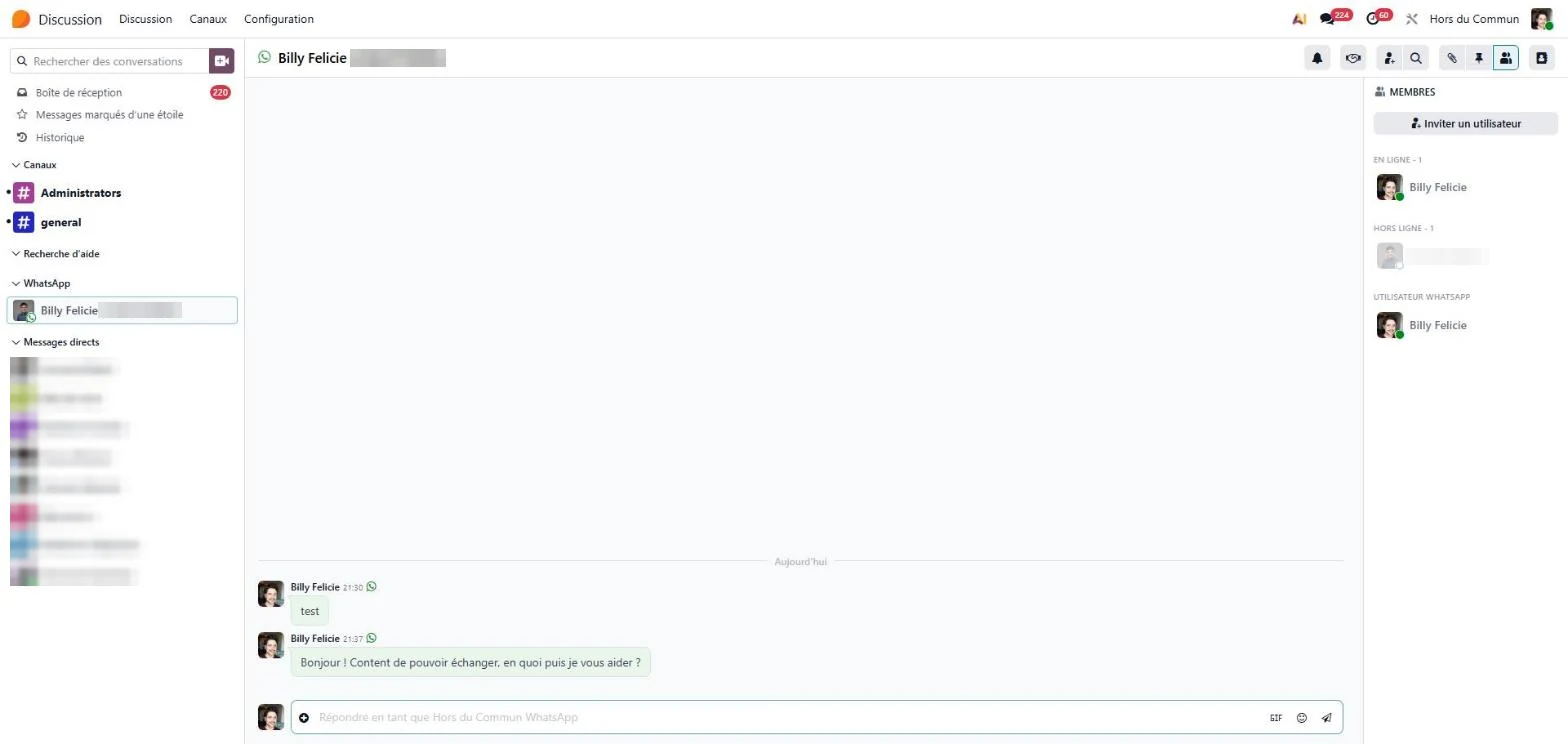

When the first “test” finally lands in Odoo, after error #2494070 and an hour's wait for a code.
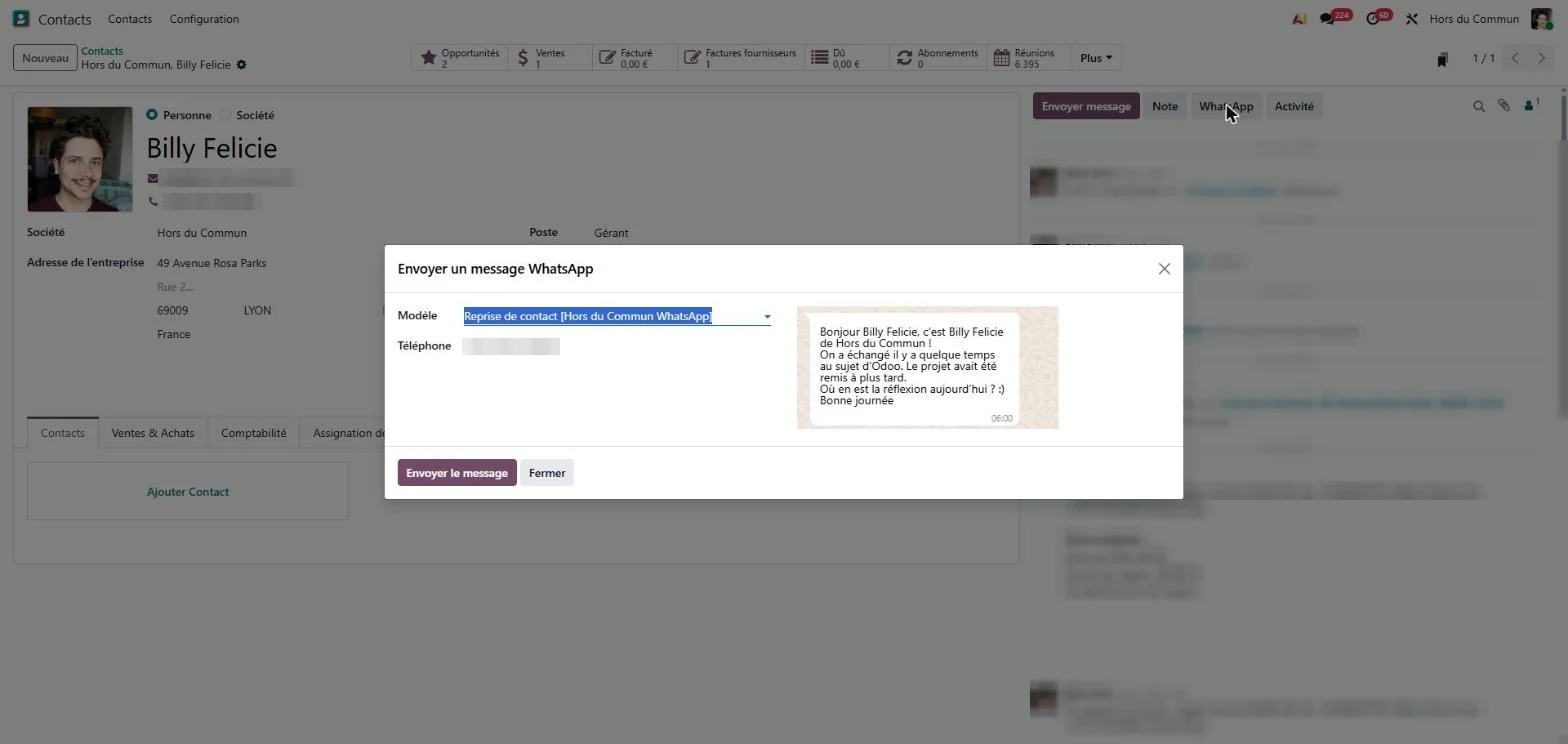
To write first, open a contact record and click “WhatsApp” above the chatter. Odoo suggests the approved templates and shows the preview, variables filled in. Conversations stay in the contact's history, in the same place as emails and calls. That is the whole point of centralizing customer relationships, as we show on our page CRM and sales management with Odoo.
💶How much does WhatsApp cost in Odoo?
Neither Odoo nor Meta charges for a subscription or for the connection. Meta charges per delivered message, based on its category and the recipient's country. Here is the official rate card for France, in effect since October 1, 2026.
| Category | Price excl. VAT per delivered message | Examples |
|---|---|---|
| Marketing | 0,0712 € | First contact, reconnecting, promotion, invitation. |
| Utility | 0,0248 € | Quote follow-up, appointment confirmation, order tracking, invoice. |
| Authentication | 0,0248 € | One-time passcodes. |
| Service | Free up to 1,000 per month per number, then €0.0248 | Your free-form replies within 24 hours of a customer message. |
“Businesses are only charged when a message is delivered. Meta does not charge for messages sent.” Meta, WhatsApp Business Platform documentation, pricing page.
Three rules follow from this. A number that does not have WhatsApp costs you nothing: the message fails in Odoo and is not charged. The 24-hour window restarts with each customer message, so an ongoing conversation stays free. And since October 1, 2026, a utility template sent during that window is charged: to reply to a customer who wrote to you, type a free-form message.
A ballpark for an SME: 50 first contacts and 100 follow-ups or confirmations per month come to about €6 excl. VAT, with customer replies staying free. The credit card is added in WhatsApp Manager, under “Payment settings”. Without it, no template goes out.
⚠️7 mistakes to avoid
- Keeping the number active on a phone: it must first be removed from the WhatsApp app.
- Putting an IVR in front of the landline: Meta's robot cannot choose from a menu, and the code is lost.
- Naming the Meta app “WhatsApp…”: the name is rejected.
- Adding the number before business verification: that is error #2494070.
- Keeping the temporary token: it expires in 24 hours and Odoo stops sending the next day.
- Forgetting to subscribe to the webhook fields or to publish the app: Odoo sends, but receives nothing from customers.
- Declaring a sales follow-up as “Utility”: Meta reclassifies or rejects the template.
🎯In summary
WhatsApp can be added to Odoo with no subscription, in thirteen steps, most of which take a few minutes. The two that need attention are business verification, to do before adding the number, and the webhook, without which nothing arrives. After that, the whole team replies from the same number, every conversation is archived on the customer record, and you only pay for the messages you initiate.
- Odoo, official Odoo 20 documentation, WhatsApp app: https://www.odoo.com/documentation/20.0/fr/applications/productivity/whatsapp.html
- Meta, WhatsApp Business Platform documentation, pricing and rates by country (in effect as of October 1, 2026): https://developers.facebook.com/docs/whatsapp/pricing

Article written by Billy Felicie
Odoo integration expert at Hors du Commun (Lyon). I have been helping SMEs implement their digital tools and optimize their business processes for more than 5 years.