
Odoo Studio lets you customize Odoo without programming: add fields, change views, adapt PDF reports, create automations, approval rules and even new apps. It stops where complex business logic begins: custom calculations, changing how Odoo behaves, robust integrations with other software, which all fall under custom development.
In between, there is a gray area. Studio moves your database to the Custom plan, some options actually require code, and not all customizations survive version upgrades the same way. This guide sorts it out, with Odoo 20 screenshots.
What is Odoo Studio, and who is it for?
Studio is an Odoo Enterprise app. Once installed, an icon appears in the top bar: one click, and the screen you are looking at switches to edit mode. The quote form, the customer list or the task board become surfaces where you drag in fields, move blocks around and hide what you do not use.
Odoo's documentation presents it as a toolbox for customizing Odoo without knowing how to program. But “without programming” does not mean “without thinking”: every field you add changes the structure of your database, and every automation becomes a rule that runs for everyone.
Studio is therefore aimed at two profiles: the internal ERP owner, who knows the processes, and the integrator, who uses it to adapt Odoo before writing a single line of code. Studio does not replace needs analysis: it only makes implementation less expensive.
What can you actually customize with Odoo Studio?
Here is what Studio can do, with examples for a wholesale or manufacturing SME.
Fields
The “New Fields” palette offers, among others, “Text”, “Integer”, “Decimal”, “Monetary”, “Date”, “Checkbox”, “Selection”, “File”, “Image”, “Signature”, “Tags” and “Priority”, as well as relational fields that link two objects together. Examples: a “Job site reference” on the quote, a “Last visit date” on the customer form, a “Risk level” list on the opportunity. The “Related Field” displays information taken from elsewhere, for example the customer's email address directly on the order.
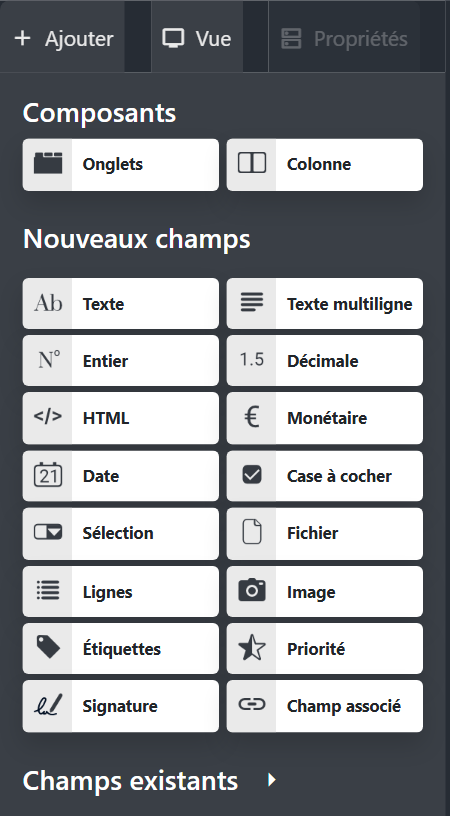
Views
Form, list, kanban, calendar, graph, search: every view can be rearranged. You add a “Quality” tab on the product form, hide three useless columns in the invoice list, make a field required.
PDF reports
Studio opens a report editor: add a field to the printed quote, change some text, insert a table, duplicate the delivery slip to make a simplified version. The documentation actually recommends duplicating the standard report rather than editing it directly.

Automations and webhooks
An automation rule is triggered by an event (a record being created or updated, a move to a stage) or by a date. An example from the documentation: send an email 30 days before a contract's end date. Possible actions range from updating a field to creating an activity, sending an email or a text message. Webhooks, for their part, let you receive or send a notification to another system.
Approval rules
On a button, Studio can require approval before the action. Example: a quote with more than a 15% discount can only be confirmed after the sales director approves it. Odoo creates an activity for the approvers, handles several steps with an approval order and tracks approvals in the record's chatter.
Studio also adjusts security rules and menus. The key point: many requests that seem to call for development can actually be handled with Studio, without a line of code.

You when you just dragged your first field onto the quote with Studio and already feel like an Odoo developer.
Can you build a complete app with Studio?
Yes. From the Studio home screen, the “New App” wizard asks for a name and an icon, then the name of a first menu, backed by a new data model (for example “Equipment loan” or “Quality claim”). It then offers a list of “Suggested features for your new model” to check, including “Contact details”, “User assignment”, “Date range & Gantt”, “Pipeline stages”, “Lines”, “Monetary value” or “Archiving”.
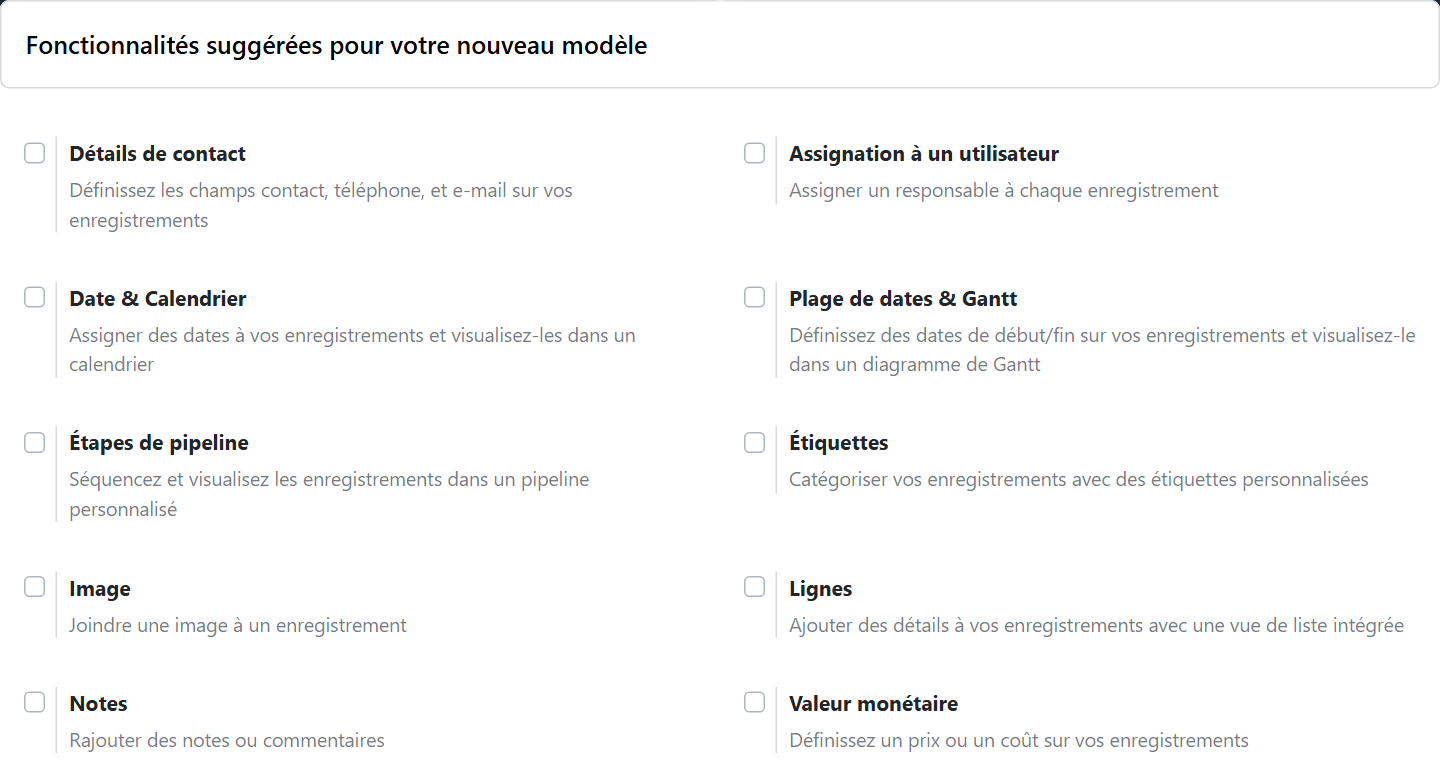
In a few minutes, you get an app with its menu and screens. For a nonconformity log or tool loan tracking, which until now lived in a shared spreadsheet, that is often enough.
The limit shows up as soon as the app has to act on the rest of Odoo: move stock, generate a journal entry, recalculate a price. Studio creates an object and its screens; it does not give it the business intelligence of the Inventory or Accounting module.
Where do Odoo Studio's capabilities end?
Studio works on structure (fields, screens, documents) and on simple rules. It does not change how Odoo works under the hood. Four boundaries emerge.
1. Complex business logic
Changing how Odoo calculates a delivery date, reserves stock or posts a journal entry means changing how the software behaves. Studio does not do that. A price that depends on dimensions, material and a shipping rate table, or constraint-based production scheduling: these are custom development.
2. Calculations
Studio can display a related field or update a value. As soon as you need a real calculation, the option offered in automations is called “Compute” and, according to the documentation, updates the field “using Python code”. Same thing for the “Execute Code” action. At that point, you are no longer “without programming”: someone writes code, which will have to be tested and maintained. The automation documentation spells it out: maintenance of this code is included in neither the Standard plan nor the Custom plan, and it incurs additional fees.
3. Integrations
A webhook sends or receives a message. A reliable integration with a carrier or a business application is something else: authentication, data mapping, recovery after errors. For a one-off notification, Studio is enough. For a flow your revenue depends on, you need a real architecture. When a connection is justified, what it costs to maintain and how it survives version upgrades: our page on how to connect Odoo with an API covers these questions in detail.
4. Editing the code of views and reports
Studio gives access to the XML of views (in developer mode) and reports (the “Sources” tab of the report editor). It is tempting when drag and drop is no longer enough. It is also where the trouble starts:
“Directly modifying the XML can result in report issues during upgrades.” (Official Odoo 20 documentation, Studio, PDF reports)
Same warning for views: according to the documentation, a change made directly in a standard or inherited view would be reset and lost during module updates or upgrades. Studio stays solid as long as you stick to its visual tools. Hand-edited XML is already development, without the safeguards of development.
How much does Studio cost: what is the impact on the Odoo license?
Studio has no separate price: it changes your plan. Installing Studio on a database on the Standard plan automatically moves it to the Custom plan. For a monthly contract, the new rate applies from the next invoice. For an annual or multi-year contract, Odoo creates an upsell order, with a 30-day limit.
On Odoo's pricing page, checked on September 27, 2026, the Standard plan costs €19.90 per user per month with an annual commitment in the first year, then €24.90. The Custom plan costs €35.90 per user per month with an annual commitment in the first year, then €44.90.
| Plan | First year | After that | Studio |
|---|---|---|---|
| Standard | 19,90 € | 24,90 € | Not included |
| Custom | 35,90 € | 44,90 € | Included |
The difference is paid on every user, not just those who use Studio. For an SME with 20 users, that is €16 more per user per month in the first year (€35.90 instead of €19.90), or €3,840 over the year, then €20 more (€44.90 instead of €24.90), or €4,800 per year. Adding three fields to a quote does not justify this expense on its own.

You when you realize that the little click on Studio's “Install” button just changed the plan for all twenty users in the company.
The math changes if you are already on the Custom plan. On the pricing page, this plan is also the one that unlocks managing multiple companies in one database, the external API and hosting on Odoo.sh or on your own servers. In these cases, Studio costs nothing extra in licensing.
What happens to Studio customizations during a version upgrade?
This is the strongest argument in favor of Studio. Odoo releases a new major version every year, and Odoo's upgrade service covers customizations made with Studio, on one specific condition:
“the upgrade of all customizations created with the Studio app, as long as Studio is still installed and the respective subscription is still active” (Official Odoo 20 documentation, Upgrade, services covered)
Two consequences. Uninstalling Studio removes this coverage from existing customizations. And everything around it is not treated the same way: maintenance of automation code is not included, as we saw, and the upgrade documentation states that additional modules created in-house or by third parties, Odoo partners included, are not covered without a maintenance contract.
Even when covered, customizations need testing. A new version can move a standard field, rename a stage, change a screen your automation relied on. Acceptance testing on a test database before production avoids nasty surprises. To measure what has changed between your version and the target one, our Odoo version comparison tool lists the changes from Odoo 16 to Odoo 20, capability by capability.
Studio or custom development: how do you decide?
The right question is not “can Studio do it?” but “what is the simplest solution that will hold up over time?”. Our method goes through four levels, from simplest to most complex: Odoo's standard features first, then Studio, then third-party modules, and custom development only when the first three are not enough.
| The need | Studio is enough | Custom development |
|---|---|---|
| Display or enter one more piece of information | Yes, a field and a view | Rarely |
| Have a manager approve an action | Yes, an approval rule | If the approval flow depends on complex calculations |
| Adapt a printed document | Yes, the report editor | If the layout changes across many cases |
| Notify, follow up, create an activity | Yes, an automation | If the rule requires a real calculation |
| Calculate a price, a lead time, a quantity | No | Yes |
| Exchange data with another application | For a simple notification | For a critical flow |
Two questions round out the grid. Is the need truly differentiating, or does it reproduce a habit from the old software? And does the gain offset the maintenance cost over several years? If the answer is no, an internal rule or a simple check is often enough. The four levels, the hidden cost of code and the cases where it becomes justified are covered in our page on Odoo custom development and the situations where you should avoid it.
What rules should you set before opening Studio to your teams?
Studio is powerful because it is easy. That is also its danger: three people each adding their own fields for a year produce an unreadable form and automations that contradict each other. A few simple rules limit this risk.
- One or two people at most change Odoo with Studio. Everyone else sends their requests to them.
- Every change is tested first on a test database. Studio can export its customizations as a module, provided the target database is on the same Odoo version and contains the same apps and modules.
- Every added field has a clear label and a reason for existing written down somewhere. A field nobody fills in is a field to remove from the screen.
- No hand-edited XML, no code in automations without a designated owner to maintain it.
- A review before each version upgrade: what is still used, what can go back to standard, what needs testing.
The best time to decide what will go through Studio is still project scoping, when needs are listed and ranked by priority. If you are just starting, our free Odoo specification builder has you list your needs app by app, ranked Must have, Important or Later, and produces a PDF to share with your team.
In short, Odoo Studio covers most of the adaptations an SME needs: fields, screens, documents, simple rules and small internal apps. On a database on the Standard plan, it forces the Custom plan on all users, and its customizations stay covered by the upgrade service as long as Studio remains installed and the subscription active. Beyond that, code takes over again. At Hors du Commun, an Odoo integrator in Lyon, we use Studio before coding, and we only code when the business need truly justifies it.
- Odoo, official Odoo 20 documentation, Studio, “PDF reports”: https://www.odoo.com/documentation/20.0/fr/applications/studio/pdf_reports.html
- Odoo, official Odoo 20 documentation, “Upgrade” (services covered by the SLA): https://www.odoo.com/documentation/20.0/fr/administration/upgrade.html

Article written by Billy Felicie
Odoo integration expert at Hors du Commun (Lyon). I have been helping SMEs implement their digital tools and optimize their business processes for more than 5 years.