
Since September 1, 2026, every company subject to TVA (French VAT) must be able to receive e-invoices. Large companies and mid-sized companies (ETI) must also issue them. SMEs, small businesses and micro-enterprises will follow on September 1, 2027 for issuing.
Odoo is registered as an approved platform (PA, France's certified e-invoicing platform; the former name was PDP). In practice, you do not need an extra tool: your Odoo sends and receives invoices. It still has to be activated correctly. This tutorial shows you where to click, in what order, and what you will see on screen. Allow 20 minutes of hands-on work, then a one-day delay.
🧰Before you start: what you need on hand
Registration is not a simple setting. It enters your company in the official government directory. That is why Odoo verifies the identity of a real person. Prepare these items before opening Odoo, and you will avoid starting over.
| What you need | Why |
|---|---|
| An available legal representative | They are the one who authenticates and signs. Odoo finds the company's legal representatives and asks you to choose your name from the list. |
| Their ID document | ID card, passport or residence permit, as a photo or a legible scan. |
| Their email address | The 5-digit verification code is sent there. |
| The company's SIREN | The SIREN (French company identification number) serves as the e-invoicing address. It must be filled in on your company record in Odoo, with France as the country. |
| A compatible version of Odoo | The module is available in versions 19 and 20, in Enterprise as well as Community. It was developed on version 18, and Odoo has announced a port to version 17. |
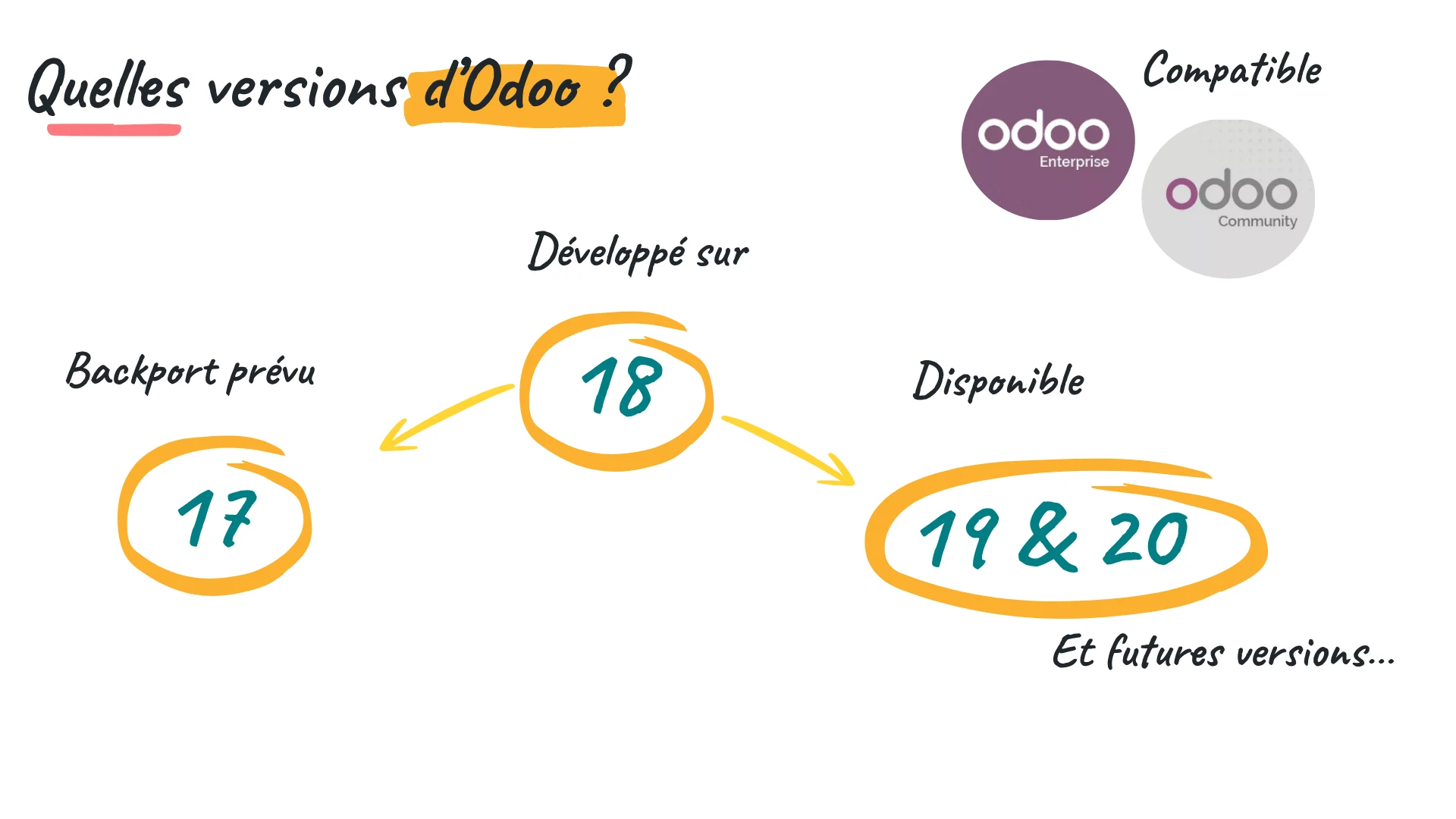
The Odoo versions compatible with the Approved Platform. Source: official Odoo Insider presentation, June 2026.
An architecture point to know: an Odoo database carries a single reception point per company. If you have several entities, each one registers with its own SIREN, in multi-company mode.
🔗 New to the topic: If the terms Peppol, Factur-X or e-reporting do not mean much to you yet, start with our page on e-invoicing with Odoo, then come back here to put it into practice.
🧩Step 1: install the Approved Platform module
2 minutesThe module is called France - E-Invoicing (Approved Platform). Its technical name is l10n_fr_pdp. On a recent database with French accounting, it is often already installed. Check anyway.
If the module does not appear, switch to developer mode and click Update Apps List. A “Module Update” window opens: click Update, then run the search again.
⚡Step 2: activate e-invoicing
1 minuteScroll down the page to that section. It only appears if your company's country is France. It contains a single button.
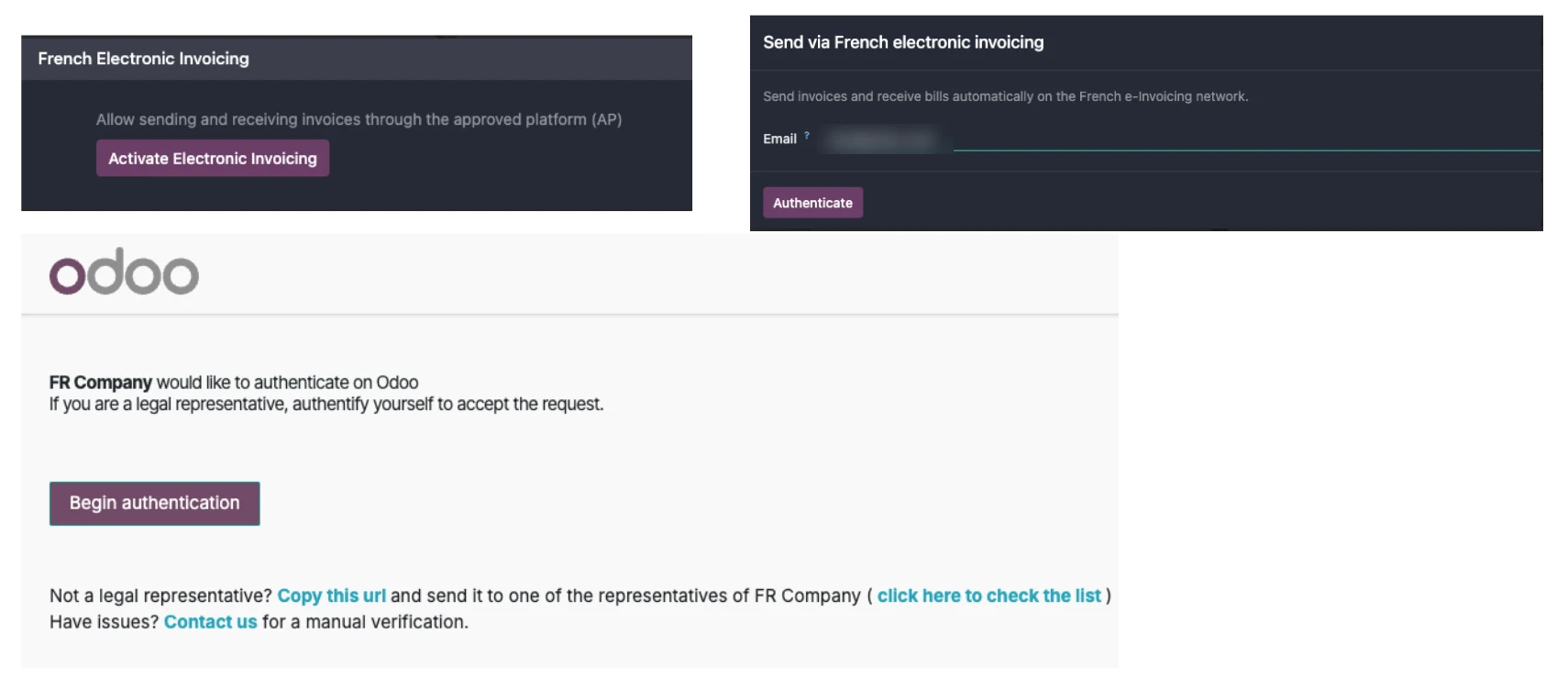
The Activate Electronic Invoicing button, the email entry and the Odoo authentication page. Source: official Odoo Insider presentation, June 2026.
Click Activate Electronic Invoicing. A window opens. Enter the legal representative's email address, then click Authenticate.
🪪Step 3: prove your identity
5 minutesAn Odoo page opens in a new tab. It states that your company wants to authenticate. This is where the legal representative takes over.
Not the legal representative? The page offers a “Copy this url” link. Copy it and send it to the business owner. They will complete this step from their own computer, and you will pick up afterwards. The split of roles is simple: the accountant prepares, the business owner signs.
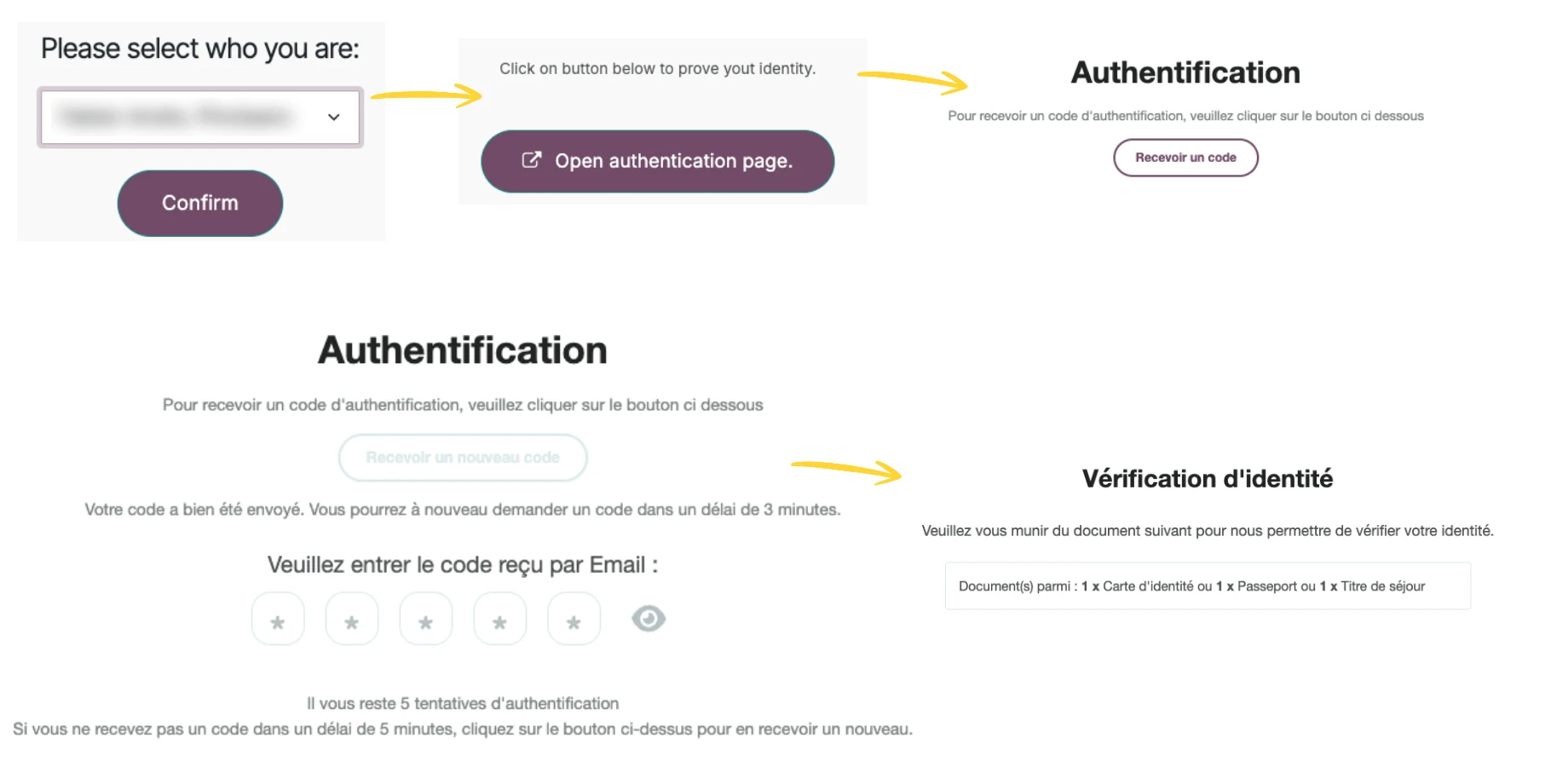
Choosing the legal representative, opening the authentication page and entering the code received by email. Source: official Odoo Insider presentation, June 2026.
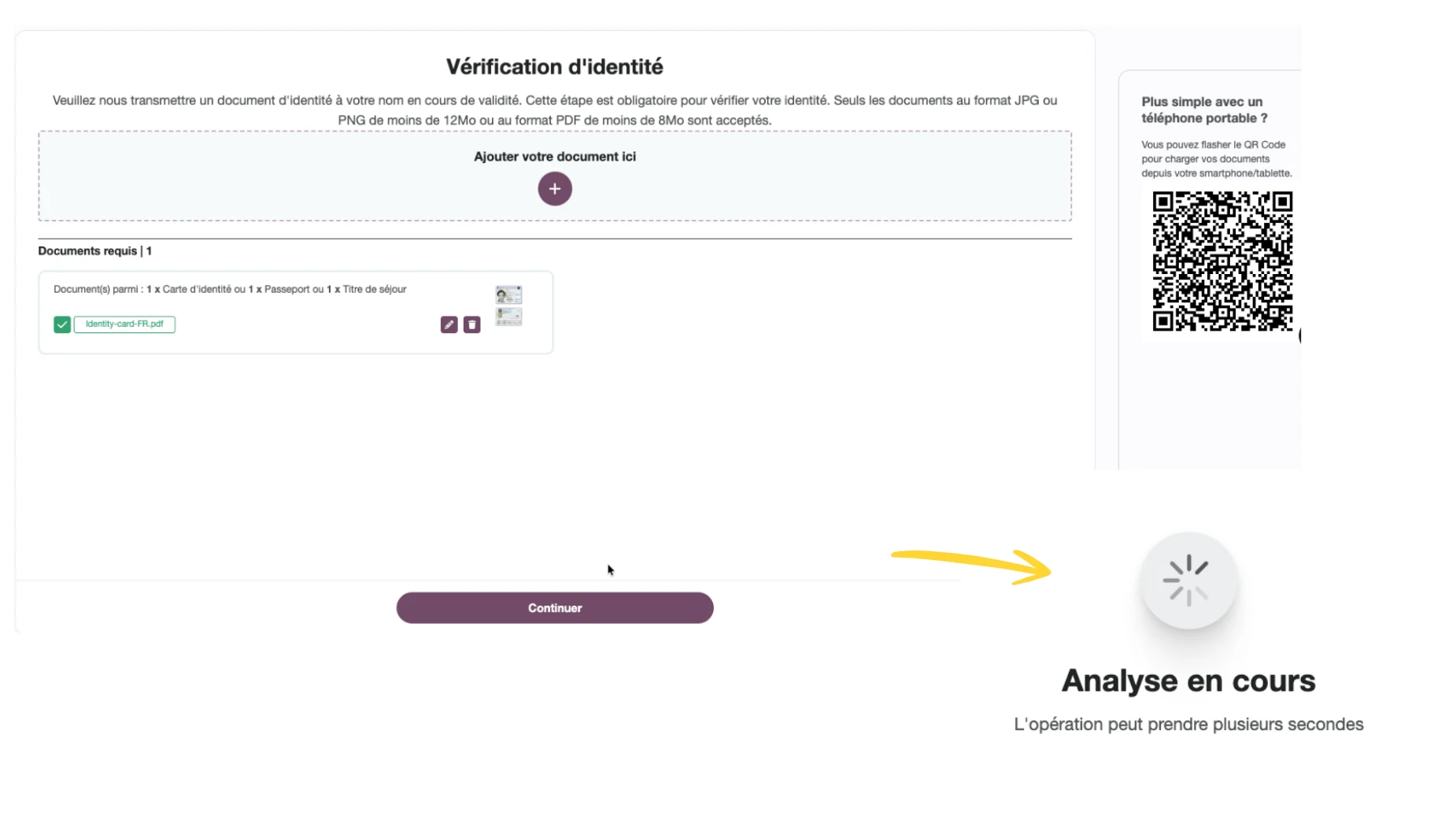
Uploading the legal representative's ID document. Source: official Odoo Insider presentation, June 2026.
The rest of the flow fits in four screens:
- Choose your name. Under “Please select who you are”, select yourself in the list, then click Confirm.
- Open the authentication page. Click Open authentication page.
- Enter the code. A 5-digit code arrives by email. You have 5 attempts. If nothing arrives, wait 3 minutes before requesting a new one.
- Upload the ID document. Add the document, then validate. A QR code lets you take the photo with a phone. The screen shows “Analysis in progress”, which takes a few seconds.

You staring at your inbox, when the 5-digit code takes 40 seconds to arrive.
✍️Step 4: sign the designation certificate
3 minutesOnce your identity is verified, Odoo displays the document to sign. It is the Approved Platform Designation Certificate. By signing it, you declare that Odoo is the platform that receives your invoices. This designation is what gets entered in the directory.
- Read the document again, then click Continue.
- Check the two boxes accepting the terms of the signature service.
- Validate the Signature. The screen shows “Signature in progress”.
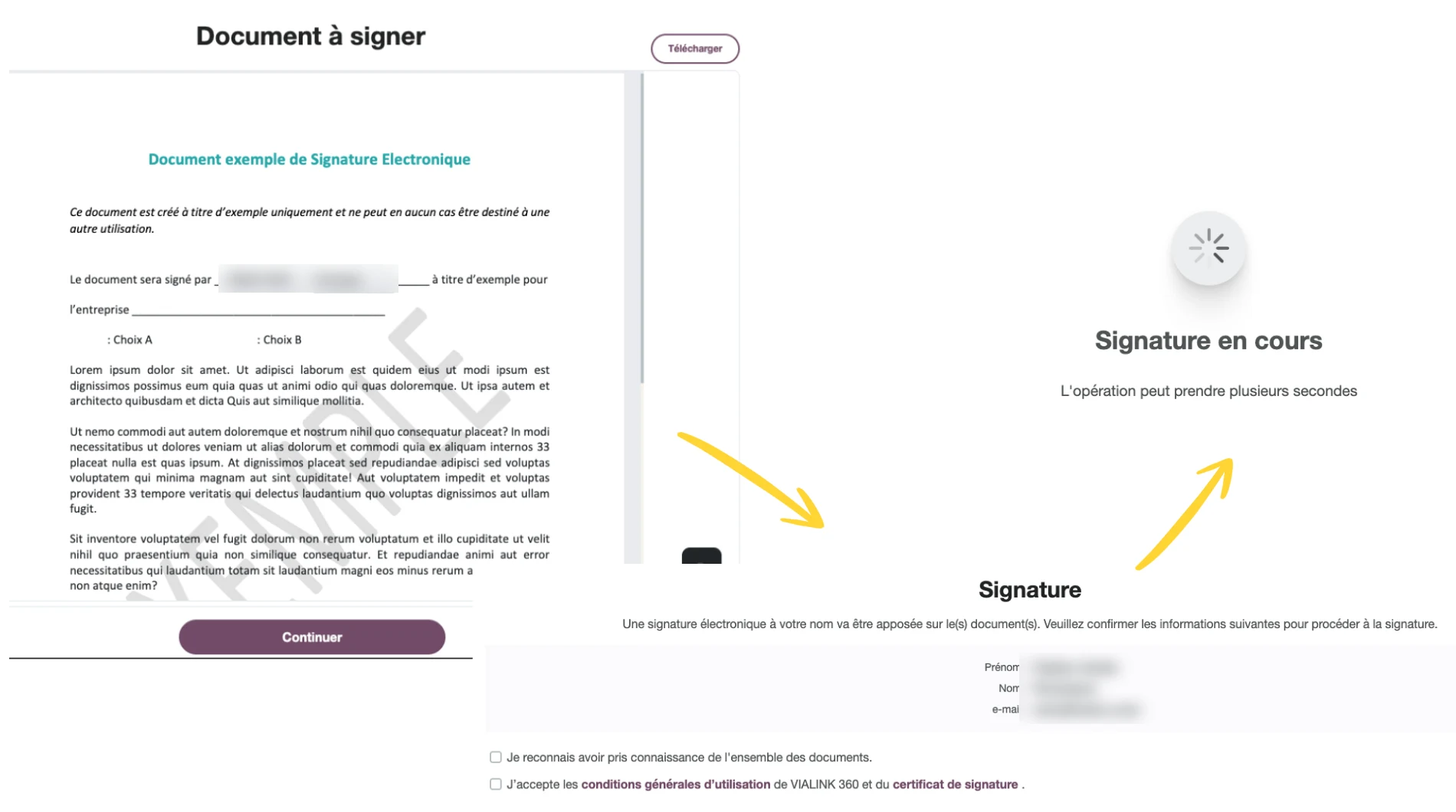
Electronic signature of the designation certificate. Source: official Odoo Insider presentation, June 2026.
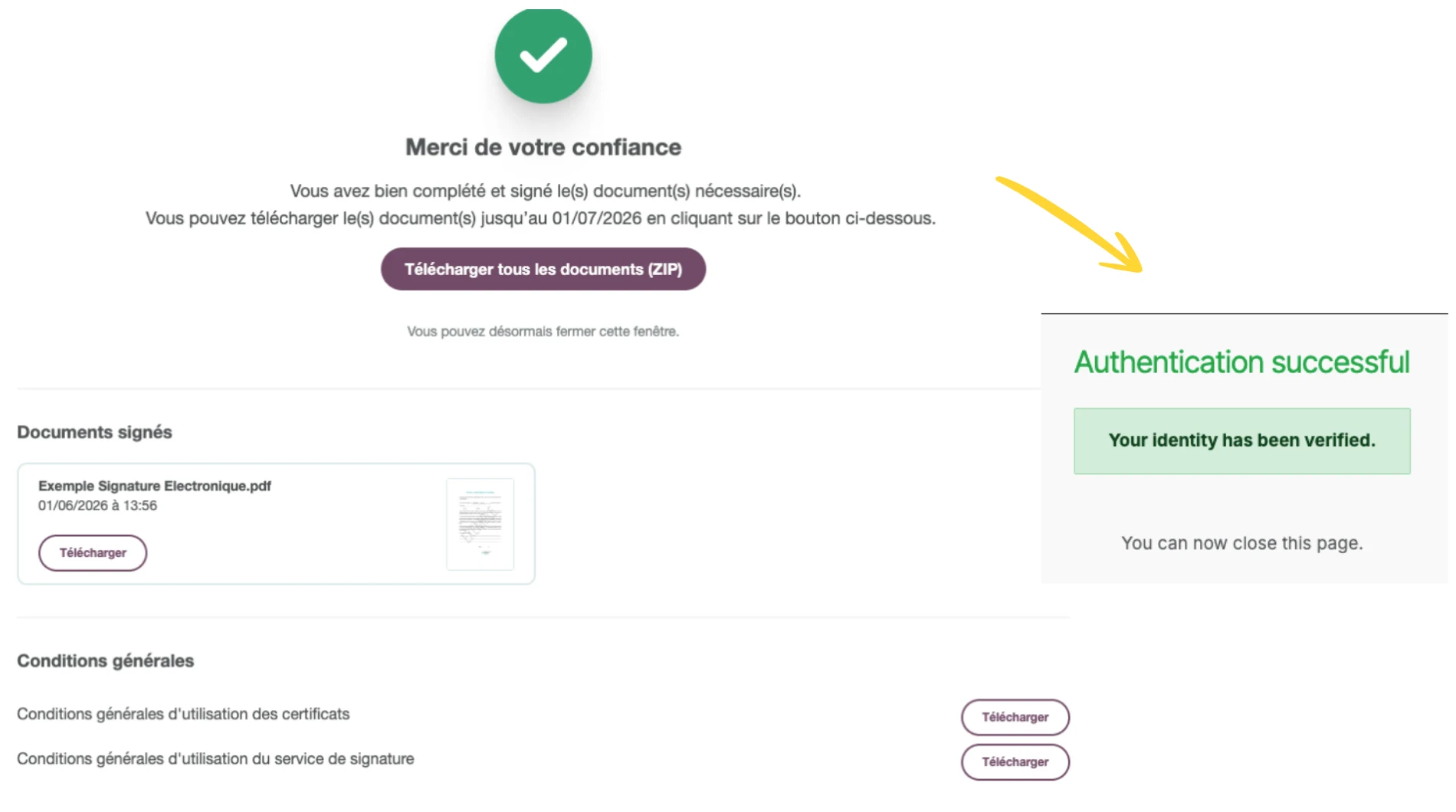
Confirmation of the signature and identity verification. Source: official Odoo Insider presentation, June 2026.
Download the ZIP file and keep it safe. The download link has an expiry date. This document is the proof of your designation, and your accountant may ask you for it.
“This approach is neither a postponement nor a suspension of the obligation.” The DGFiP (French tax administration) makes this clear in its practical guide: during the start-up phase, it distinguishes companies engaged in a serious compliance effort from those doing nothing.
✅Step 5: validate the registration in Odoo
1 minute, then a 24-hour waitGo back to Odoo, to the window that stayed open. Click Refresh. The form fills in.
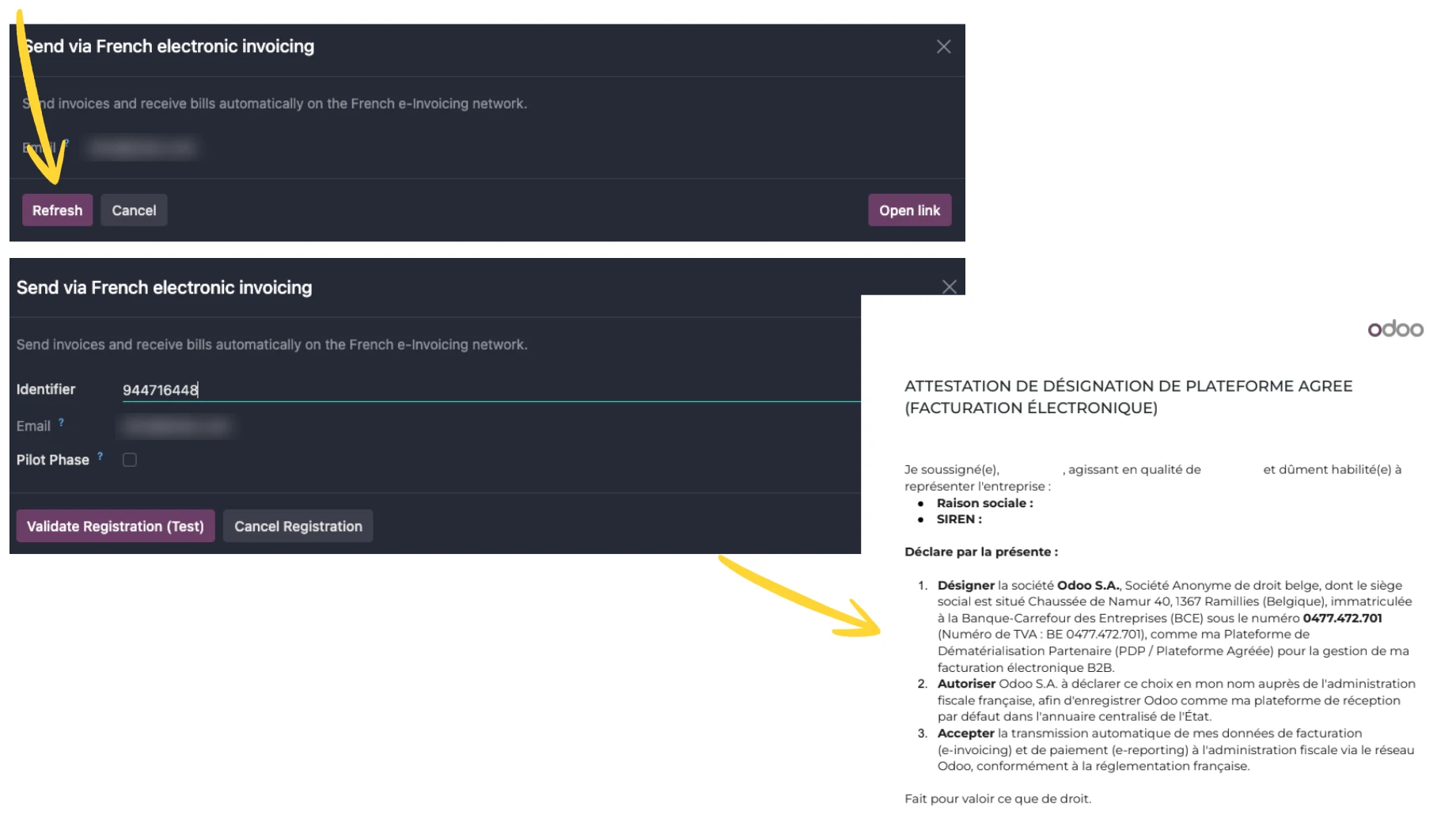
Registration validation window in Odoo and designation certificate. Source: official Odoo Insider presentation, June 2026.
- Identifier: check that it is indeed your SIREN. If it is empty, the SIREN is missing from your company record.
- Email: use an address that is monitored, preferably a shared accounting mailbox.
- Pilot Phase: this box was used for testing before September 1, 2026. If it is still offered to you today, leave it unchecked for a real registration.
Click Validate Registration. The government directory is only updated once a day. Your registration takes effect the next day. Do not start sending invoices the same day.
The next day, go back to the settings. The section looks different.
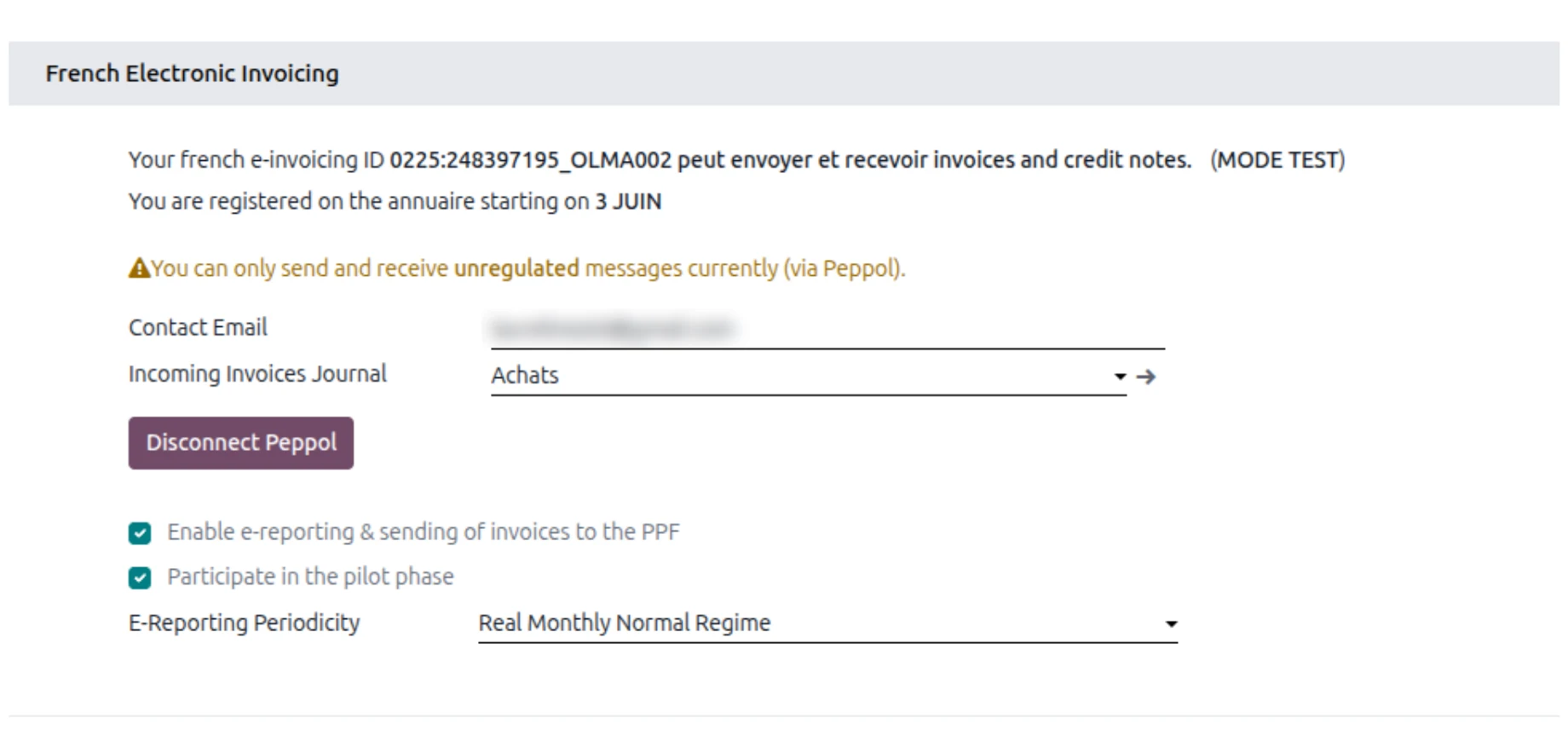
The French Electronic Invoicing section once the company is registered. Source: official Odoo Insider presentation, June 2026.
Three settings deserve your attention:
- Incoming Invoices Journal. This is the journal where received vendor bills land. By default, the Purchases journal.
- Enable e-reporting. Leave the box checked if you sell to consumers or abroad.
- E-Reporting Periodicity. Choose the frequency that matches your VAT regime: monthly or quarterly under the standard regime, monthly or bimonthly under the simplified regime. Ask your accountant for the right value, do not guess it.
🔗 On the accounting side: E-invoicing is useless if the chart of accounts, taxes and journals are poorly configured. We detail our method on the page accounting for SMEs.
📇Step 6: prepare your customer records
An e-invoice is routed using the customer's SIREN. If the record is incomplete, the invoice does not go out. It is the number one cause of blockages in production.
Screen reconstructed from Odoo's live demo (Odoo Insider, June 2026). The labels are those of the interface.
- Fill in the customer's SIREN and VAT number.
- Choose the France E-invoicing (UBL 2.1) format.
- Click Verify. Odoo queries the directory and tells you whether the customer is listed.
If Odoo replies that the partner is not in the directory, your customer has not yet designated a platform. There is nothing you can fix on your side. Let them know, and keep sending them your invoices through the usual channel in the meantime.
Our advice: do not run this check customer by customer on the day of the first invoice. Export your customer file, spot the missing SIRENs and fill them in all at once with an import.
🔗 Messy customer file: An audit spots missing SIRENs, duplicates and records without a country before they block your invoices. Here is how an Odoo audit works.
📤Step 7: send your first e-invoice
Good news: the way you invoice barely changes. You create the invoice, confirm it, and click Send. In the sending window, the e-invoicing option is offered for customers listed in the directory.
Odoo generates the file in UBL format and transmits it. You then track its progress from the invoice list, thanks to a new column.
Screen reconstructed from Odoo's official demo: the “Peppol status” column of the invoice list.
| Status shown | What it means for you |
|---|---|
| Ready to send | The invoice is confirmed but not yet transmitted. Click Send. |
| Pending reception | The invoice has gone out. Your customer's platform has not picked it up yet. |
| Done | The invoice has been delivered to the customer's platform. |
| Approved | Your customer has accepted the invoice. |
| Rejected | Technical problem: format, missing mandatory data, wrong identifier. To be fixed on your side. |
| Refused | Commercial disagreement: your customer disputes the invoice. To be handled with them. |
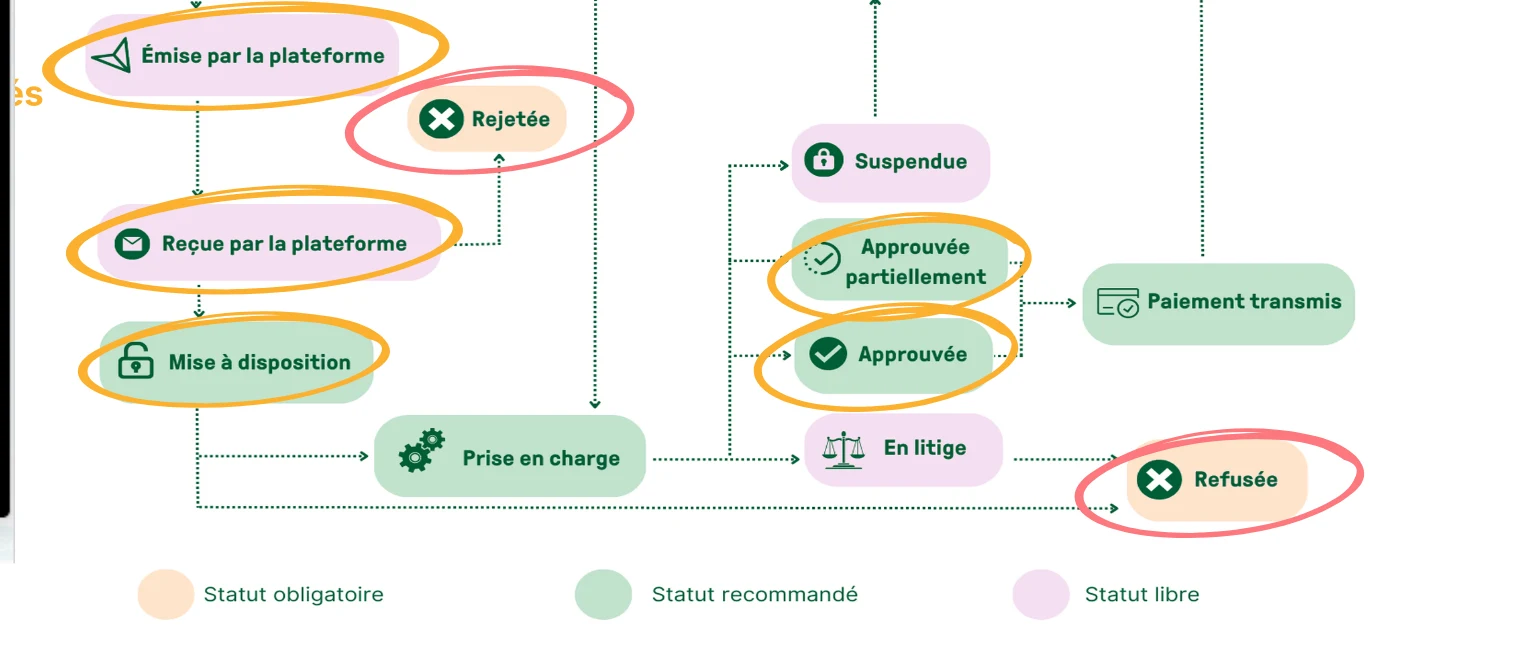
The official lifecycle of an e-invoice. The statuses circled in red are mandatory. Source: official Odoo Insider presentation, June 2026.
Do not confuse rejection and refusal. A rejection comes from a platform: it is a plumbing issue. A refusal comes from your customer: it is a disagreement on substance.
What really changes: once the invoice is sent, the Reset to Draft button may disappear. A transmitted invoice can no longer be modified. To correct it, you issue a credit note, then a new invoice. Train your teams to proofread before sending.

You when your very first e-invoice switches to the “Approved” status.
📥Step 8: receive a vendor bill
There is nothing to do for reception. Your vendors' invoices arrive on their own in the journal chosen in step 5. Odoo accepts three incoming formats: UBL, CII and Factur-X.
The bill appears as a draft, already filled in: vendor, date, lines, taxes, amount. The original document is displayed on the right for checking. If Odoo detects a possible duplicate, a yellow banner warns you.
This document might be a duplicate of INV/PDPDemo/00004 for €120.00
Screen reconstructed from Odoo's live demo (Odoo Insider, June 2026). The labels are those of the interface.
- Confirm posts the bill, as usual.
- Send Response sends your response to the vendor: approval or refusal. In case of refusal, a window asks you for the reason.
“In mid-June 2026, the tax administration counted more than 130 registered approved platforms. Each company freely chooses its own, which can be different from that of its customers and vendors.” Source: DGFiP, official list of approved platforms.
📊Step 9: monitor e-reporting
E-reporting covers sales that do not go through an e-invoice between French companies: sales to consumers, sales abroad, payment data. Odoo prepares these declarations on its own, from your journal entries.
Screen reconstructed from Odoo's live demo (Odoo Insider, June 2026). The labels are those of the interface.
Each line corresponds to a period and a type of flow, Transaction or Payment. The “Ready” status means the declaration is ready to go. Check this screen once a month, when you file your VAT.
⚠️The 6 mistakes to avoid
- 1. Registering on a test database. Registration writes to the real directory. You do it once, on the production database, with the real SIREN.
- 2. Starting registration without the business owner. Without a legal representative and an ID document, you are stuck at step 3. Book a time with them beforehand.
- 3. Sending an invoice the same day. The directory is updated once a day. Wait until the next day.
- 4. Forgetting customers' SIRENs. No SIREN, no routing. Clean up the customer file beforehand.
- 5. Relying on attachments. During the official presentation in June 2026, Odoo stated that sending attachments through the platform was not yet possible. Check this point if you attach delivery slips to your invoices.
- 6. Correcting an invoice that has already been sent. It takes a credit note, then a new invoice. Never a modification.
🔗 Prefer to be supported: Activation takes 20 minutes, preparing the data takes longer. We explain our step-by-step method in how to run an Odoo implementation.
🎯In short
Activating the Odoo Approved Platform comes down to five actions: install the module, click Activate Electronic Invoicing, authenticate the business owner, sign the certificate, validate the registration. The real work lies elsewhere: clean customer records, a team that knows how to read the statuses, and an e-reporting setting validated by your accountant.
If you have not activated anything yet, do it this week. Reception has been mandatory since September 1, 2026, and the administration is watching whether you are engaged in the process.
- Official Odoo 19 documentation, France localization, e-invoicing: https://www.odoo.com/documentation/19.0/applications/finance/fiscal_localizations/france.html
- Odoo Insider, “Odoo officially an Approved Platform, everything you need to know”, Odoo YouTube channel: https://www.youtube.com/watch?v=bQf8pUuCjJM
- DGFiP, practical guide to the start of e-invoicing on September 1, 2026: https://www.impots.gouv.fr/sites/default/files/media/1_metier/2_professionnel/EV/2_gestion/290_facturation_electronique/guide_pratique_facturation_electronique.pdf
- DGFiP, official list of approved platforms: https://www.impots.gouv.fr/je-consulte-la-liste-des-plateformes-agreees

Article written by Armand Meot
Odoo Integrator at Hors du Commun (Lyon). I help industrial and service SMEs overhaul their information systems, secure their flows and succeed with their ERP rollouts.