
To show customer-specific prices on an Odoo B2B store, you create a pricelist (for one customer or for a category of customers), link it to the website, then assign it to the customer on their contact form, Sales & Purchase tab, “Pricelist” field: as soon as they log in, the whole store shows their negotiated prices. To keep the general public from seeing these rates, you restrict the store to logged-in users and only open accounts by invitation.
The mechanism comes down to three settings. What separates a B2B store that reassures your customers from one that shows the public price to your best distributor is the details: the order of the pricelists, how they are linked to the website, tax-excluded prices, and how a contact inherits the terms of their company. The screens in this guide come from Odoo 20; the principle is the same in Odoo 19, apart from a few labels.
How does Odoo choose the price to display to each store customer?
In Odoo, a product's price is not a single number. The sales price on the product form is a reference price. Pricelists then replace it according to rules: a customer, a product category, a quantity, a time period, a country.
On the online store, Odoo applies a simple logic. A visitor who is not logged in sees the website's default pricelist (or the one for their country group, if you use them). A logged-in customer sees the pricelist set on their contact form, on one condition that many people discover too late: the pricelist must be linked to the website they are visiting. Odoo's documentation says so explicitly:
“Logged-in users with assigned pricelists see their assigned pricelist by default if it is assigned to the website they are visiting.” (Official Odoo 19 documentation, eCommerce Prices)
Otherwise, Odoo falls back on the website's default pricelist, meaning the first pricelist linked to the website with no country group, in the order of the pricelist list. Your customer logs in and sees the public price. No error message tells anyone.
The other consequence is commercial. The online cart is an Odoo quote like any other: an order placed on the website lands in the Sales app with the same prices as if your sales administration team had entered it. A single price grid feeds the website, the sales reps' quotes and the invoice. That is the whole point of selling online from the ERP rather than from a separate store.
How do you build a B2B pricelist in Odoo?
Step one: turn on the feature. In the Sales app settings (Sales › Configuration › Settings), check “Pricelists” (the same box exists in the website settings, eCommerce section: turning on one turns on the other). Pricelists are then managed in Sales › Products › Pricelists, or in Website › eCommerce › Products › Pricelists.
A pricelist is a set of rules. Each line in the Rules tab specifies:
- what it applies to: all products, a product category, a product or a variant;
- how the price is calculated: a percentage discount, a markup, or a fixed price (in Odoo 19, a markup goes through the “Formula” type, which also handles rounding and fixed fees);
- what it is based on: the sales price, the cost, or another pricelist;
- from what quantity and for what period it applies.
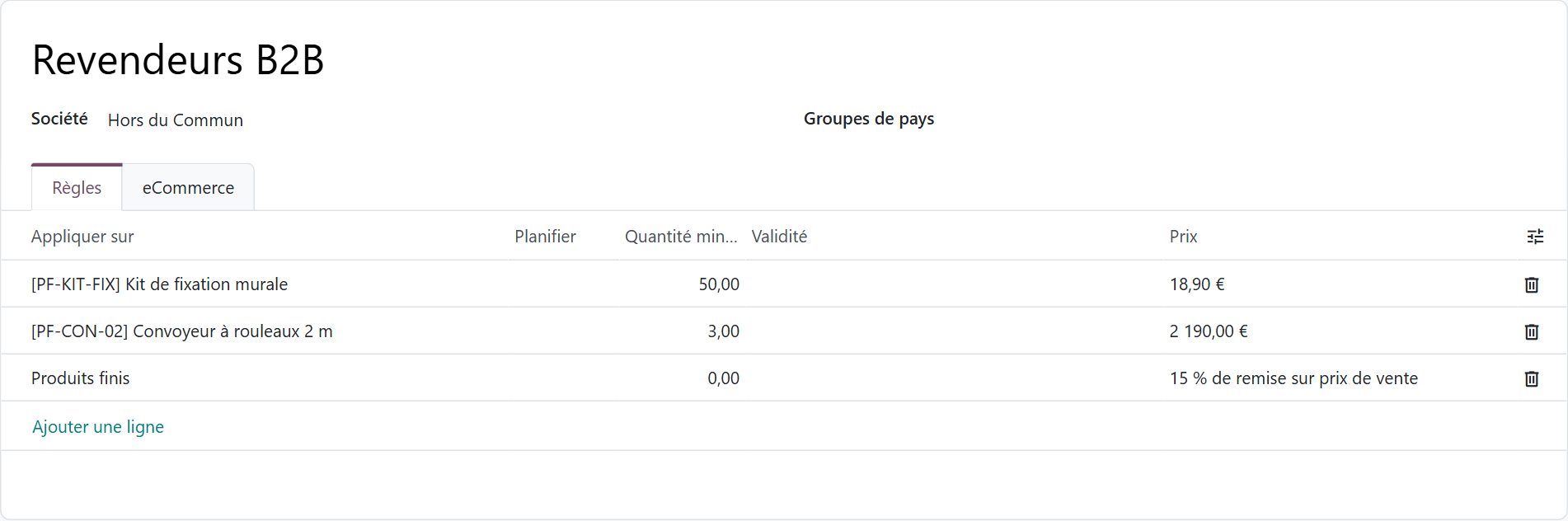
In this example, all resellers get 15% off finished goods. The conveyor drops to a fixed price of €2,190 from 3 units ordered, and the mounting kit to €18.90 from 50 units. Odoo settles between these rules on its own: a rule on a product beats a category rule, and when two rules are equally specific, the one with the higher minimum quantity comes first. The volume price applies as soon as the ordered quantity reaches the threshold, in the online cart just as on a quote.
Two details prevent a lot of surprises. A rule set on a category also covers its subcategories, but never a product with no category. And the rule type changes what the customer sees: with a discount calculated on the sales price, the original price appears struck through on the store, and the discount shows on the quote if the “Discounts” option is turned on in the Sales settings; with a fixed price, they only see their net price. It is up to you to choose what you want to show.
Do you need one pricelist per customer or per customer category?
Technically, Odoo accepts one pricelist per customer. In practice, a hundred pricelists for a hundred customers become unmanageable at the first supplier price increase. The structure that holds up over time has two levels.
The first level is the pricelists by customer category: resellers, installers, key accounts, export. They carry most of your pricing policy. The second level is the contracts of a few strategic customers, built on top of their category's pricelist rather than alongside it.
This approach also matches the French legal framework for business-to-business sales, which provides for general terms of sale by category of buyer, followed by negotiated specific terms:
“These general terms of sale may be differentiated according to the categories of buyers of products or services.” (French Commercial Code, article L441-1, Légifrance)
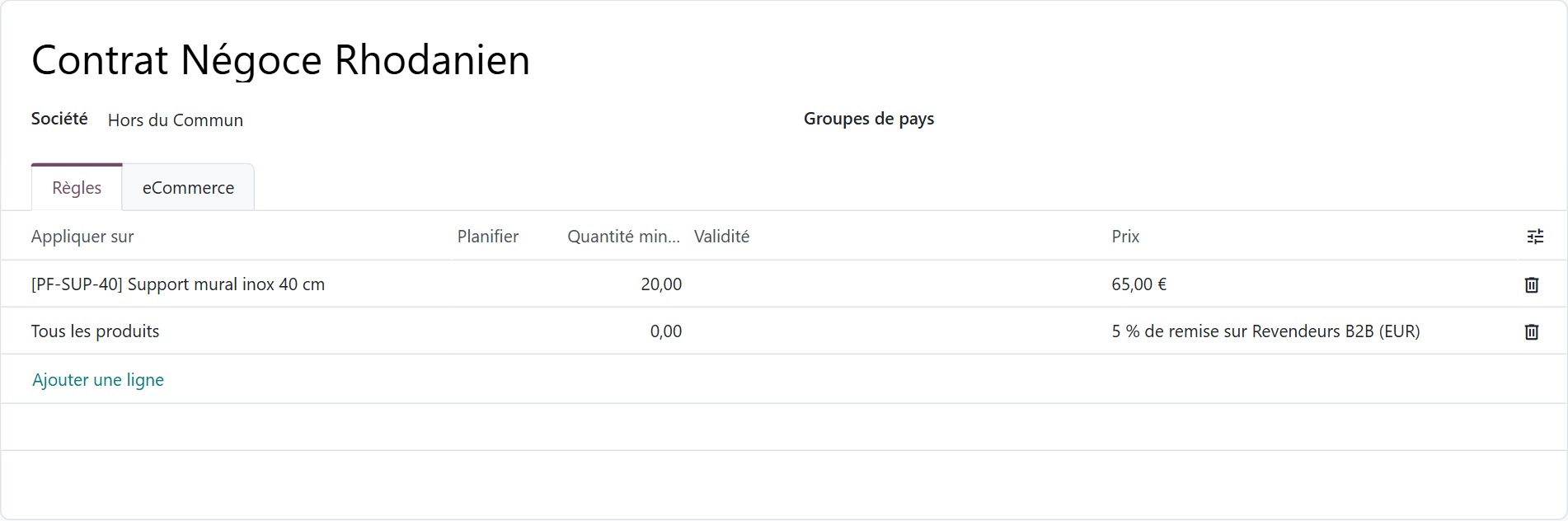
Here, the contract of the fictional customer Négoce Rhodanien fits in two lines: a fixed price of €65 on the wall bracket from 20 units, and a 5% discount on the B2B Resellers pricelist for everything else. The day the reseller grid goes up, the contract follows on its own. Without this layering, every increase has to be carried over by hand, contract by contract.
Distributors and wholesalers are the ones who need this rigor most: many SKUs, discounts by product family and customers who reorder often. Their other Odoo projects (stock locations and traceability, replenishment, barcode, carriers) are covered in our page Odoo for wholesale and logistics.
How do you assign a pricelist to a customer in Odoo?
Open the customer's contact form (Sales › Orders › Customers, or Website › eCommerce › Orders › Customers), Sales & Purchase tab, and choose their pricelist in the “Pricelist” field.
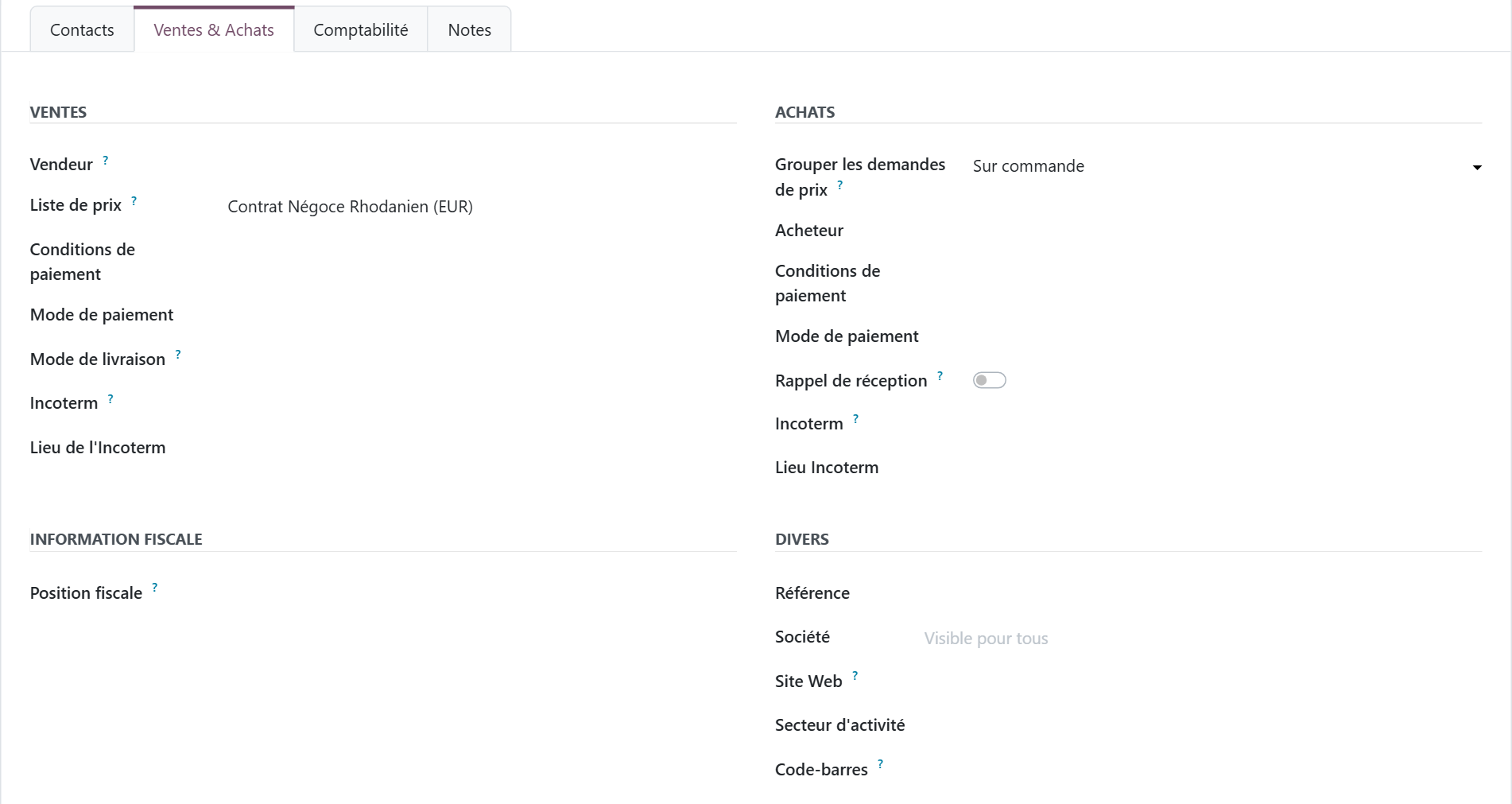
Three practical points. The pricelist is set on the company: its contacts, meaning the buyers who will log in to the store, inherit it. A new customer automatically gets the default pricelist, so remember to change it when you open their account. Finally, in a multi-company setup, the pricelist is set company by company.
To check the result before giving the customer access, the simplest way is to create a quote in their name in the Sales app. The pricelist carries over on its own, and the calculated prices are the ones they will see on the store once logged in.
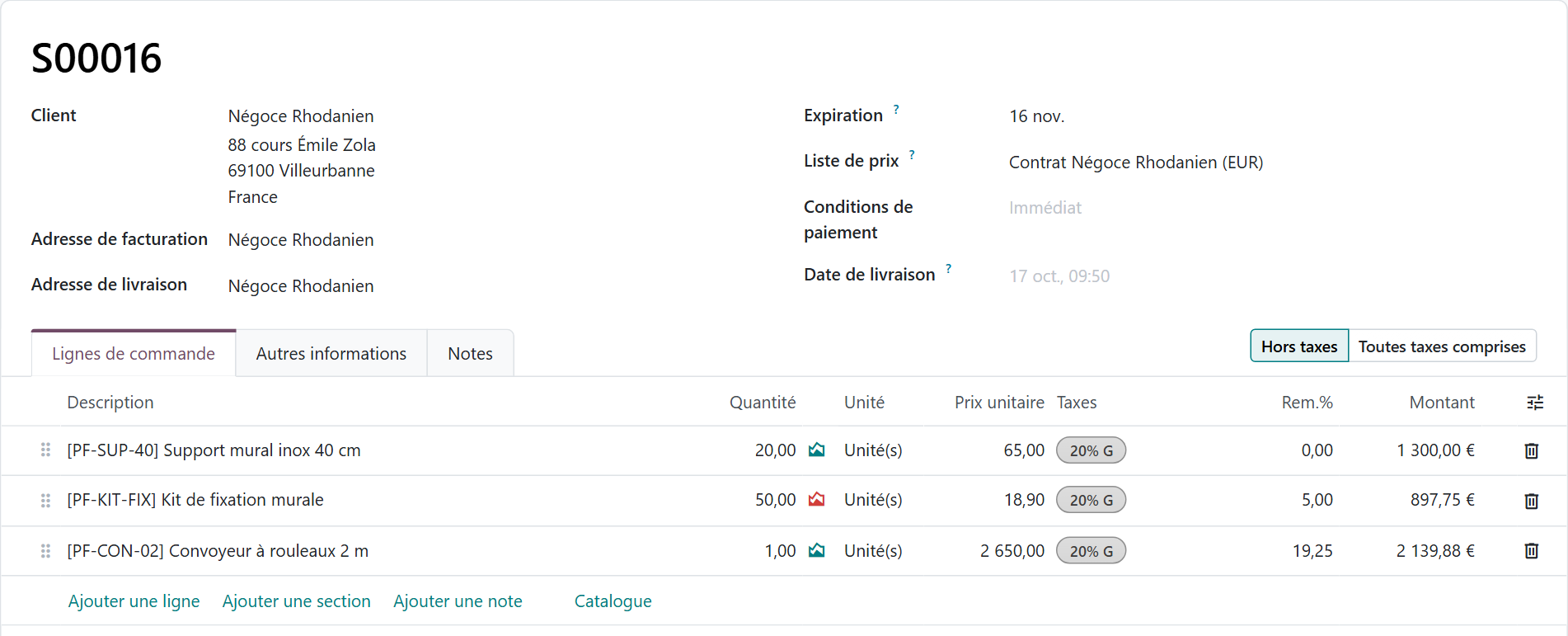
The conveyor, ordered as a single unit, does not reach the 3-unit threshold for its fixed price: it comes out at a 19.25% discount, 15% for the reseller category and then 5% for the contract. The mounting kit, ordered in a quantity of 50, starts from the fixed price of €18.90 before the 5% contract discount. The wall bracket, at a fixed price, shows no discount. If any of these numbers surprises you, now is the time to fix it, not after the first online order.

You when your biggest customer logs in for the first time and finally sees their own prices, without calling sales administration.
How do you display tax-excluded prices to business buyers?
A business buyer thinks in tax-excluded prices. In Website › Configuration › Settings, eCommerce section, the “Display Product Prices” setting offers “Tax Excluded” or “Tax Included”. With tax-excluded prices, VAT is calculated and added to the order summary. The setting applies per website: with two websites, each has its own.
Odoo 20 goes further. The eCommerce tab of each pricelist now has its own display setting, taxes included or excluded, which takes precedence over the website's. On the same website, your logged-in resellers therefore see tax-excluded prices while consumers see tax-included prices. In Odoo 19, this setting only exists at the website level.
Does that mean you should mix B2B and B2C on a single store? Odoo's documentation recommends two separate websites when you sell to both audiences, and it is often the right choice: catalog, checkout flow and payment are not the same. Note also that a pricelist can only be linked to one website at a time; to use it on two websites, you have to duplicate it. If you also keep a consumer store, what it requires on top of that (analytics, SEO, abandoned cart follow-ups, shipping) is presented in our page Odoo eCommerce for B2C.
How do you hide your prices from visitors who are not logged in?
Showing customer-specific prices only makes sense if no one else can see them. Odoo offers several levels of lockdown, all in Website › Configuration › Settings.
- Close open sign-up. In the General section, set “Customer Account” to “On invitation”. Only the customers you invite can create an account: from the customer's contact form, the Actions menu offers “Grant portal access”, which sends the invitation by email.
- Close the store. In the eCommerce section, set “eCommerce Access” to “Logged in users”: the catalog is no longer visible to the public.
- Show the catalog without prices. This is the showcase for prospects: a zero-price pricelist, placed at the top of the website's pricelists, acts as the default pricelist for visitors, and each logged-in customer gets their real pricelist. In Odoo 20, the “Hide Add to Cart” setting then replaces the buy button with a “Contact us” button, for zero-priced products or for selected categories. In Odoo 19, the setting is called “Prevent Sale of Zero Priced Product” and only targets zero-priced products.
The right level depends on your market. A closed store protects your prices, a showcase without prices attracts prospects: nothing stops you from starting with the first and moving to the second once the catalog is clean. Account approval (checking the SIRET, France's company registration number, or the VAT number before sending the invitation) remains a human decision, made by sales administration or the sales rep.
These settings are part of a broader project: who can buy, which products are visible, how the store connects to quotes and inventory. We explain how we scope these business portals on our dedicated page, which we invite you to read here: Odoo integrator for B2B eCommerce.

You when your competitor calls to tell you he found your reseller price grid on your store, no password required.
Why does a customer see the wrong price on the Odoo store?
When a customer reports a wrong price, the cause is almost always on this list.
- The pricelist is not linked to any website. A pricelist with no website that is not selectable is not used by the store, even if it is set on the customer's contact form.
- A pricelist is checked “Selectable”. The visitor can then pick their pricelist from a selector next to the search bar, including a pricelist that is not meant for them. In B2B, leave this box unchecked.
- Country groups get mixed up. A pricelist assigned to the customer takes priority over the pricelist for their country, unless it is linked to another country group. With geographic pricelists, every pricelist on the website must have its country group.
- The pricelist order is wrong. The website's default pricelist is the first pricelist linked to the website with no country group. A B2B pricelist moved to the top becomes everyone's price.
- The contact is not linked to their company. A buyer created separately, with no link to the customer company, keeps the default pricelist.
- The category rule does not cover the product. A product with no category, or a more specific product rule, changes the result.
The heaviest case is still the initial setup. Your negotiated discounts live today in an old ERP, a spreadsheet or in your sales administration team's memory. Migrating them starts with sorting them: group by customer category whatever can be grouped, keep only the real exceptions as contracts, then import pricelists and rules after products and customers. What to migrate, what is better left in the old tool and the classic data migration mistakes are covered in our guide how to migrate your data to Odoo.
In short, showing customer-specific prices on an Odoo B2B store does not require custom development: well-built pricelists, linked to the website, assigned to the right companies, and access restricted to invited customers. The real work lies elsewhere: simplifying a pricing policy that has piled up over the years. At Hors du Commun, an Odoo integrator in Lyon, that is why we always start with your business rules, before touching a single store setting.
- Odoo, official Odoo 19 documentation, “Prices” (eCommerce): https://www.odoo.com/documentation/19.0/fr/applications/websites/ecommerce/configuration/prices.html
- Légifrance, French Commercial Code, article L441-1 (general terms of sale): https://www.legifrance.gouv.fr/codes/article_lc/LEGIARTI000038414469

Article written by Billy Felicie
Odoo integration expert at Hors du Commun (Lyon). I have been helping SMEs implement their digital tools and optimize their business processes for more than 5 years.