
A phone switchboard, or phone server, gives you a call routing buffer. It not only gives your company a more professional image, but also saves time by routing calls to the right person.
Here, we assume you already have an active voice server with OVH.
The company can be either open or closed. If it is closed, calls must not be transferred and the caller must be told it is closed.
So far, so logical.
You are going to learn how to configure your voice server to indicate when your company is open or closed, including during exceptional events.
Step 1: How do you configure your OVH voice server?
Go to your voice server settings:
- Click Telecom
- Telephony (on the left)
- Select your contract (starts with “ct”)
- Then click on your number “No.” (and not on “SIP”)
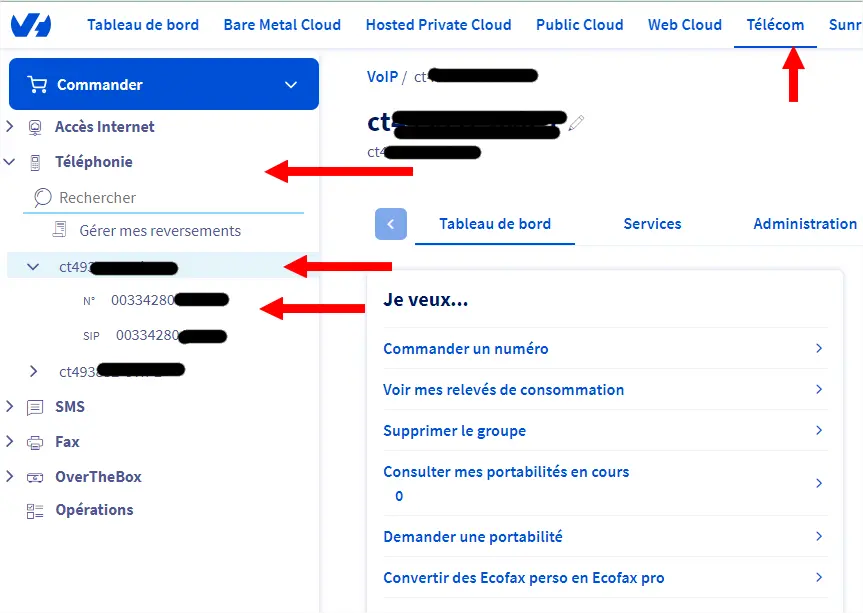
You are now in your voice server settings.
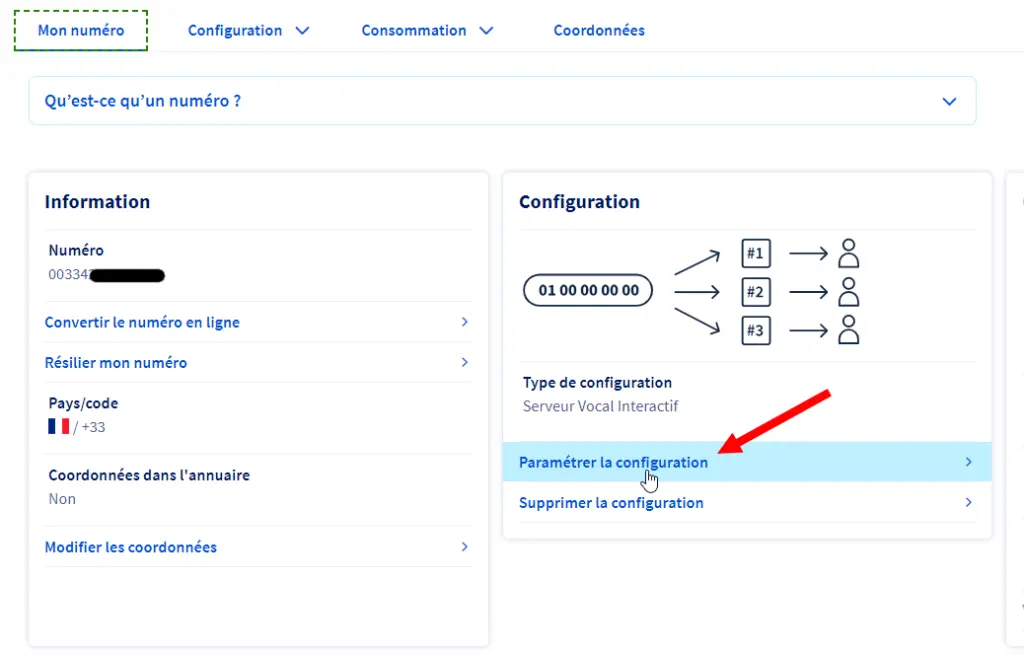
Now click Set up the configuration:
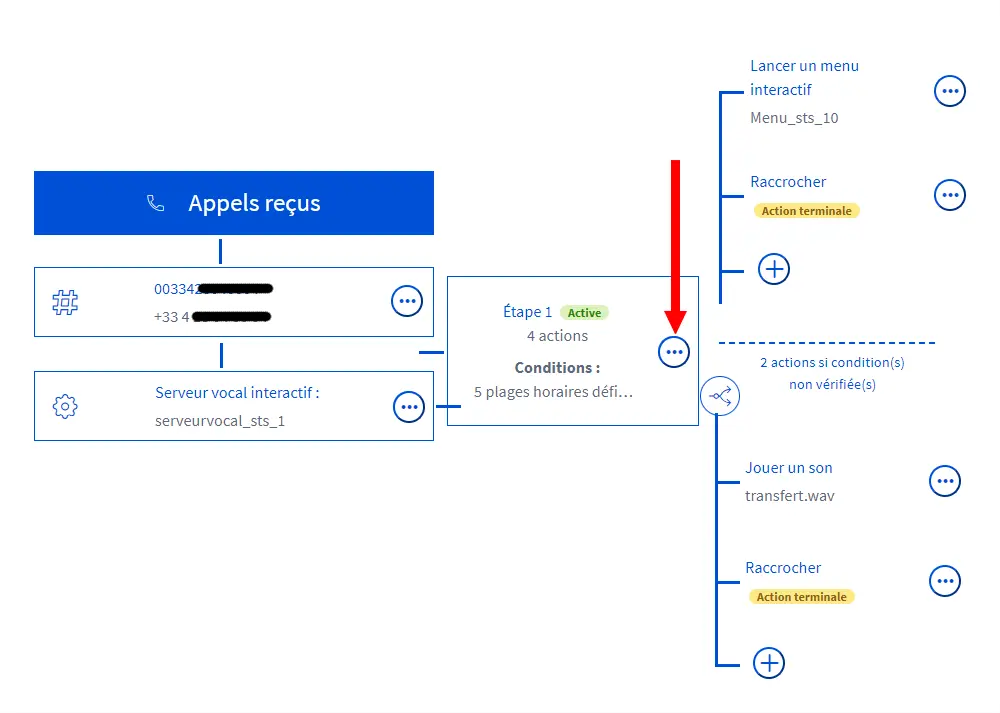
You are now in the settings of your Interactive Voice Response server, or IVR. These settings take the form of a flowchart.
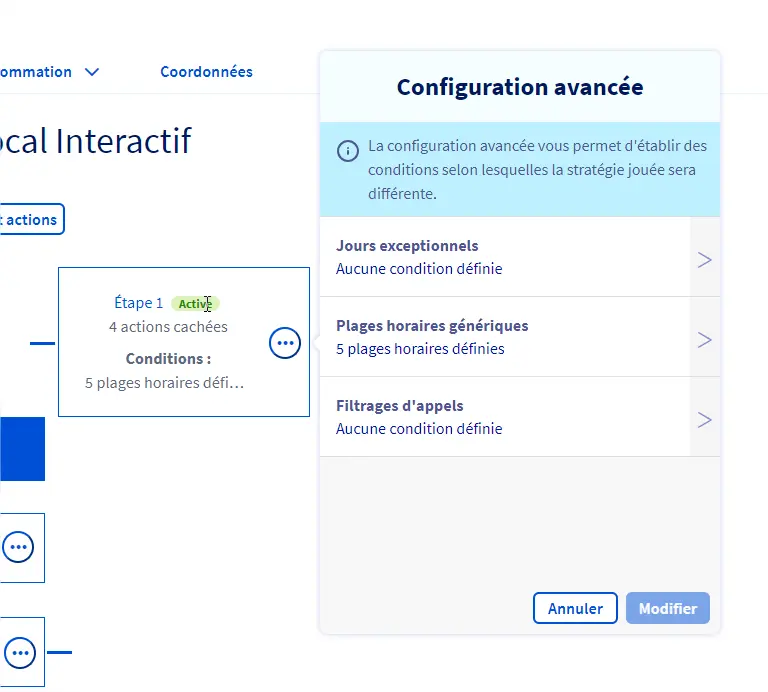
Find the step containing the access conditions, then click the 3 small dots next to it.
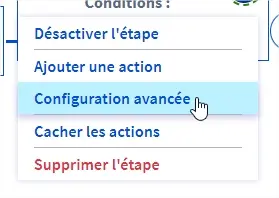
Then select Advanced configuration
This is where everything happens to configure your voice server's hours with OVH!
Step 2: How do you set your opening hours in OVH Telecom?
Let's see how to configure your generic hours, meaning the ones that always apply, whatever the conditions.
- Click Generic time slots
- Then Add time slots
- Click the days of the week when your company is open
- Finally, set the hours
- If the hours differ from one day to another, add a new time slot
- Remember to click Modify
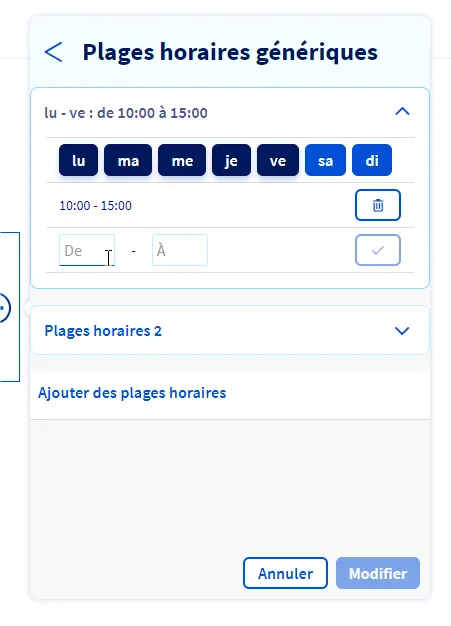
That's it! You have just set your opening hours. This means that:
- If the call is made during these hours, the voice server will be active
- If the call is made outside these hours, the server will announce that you are closed
Now let's see what to do when there are exceptions
Step 3: How do you set public holidays and exceptional closures on your OVH voice server?
You saw earlier how to access your voice server settings.
You will need to open your public holiday schedule.
- Go to the settings, then click Exceptional days
- Then click “You can set your exceptional closing days on this page”
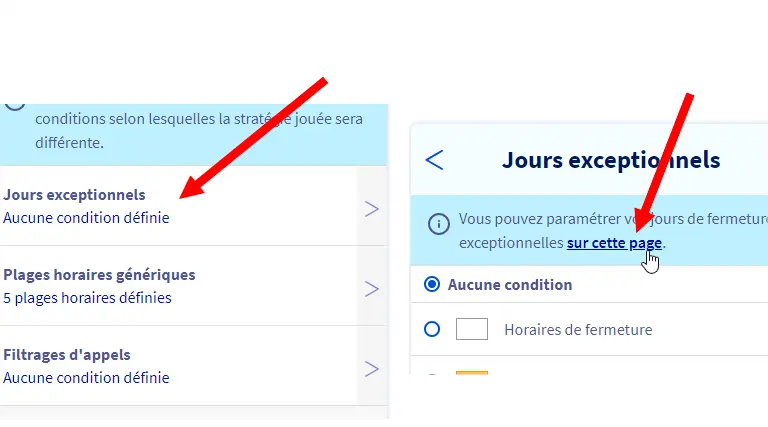
Careful: you must absolutely not click “Closing hours” in the list of exceptional days. On the contrary, it must stay on “No condition”.
You will be redirected to your exceptional days schedule.
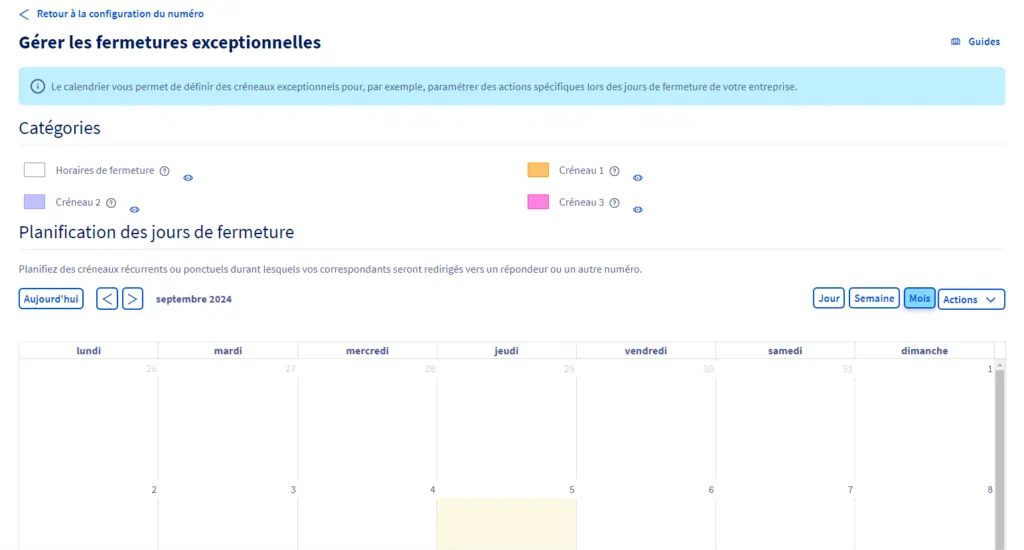
From there, you can add the days on which the voice server will consider the company closed.
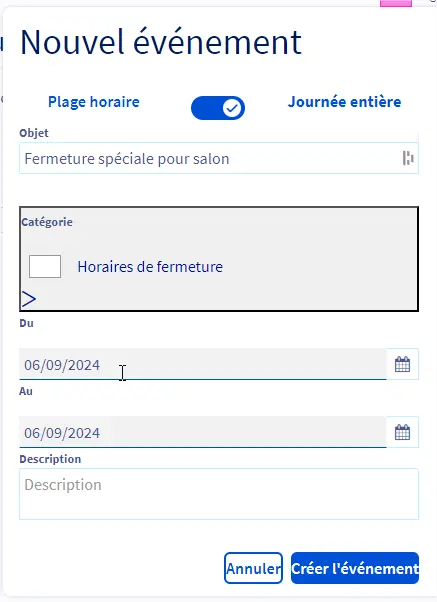
Here is how to set an exceptional closure on your OVH voice server:
- Select the day of the closure in the calendar
- Optional: you can set a time slot
- Click Category and select “Closing hours”
- Finish by clicking “Create event”
That's it! You now know how to configure your voice server with OVH.