
To send Odoo invoices in English to a foreign customer, first add English to the database languages (Settings, Languages section, “Add Languages”), then select that language in the Language field on the customer's record. Odoo then generates the invoice PDF and the sending email in English for that customer, and keeps using French for everyone else.
That covers the mechanics, which take a few minutes. The real work is elsewhere: Odoo translates the labels it provides itself (“Invoice”, “Due Date”, “Total”), but not the texts you entered. Product names, payment terms you created, notes added at the bottom of the invoice all stay in French until someone writes the English version. The classic result: an “Invoice” with half of its lines in French. The screens in this guide come from Odoo 20; the settings are the same in Odoo 19.
How does Odoo choose the language of an invoice?
Odoo does not ask you, when printing, which language to use for the document. It looks at the language saved on the recipient's record and uses it for the PDF as well as for the email that comes with it. This is what the official documentation says about the Language field on contacts:
“Language: enter the language used by the contact. All emails and documents sent to this contact are then translated into the selected language.” (Official Odoo 19 documentation, Contacts)
The word “translated” is a bit optimistic. Odoo translates what it knows: the labels of its own document templates, shipped with each language. It does not translate, and cannot guess, what your team typed in French in the database.
This has three practical consequences.
- The language is set once, on the customer, not invoice by invoice. A customer set to English receives quotes as well as invoices in English.
- Each document follows its own language source. The invoice and the quote follow the customer. The delivery slip, however, is rendered in the language of the delivery address, not in that of the main customer.
- Your users' interface language changes nothing. Your accountant keeps working in French, even when invoicing a London customer.
The second point deserves an example. A Belgian distributor can be set to English for invoicing and have a delivery warehouse set to French: its two documents will not speak the same language. That is consistent, as long as you know it.
How do you add English in Odoo?
An Odoo database is created in one language, chosen at creation; the others are added later. Until English is installed, no document can come out in English.
Step 1Open the Languages section of the settings
The section shows the number of installed languages and offers the “Add Languages” link. A second link, “Manage Languages”, which opens the full list of languages and their settings, only appears in developer mode.

Choose the English variant and confirm
The “Add Languages” window offers a Languages field, where you pick one or more languages from the drop-down list, then the “Add” button. Odoo offers six variants of English: Australia, Canada, India, New Zealand, United Kingdom and United States. The choice matters: each variant has its own formats. In Odoo, British English writes the day before the month (31/10/2026), American English the month before the day (10/31/2026), and both use the period as the decimal separator. Pick the variant that matches your customers; its formats can then be checked in “Manage Languages”, in developer mode.
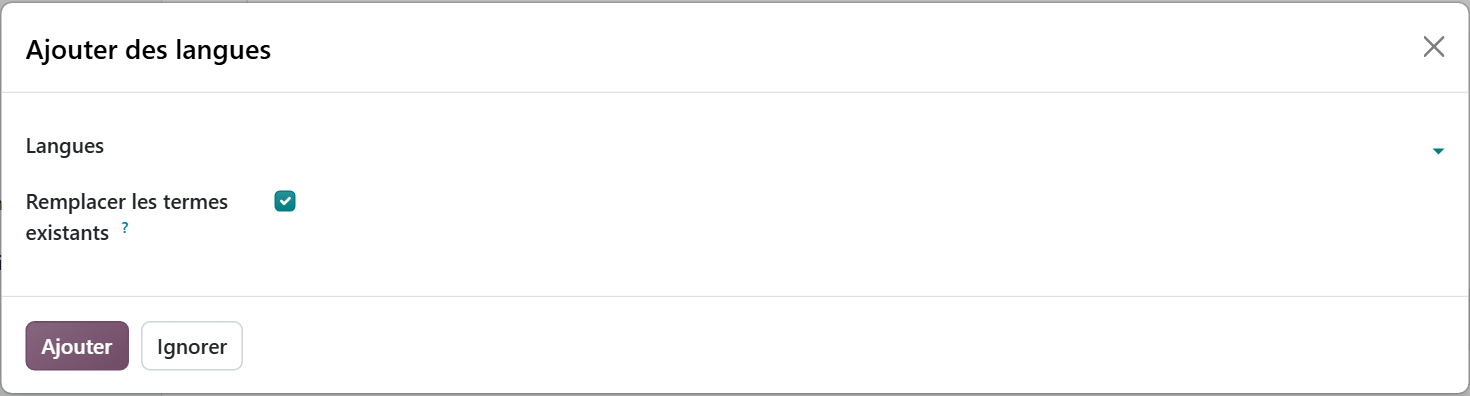
Watch out for the “Overwrite Existing Terms” box, checked by default. Its tooltip is explicit: when checked, it makes you lose your custom translations, replaced by the official ones. On a database where English has never been installed, there is no edited English translation to lose yet. If English is already installed and translations have been edited, uncheck it before reloading the language.
Step 3Check that the language is active
Go back to the Languages section: the counter should show one more language. This installation adds an available language: your interface stays in French as long as you do not change the language of your profile, and your documents only switch to English for contacts set to that language.
Where do you set the foreign customer's language?
On the contact record, in the Contacts app or from the customer on an invoice. The documentation places it between the website and the tags. One detail is confusing the first time: Odoo only shows this field once two languages are active. In our test database, which only has French, it does not appear on the record. If you cannot find it, first check that English is installed.
Three precautions limit surprises.
- Set the language on the customer company, then check the contacts linked to it: accounts payable contact, buyer, delivery address. A single delivery address left in French is enough to produce a French delivery slip for an English-speaking customer.
- Make the language a mandatory field in your procedure for creating a foreign customer, just like the VAT number. A customer created on the fly from a quote does not necessarily have the right language: check it before the first invoice.
- When importing foreign customers, include a Language column in the file. Fixing a hundred records by hand afterward costs far more.
Once the customer is set, the next invoice comes out in English. Invoices already sent stay exactly as the customer received them.
Why is your English invoice still half in French?
The trap only shows up on the first send: the document frame is in English, but the body speaks French. Everything that comes from your data stays in the language it was entered in, as long as its translation does not exist.
Take stock of what appears on an invoice. You usually find:
- the names and descriptions of products and services;
- the names of the payment terms you created (“30 jours fin de mois”, i.e. 30 days end of month);
- the terms and conditions or notes added at the bottom of the invoice;
- the wording specific to your company, added to the document template.
For everyday data, Odoo provides translation: the documentation lists product names among the items that can be translated from the back-end interface. So you need to enter the English version of every product sold abroad. The payment terms shipped with Odoo already have theirs: in the test database, “30 jours” becomes “30 Days”. A term you created has none until someone enters it. For free text, check on a test invoice what still comes out in French, field by field. With a catalog of two hundred items, this is a real project, to be planned as such.

You when you discover your first “Invoice”: three “Prestations de maintenance préventive”, payable “30 jours fin de mois”.
The hardest case is not the data, it is the wording added directly to the invoice template. Wording added to the template, by an integrator or in-house, is not translated automatically: it stays in the language it was entered in, on every document, whatever the customer's language. A customized document thus becomes bilingual by accident. The solution is to make each piece of wording conditional, and to connect it to the right language source for each document. This is custom development, to be quoted wording by wording.
Is an invoice in English valid in France?
Yes. The official fact sheet on invoicing covers the case of an invoice written in a foreign language, without prohibiting it, with one caveat:
“When the invoice is written in a foreign language, a certified translation may be required.” (Service Public Entreprendre, Tout savoir sur la facturation, checked on August 7, 2026)
Two precautions apply. First, switching languages does not exempt you from any mandatory statement. The same page lists them, including, where applicable, the statement of a VAT exemption, which may concern a sale abroad. Have your accountant approve its English wording once, before saving it in Odoo. Second, keep each invoice exactly as it was issued, for 10 years according to the same page: the certified translation only comes as a supplement, if it is required.
That leaves the e-invoicing reform. The same fact sheet states that an invoice sent to a company established abroad is not subject to this obligation: paper is still possible, but the company may have to send certain information to the tax authorities (e-reporting). Between companies established in France and subject to VAT, on the other hand, the invoice becomes electronic and goes through an approved platform (PA, France's certified e-invoicing platform). We detail the reform timeline, the Factur-X and UBL formats and the Peppol network on our page dedicated to e-invoicing with Odoo. Have your accountant confirm what your foreign sales involve in terms of e-reporting.
Should you modify the invoice templates for English?
Not if you use Odoo's document templates as they are. As long as the original documents are used, installing English, setting the customers' language and translating your data is enough. The question comes up as soon as the invoice template has been adapted: company vocabulary, additional wording.
The temptation is then to create a second set of templates, in English. It is the classic false good idea: two sets to maintain, which diverge at the first change. A single version, with texts conditioned on the document's language, is simpler to keep alive.
| Situation | What to do | Type of work |
|---|---|---|
| Odoo templates unchanged | Add English, set the customers' language, translate products and terms | Configuration |
| A few free texts at the bottom of the invoice | Translate the fields concerned, check on a test invoice | Configuration |
| Wording written in an adapted template | Make each piece of wording conditional on the document's language | Custom development |
| In-house vocabulary on all documents | Replace the labels in both languages, document by document | Custom development |
Before starting this kind of adaptation, ask yourself about its cost over time: a modified template has to be rechecked at every version upgrade. How to decide between standard, light customization with Odoo Studio and custom development is detailed, with its four levels of adaptation, on our page when to adapt Odoo, and when to avoid it.
One last detail matters for your foreign customers: the name of the PDF file. In the inbox of a buyer who receives documents from all their suppliers, a file whose name includes the document number and the customer's name is easy to find; a badly named file gets lost. Check the name your database produces before the first send.
How do you check that everything goes out in English before the first send?
Do not discover the result in the customer's inbox. Run the test on a test database, a copy of your database, not in production: a validated delivery moves stock there, and a confirmed invoice gets a number.
- Create a fictitious customer set to English, with a separate delivery address, also set to English.
- Create a quote for it with your best-selling products abroad, then confirm it.
- Validate the delivery and print the delivery slip.
- Create the invoice and confirm it, open its “Preview”, then click “Send” and read the proposed email, without confirming the send.
- Reread each document line by line and note everything that is still in French.

You when you reread your first English invoice word by word, hunting for the last “30 jours fin de mois” left in French.
The list you get is your translation plan. Sort it into two columns: what gets translated in the data (products, terms, free texts) and what is written in an adapted template. The first column is handled in-house; the second calls for custom development to be quoted.
If your Odoo project is starting, write this need down from the outset: which documents must come out in English, for which customers, with which wording. Our free tool helps you write your specification in about ten minutes, with your needs ranked Essential, Important or Later: write your Odoo specification.
In short, sending an Odoo invoice in English takes three steps: add the language, set the customer, translate your own texts. The first two take a few minutes. The third makes all the difference between an invoice that inspires confidence in a foreign buyer and a document that looks makeshift.
- Odoo, Official Odoo 19 documentation, Contacts: https://www.odoo.com/documentation/19.0/fr/applications/essentials/contacts.html
- Service Public Entreprendre, Tout savoir sur la facturation (everything about invoicing), checked on August 7, 2026: https://entreprendre.service-public.gouv.fr/vosdroits/F31411

Article written by Billy Felicie
Odoo integration expert at Hors du Commun (Lyon). I have been helping SMEs set up their digital tools and optimize their business processes for more than 5 years.