
To run a physical inventory in Odoo, open Inventory › Operations › Physical Inventory, enter the quantity actually found on the shelf in the “Counted” column, then apply the count: Odoo corrects the stock and records the difference as a traceable move. The counting itself is done on a printed sheet or directly in the warehouse, by scanning locations and products with the Barcode app.
That is the mechanics. In an SME, an inventory count rarely fails because of the software. It fails because receipts keep coming in during the count, because one carton is counted in units and another in boxes, or because someone validates every line at once without looking at the differences. The screens and labels in this guide are from Odoo 20; the procedure is the same in Odoo 19, apart from a few labels.
What is a physical inventory in Odoo, and why is it mandatory?
Odoo keeps a theoretical stock at all times. Every receipt increases it, and every delivery, manufacturing consumption or scrap decreases it. A physical inventory means going to count what is actually on the shelves, then aligning the theoretical stock with that reality. Differences almost always have the same causes: breakage, picking errors, a receipt entered incorrectly, theft, a product stored in the wrong place.
It is not just a logistics matter. In France, the annual count is an accounting obligation for every trader:
“It must verify by means of an inventory, at least once every twelve months, the existence and value of the company's assets and liabilities.” (French Commercial Code, article L123-12, Légifrance)
In Odoo, an inventory count does not create a separate document. Each line on the Physical Inventory page is a product in a location (and, if tracked, a lot or serial number). Applying a count generates a move between that location and a virtual inventory adjustment location. The operation is therefore traceable: who counted, who validated, when, and by how much.
A pitfall right from the start: the page only shows products that already have a stock history. A product that has never been received does not appear. If it is on a shelf anyway, add it with the “New” button.
How do you prepare the count before going into the warehouse?
A successful inventory is decided before the first product is counted. Three decisions shape everything else.
1. Set the scope and freeze the flows
A full inventory or only certain zones? Either way, stop receipts and shipments on the counted scope, or at the very least note the time the count ended. If moves happen between the count and its validation, the theoretical stock changes and the difference shown no longer means anything.
2. Check the relevant settings
In the Inventory app settings, three options change the way you count. Storage locations first: as soon as the warehouse has aisles, shelves or zones, Odoo needs to know where each product is, otherwise cycle counting by location is impossible. Then the barcode scanner option, which activates the Barcode app so you can count by scanning. Finally, lots and serial numbers: if your products are tracked, each lot appears on its own line and is counted separately.
These three settings are only one part of a well-organized warehouse: location coding, receipts, picking, replenishment. We explain how we set them up on a dedicated page, which you can read here: inventory management with Odoo.
3. Split the work with “Request a Count”
On the Physical Inventory page, check the lines to count (or all of them, with the header checkbox), then click “Request a Count”. The window that opens lets you choose the person in charge of counting, the scheduled date, and whether to show them the expected quantity.
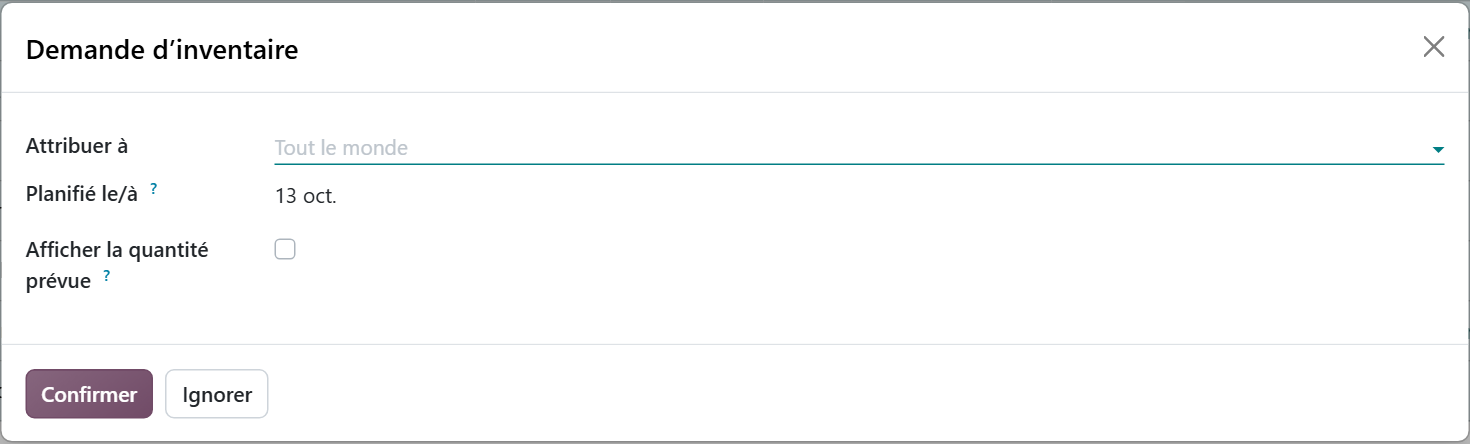
Leave that last option unchecked, as Odoo suggests. A counter who sees “140 expected” tends to confirm the number instead of counting. For a paper count, then select the lines and use “Print” to produce the count sheet as a PDF.
What are the steps of a physical inventory in Odoo?
The procedure is the same for a full inventory and for a partial count.
Step 1Open the Physical Inventory page
Filter on the relevant location or product category. Grouping by location reproduces the order in which the teams will walk through the warehouse.
Step 2Enter the counted quantities
Click in the “Counted” column and type the quantity found. The “Difference” column is calculated immediately against the “On Hand” column, which holds the theoretical stock: green if you found more than expected, red if you found less. If the count matches, enter the quantity anyway: the difference is 0, and the 0 move recorded in the history proves the line was actually counted.
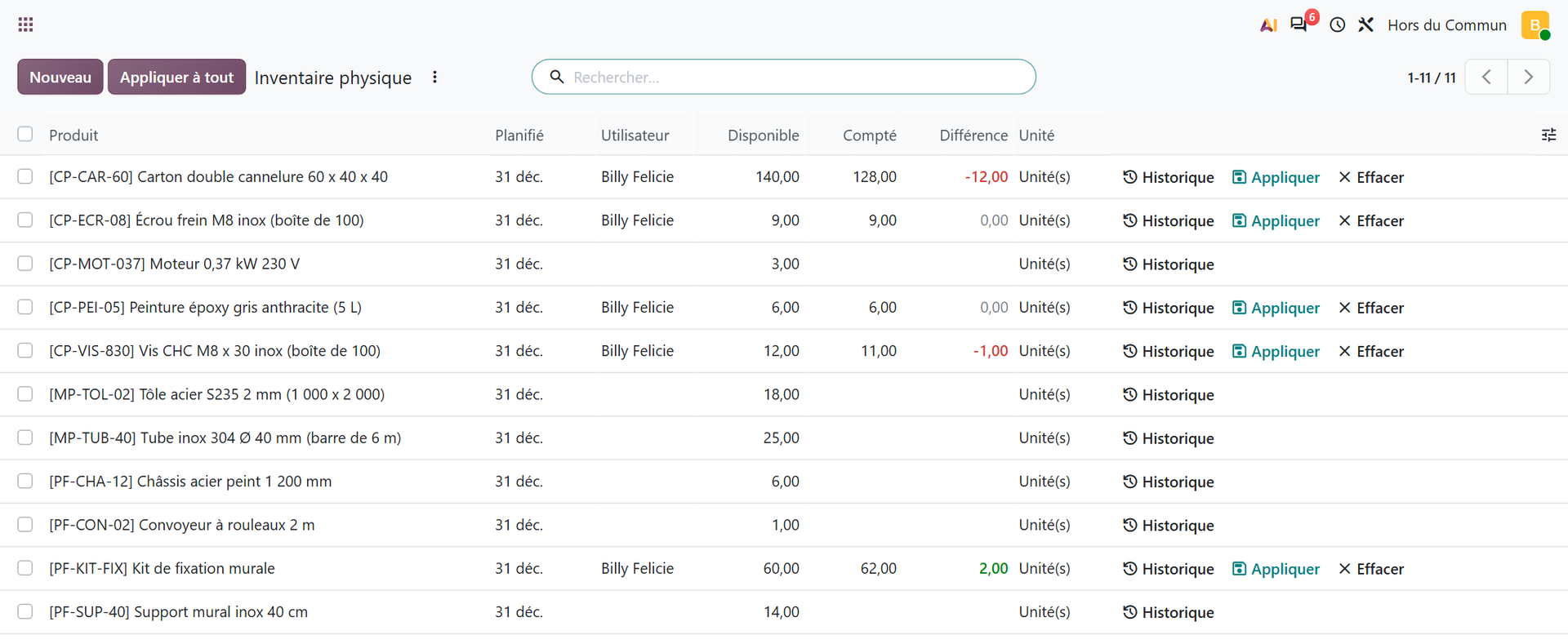
In this example, five products have been counted. Two are correct, the mounting kit shows two more than expected, the screws one box fewer, and twelve cartons are missing. Lines that have not been counted stay empty: they have neither an “Apply” nor a “Clear” button. The “Dec 31” date in the Scheduled column is the annual inventory date proposed by default.
Step 3Check the differences before validating
Sort on the Difference column. Any significant difference is recounted before being applied. Twelve missing cartons is not a line to validate, it is a question to ask. This is the step everyone skips.
Step 4Apply the count with a reason
There are two ways to do it: the “Apply” button at the end of a line, or “Apply All” at the top of the page. Prefer the second: it opens a window where you enter the inventory reason and the count date, before clicking “Update Quantities”.
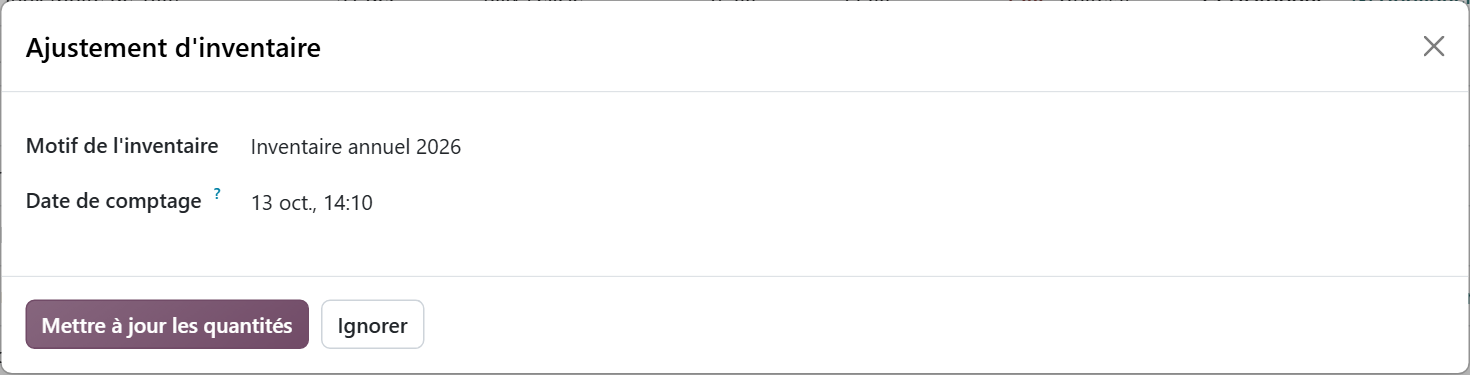
By default, Odoo proposes the reason “Physical Inventory”, in English and identical for every count. Always replace it: “Annual inventory 2026” or “Recount aisle A” will save you a lot of time the day you need to explain a difference.
Step 5Check the history
Each applied adjustment creates a line in the Moves History report of the Inventory app, with the person who counted and the person who validated. If there is a mistake, select the line in Inventory › Reporting › Moves History, then Actions › Revert: Odoo adds a return line whose reference includes the mention “[reversed]”, without deleting the original.
How do you count faster with a scanner and the Barcode app?
Beyond a few hundred lines, keyboard entry becomes the bottleneck. The Barcode app lets you count directly in the aisles, with a compatible terminal or the Odoo mobile app. Prerequisite: barcodes filled in on products and on locations.
- The manager assigns counts from the Physical Inventory page, with “Request a Count”.
- In the Barcode app, the counter opens the inventory count.
- They scan the location, then each product: every scan adds one unit. For a large quantity, they open the line and enter the number.
- They validate at the end of the location, and move on to the next one.
One detail wastes hours: in Barcode, the counter only sees the counts assigned to them and scheduled for today or earlier. Pick a date too far ahead in the request window, and their list looks empty. Scanning by location has another advantage: it reveals the product stored in the wrong place, which entry at the office will never catch.
How do you validate differences without distorting the stock?
Applying a count means writing a truth into the stock. It still has to be the truth. Here are the rules we get teams to adopt.
- Set a recount threshold: above a given difference, in quantity or in value, a second person recounts before validation.
- Look for the explanation before correcting: an unvalidated receipt, a delivery that left without being scanned, a mixed-up unit of measure explain most large differences. Fixing the flow is better than fixing the stock.
- Validate quickly after the count: the longer the delay, the more moves slip in between.

You when twelve cartons are missing, nobody saw them leave and your only lead is the moves history.
Odoo's own documentation stresses this delay between counting and validation:
“In the interval between the inventory count and the application of the inventory adjustment, product moves may occur.” (Official Odoo 19 documentation, Inventory adjustments)
What about importing a file? It is tempting to count in a spreadsheet and then import it. Always test this import on a test database first: on the Odoo forum, several users describe imported quantities being added to the stock instead of replacing it. For a regular inventory, scanning remains safer than a file reworked by hand.
The most sensitive case is still the first inventory, the one when you start on Odoo. Our principle: a reliable opening stock on the vital scope, what actually sells and gets consumed, then cycle counts to make the rest reliable after go-live. This opening stock is part of the data migration, with an import order to follow (products, locations, then quantities). We explain it in our guide how to migrate your data to Odoo.
What is the impact of an inventory count on valuation and accounting?
A stock difference is also a value difference. The adjustment is a move to or from the virtual inventory adjustment location, which sits outside the stock: it therefore changes both the quantity and the value of the stock. A counted quantity above the stock creates an incoming move, and the value increases. A counted quantity below it creates an outgoing move, and the value decreases. The change in value equals the product cost multiplied by the quantity difference.
On the accounting side, Odoo 19 reworked the logic. In the Accounting settings, Inventory Valuation section, the company chooses between perpetual valuation (at invoicing time) and periodic valuation, updated by a stock closing entry, manual, daily or monthly. To isolate inventory losses, a dedicated account can be defined on the location of type “Inventory Loss”.
The practical consequence: have your accountant validate this configuration before the year-end inventory, not after. Valuation method, stock variation account and loss account are decided once, upfront, and avoid a manual restatement in the balance sheet. Stock is only one of the building blocks that feed this balance sheet, along with purchases and sales. The way we organize the whole thing is described on our page about SME accounting in Odoo.
How do you move from an annual inventory to cycle counting?
An annual inventory means a day with the warehouse closed, teams mobilized, and accurate stock for a few weeks. Cycle counting spreads the effort over the year: you count a little every week, location by location, and the stock stays reliable at all times.
In Odoo, cycle counting is set per location and requires storage locations to be enabled. In the location configuration, enter an inventory frequency in days for each one (30 for a monthly count, for example). After a first count has been applied, Odoo calculates the date of the next one on its own. For the full count, the default date is December 31: if your fiscal year does not end in December, change the day and month of the annual inventory in the Inventory settings.
| Criterion | Annual inventory | Cycle counting |
|---|---|---|
| Frequency | Once a year, at year-end closing | Continuous, based on each location's frequency |
| Activity | Warehouse often shut down | Activity maintained, zone by zone |
| Odoo setting | Day and month of the annual inventory | Inventory frequency on the location |
| Stock reliability | Accurate on the count date, then degrades | Maintained all year round |
How do you choose the frequencies? Our rule: locations holding fast-moving or high-value products are counted often, every month, and zones with dormant products once or twice a year. Cycle counting does not necessarily replace the annual obligation: check with your accountant how it covers it in your case.
Wholesale distribution is where cycle counting pays off fastest: every delivery promise made over the phone relies on accurate stock, and a difference discovered at picking costs an order. We show how Odoo adapts to a distributor's flows on our page Odoo for wholesale and logistics.
What mistakes do we see most often during an inventory count in Odoo?
In the field, the same pitfalls keep coming back.
- Counting in the wrong unit. The product is managed in boxes of 100, the team counts screws one by one. Check the Unit column before entering.
- Forgetting lots and serial numbers. For a tracked product, a quantity without a lot means nothing: each lot is counted on its own line.
- Letting flows run during the count. A delivery validated in the middle of the inventory distorts the difference shown.
- Showing the expected quantity to counters. The count becomes a confirmation, no longer a check.
- Applying without a reason. The stock is corrected, but in six months nobody will know why.
- Ignoring products missing from the list. A product with no stock history does not appear: if it is on the shelf, add it.
- Setting to zero too quickly. Resetting to zero a product already reserved for customer orders makes its forecasted quantity negative, and it becomes unavailable for pending delivery orders.

You when you have just clicked “Apply All” and discover that the team counted the screws one by one, not by the box of 100.
In short, a physical inventory in Odoo is one page, one column and one button. The quality of the result comes from elsewhere: well-coded locations, a counting method shared by the team and a valuation configuration validated with the accountant. At Hors du Commun, an Odoo integrator in Lyon, that is what we set up with the SMEs we support, before and after go-live.
- Légifrance, French Commercial Code, article L123-12 (annual inventory obligation): https://www.legifrance.gouv.fr/codes/article_lc/LEGIARTI000006219304
- Odoo, official Odoo 19 documentation, “Inventory adjustments”: https://www.odoo.com/documentation/19.0/fr/applications/inventory_and_mrp/inventory/warehouses_storage/inventory_management/count_products.html

Article written by Billy Felicie
Odoo integration expert at Hors du Commun (Lyon). I have been helping SMEs implement their digital tools and optimize their business processes for more than 5 years.