
To connect ChatGPT to Odoo, there are three options: use ChatGPT as the engine of Odoo's built-in AI with your own OpenAI API key, plug an MCP-compatible agent, such as OpenAI's Codex, into the Odoo 20 MCP server, or link an agent or an automation tool to Odoo's external API. When the AI goes through an Odoo API key, it only acts with the access rights of the account that holds that key: this setting, far more than the technique you choose, determines how secure your data is.
Behind this question lie two needs: AI inside Odoo, to draft, summarize and classify; or an external assistant that queries or drives Odoo. The right option depends on that need, on your version of Odoo and on your pricing plan.
What are the three ways to connect ChatGPT to Odoo?
They do not serve the same purpose:
| Option | What it lets you do | Main prerequisite |
|---|---|---|
| Odoo's built-in AI, ChatGPT engine | Draft, summarize, classify, answer questions about your data, from the Odoo interface | AI app; your OpenAI key (documented in Odoo 19, optional on Odoo Online) |
| Odoo 20 MCP server | Query and, if you allow it, modify Odoo from an external agent | Odoo 20, an API key with the MCP scope, an MCP client such as Codex (not the ChatGPT interface) |
| Odoo external API | Automate flows: Odoo sends an event, the AI processes it, the result comes back into Odoo | Custom plan, custom development or an automation tool |
What they have in common: through the MCP server or the API, ChatGPT never “sees” all of Odoo, it sees what the account it uses is allowed to see. Connected with the administrator's key, an agent can read and modify everything.
Can you use ChatGPT directly in Odoo?
Yes, and it is the simplest option. Odoo ships with its own AI features: an assistant available everywhere, through the command palette (Ctrl + K) or the “Ask AI” button at the top right, configurable agents, AI fields that fill in a record, and AI actions in automations. The Odoo 19 documentation lists OpenAI (ChatGPT) and Google Gemini as supported providers.
In Odoo 19, the documentation places the setting in the AI app settings, in the providers section: you check the option to use your own ChatGPT account, then paste the key created on the OpenAI platform. On Odoo Online, this key is optional; on Odoo.sh or on your own servers, it is required for the AI to work. In Odoo 20, the documentation page dedicated to these keys is still under construction: have Odoo confirm where the setting is before you describe it to your teams.
Why add your own key when the AI works without one? Odoo cites better control over permissions, version updates and compliance with your internal rules. On the budget side, without a key, Odoo's AI uses credits purchased separately; with your key, OpenAI bills usage according to the model used and your account type.
What an agent can do depends on the skills assigned to it. According to the Odoo 20 documentation, an agent without skills only provides information; skills for creating or updating records let it act on your data. Creating or customizing an agent requires the AI app. We have detailed these building blocks (assistant, agents, AI fields) in our article Odoo AI: the complete guide for SMEs.
Can you connect ChatGPT to the Odoo 20 MCP server?
MCP (Model Context Protocol) is an open standard that lets an AI assistant use the tools of an external application. Odoo 20 includes an MCP server (the “AI MCP Server” module). Your database becomes a source that the agent queries in plain language: “show me open opportunities by stage”, “how much did we invoice this quarter compared to the previous one?”.
The Odoo 20 documentation describes three steps.
- Create an API key in My Preferences › Account Security, choosing the MCP scope and a validity period (one month, for example). The key is displayed only once.
- Declare the server in the MCP client: your database address followed by /mcp, and the key as the authentication token.
- Choose the tools exposed to the agent, in Settings › Technical › Actions › Server Actions (with developer mode activated).
This third point is the most important. By default, five read tools are exposed: search, get models, get fields, read group and retrieve the initial context. Tools that write, such as “update records” or “create records”, remain hidden until someone checks “Available in MCP” on their record.
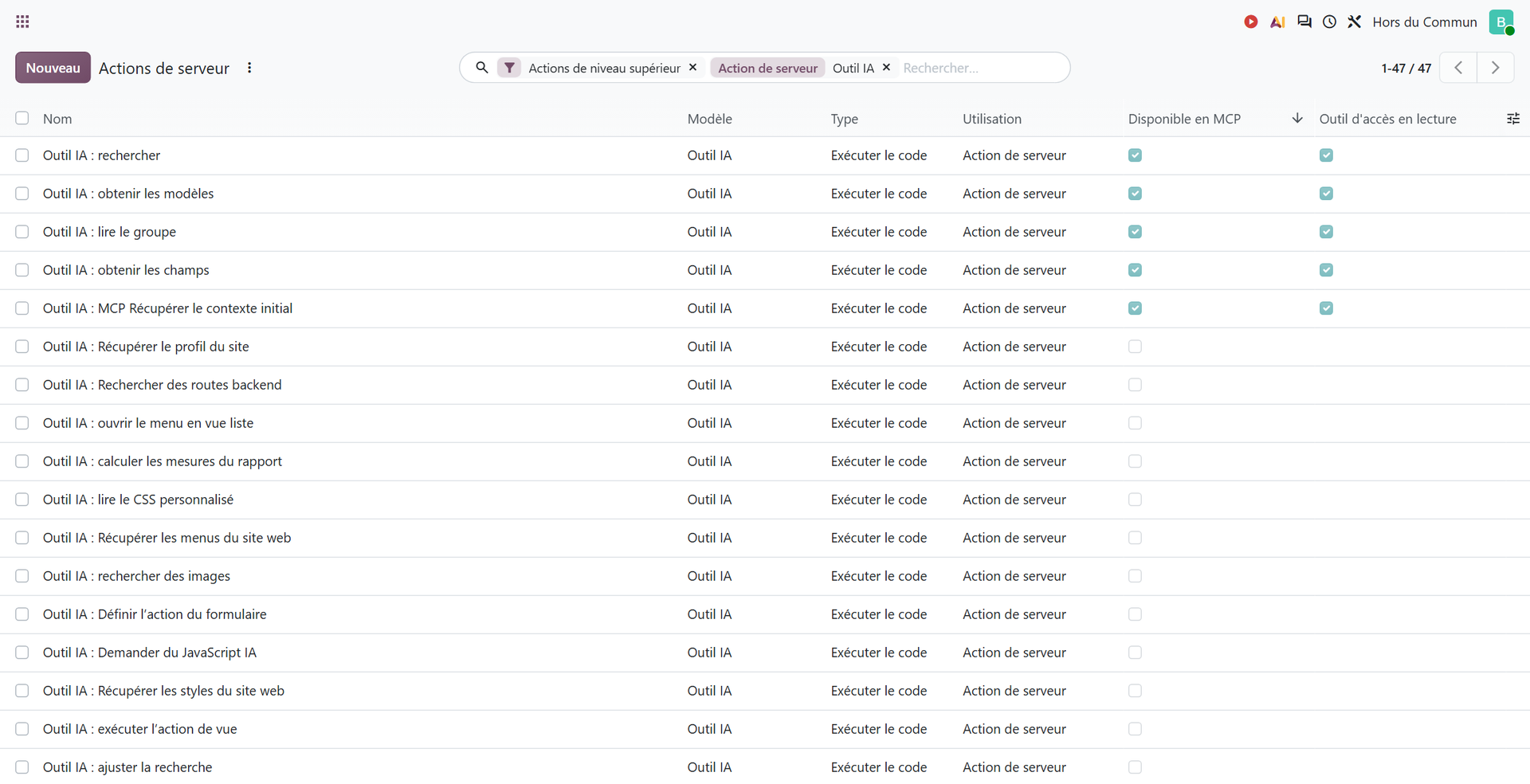
The second box, “Read access tool”, tells the client that the tool does not modify anything and can be called without confirmation. It hides nothing: it is a hint, not a lock. The lock is the access rights of the account that holds the key.

You when you ask the agent for the quarter's invoiced revenue and it answers without you opening a single Odoo report.
And ChatGPT? The Odoo 20 documentation shows the connection from Claude, Antigravity and Codex, OpenAI's coding agent, through a relay launched on the workstation (Node.js required). It does not describe the ChatGPT interface. Yet OpenAI's documentation states that ChatGPT cannot present a custom API key to an MCP server, while Odoo's server authenticates with an API key. A deduction to have Odoo confirm: as both sets of documentation currently stand, the ChatGPT interface does not connect directly to Odoo. In Odoo 19, the documentation does not describe this MCP server.
How do you link ChatGPT to Odoo through the external API?
The third option is for automating complete flows. An event in Odoo (new opportunity, incoming ticket, vendor bill received) triggers a call to an agent. The agent queries the OpenAI API, then sends its result back into Odoo through the external API: a brief in the opportunity's notes, a tag on the ticket, an activity for the right salesperson.
On the Odoo side, the starting point is configured without code. An automation rule can run the “Send Webhook Notification” action, which sends only the fields you have chosen to an address. The response comes back through the JSON-2 external API, introduced with Odoo 19: a request to /json/2/<model>/<method>, authenticated with an API key. The older XML-RPC and JSON-RPC APIs are due to disappear in Odoo 22 (fall 2028): any new development should therefore start on JSON-2.
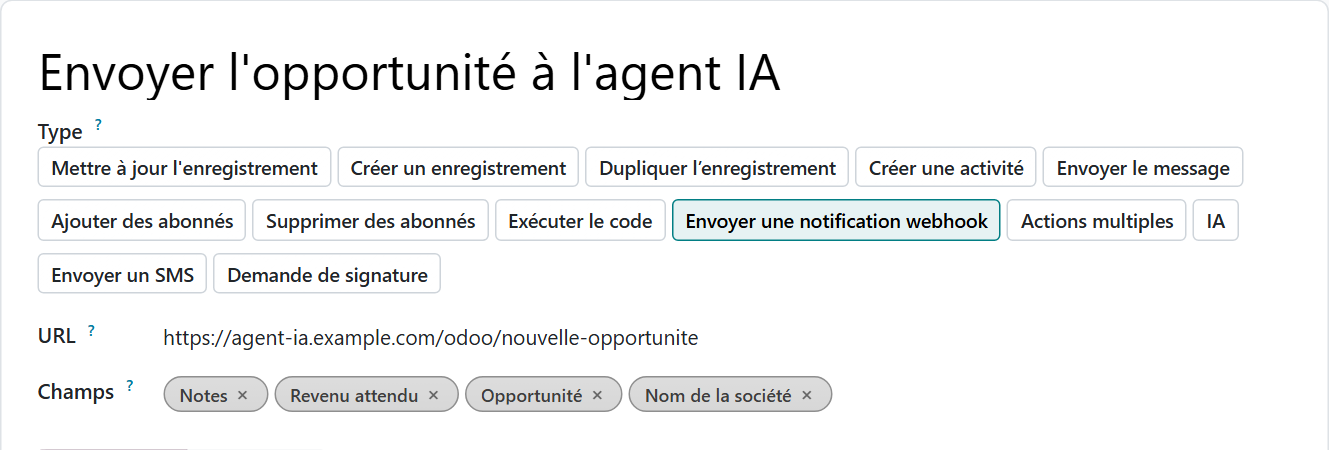
Watch out for the contractual prerequisite. The Odoo documentation is explicit:
“Access to data via the external API is only available on Custom Odoo pricing plans. Access to the external API is not available on One App Free or Standard plans.” (Official Odoo 19 documentation, External JSON-2 API)
In practice, on the Standard plan (€19.90 per user per month with an annual commitment in the first year, then €24.90), this option means moving to the Custom plan (€35.90, then €44.90). The MCP server documentation does not, to date, specify a required plan: have Odoo confirm it before building on it. When an API connection is worth the effort, what it costs to maintain and what Zapier, Make or n8n are worth: we devote a page to these questions, which we invite you to read here: how to connect Odoo with an API.
How do you limit what ChatGPT can see and do in Odoo?
Both the MCP server and the external API rely on an Odoo API key, and a key acts on behalf of a user. The JSON-2 API applies that user's access rights, record rules and field-level rights. Security is therefore configured in Odoo, not in ChatGPT. Six rules follow from this, most of them taken from the Odoo documentation.
- One dedicated technical user per integration, never the business owner's account or the administrator's. Odoo recommends these “bot” accounts: minimal rights, an empty password to block regular login, and logs that clearly show what the agent did.
- Only the rights strictly needed: read-only on sales for a reporting agent, no access to payroll or accounting if it does not need them.
- One key per use, clearly named, with a short lifetime. The Odoo documentation asks you to renew long-lived keys at least every three months: plan this rotation rather than discovering it the day the agent stops working.
- The MCP scope for a key intended for the MCP server, and only the useful tools checked “Available in MCP”.
- Writes with human confirmation at the start.
- A key never pasted into an ordinary text field: the description of Odoo's MCP module calls for a credential or password field, because anyone who holds the token can act as you.
One risk specific to AI remains: prompt injection. A text the agent reads, such as a note or an incoming email, can contain hidden instructions that it may follow. OpenAI's documentation flags this for MCP servers, and recommends reviewing the tool being called and its arguments before approving.

You when someone suggests giving the administrator's API key to ChatGPT “because it's faster for testing”.
What does the GDPR say when ChatGPT reads your customer data?
Your customer and employee records contain personal data: as soon as they are sent to an AI model hosted by a third party, the GDPR applies. The CNIL (France's data protection authority) points this out for AI called through an API:
“If you plan to use a system in the form of an API, it should be stressed that control of the system then lies almost exclusively in the hands of the provider. Particular care should therefore be taken over the data submitted to the AI system, avoiding the entry of personal data as far as possible.” (CNIL, The CNIL's questions and answers on the use of a generative AI system, July 18, 2024)
In practice, this means four reflexes.
- Minimize: send the AI the fields needed for the task, not the entire record. To draft a sales brief, the company name and the stated need are enough; the contact's email and phone number serve no purpose.
- Frame it contractually: the CNIL mentions, where applicable, a data processing agreement with the provider and safeguards for transfers if the data leaves the European Union. Also read OpenAI's terms for the API: its documentation states that data sent is not used to train its models by default, and that abuse monitoring logs are kept for up to 30 days.
- Ban personal accounts: the CNIL advises against creating accounts with personal email addresses.
- Write an acceptable use policy: authorized uses, prohibited uses, data never to be shared. The CNIL explicitly recommends these internal policies or charters.
A clean connection between ChatGPT and Odoo protects your data better than uncontrolled copy-pasting, provided you have made these choices before connecting anything.
Which use cases are worth the effort for an SME?
Connecting ChatGPT to Odoo is only worthwhile if it takes a repetitive task off someone's plate. Here are three uses, from the simplest to the most demanding.
Querying your figures in plain language
The business owner asks “which opportunities over €10,000 haven't moved in a month?” without building a filter. Read-only, a few MCP tools exposed, an account limited to sales: it is a good first project, since it changes nothing.
Preparing the brief for a new opportunity
A request comes in through the website. Odoo sends the opportunity to the agent, which drafts a brief (the company's business, the stated need, questions to ask) and posts it as a note. The salesperson stays in charge of the first contact, but comes in prepared.
Sorting support requests
Classify tickets by urgency, suggest an answer drawn from your knowledge base, summarize a customer's history before calling them back. How to do it without losing the human touch, with a handoff to an agent when the AI cannot answer: that is the subject of our page how to use AI to improve customer support.
Where do you start to connect ChatGPT to Odoo?
The most cautious approach fits in one sentence: one use case, read-only, on a test database, measured, then extended. In order:
- Choose a precise, measurable task, for example the brief for new opportunities.
- Choose the option: built-in AI if the work happens in Odoo, the MCP server to query Odoo from an agent such as Codex (in Odoo 20), the API for an automatic flow with no human intervention.
- Create the technical user, its minimal rights and its dedicated key.
- Test on a copy of the database, never on production, with real cases and trick cases.
- Open up writes one by one, with confirmation, after a few weeks without surprises.
At Hors du Commun, an Odoo integrator in Lyon, we start from your real business flows: first the AI features already available in Odoo, then, when the need justifies it, an agent linked to Odoo through the API, with models such as OpenAI's. We present this approach, from Odoo's AI features to agents connected to your processes, on our page AI agents for Odoo.
- Odoo, official Odoo 19 documentation, “External JSON-2 API”: https://www.odoo.com/documentation/19.0/fr/developer/reference/external_api.html
- CNIL, “The CNIL's questions and answers on the use of a generative AI system”, July 18, 2024: https://www.cnil.fr/fr/les-questions-reponses-de-la-cnil-sur-lutilisation-dun-systeme-dia-generative

Article written by Billy Felicie
Odoo integration expert at Hors du Commun (Lyon). I have been helping SMEs implement their digital tools and optimize their business processes for more than 5 years.